To organize Google Drive using AI, or any shared drive, pick one home for your business files, have an agent in Codex or Claude Code audit what you have and propose a plan before anything moves, then rename files with one system like YYYY-MM-DD_Client_Document-Type_v#. I help established business owners build agents inside their companies, and a lot of the businesses who come to me have some files locally, some in SharePoint, in Dropbox, iCloud or Google Drive (21:59). If you have critical files in five to seven different places, every time an agent has to find something, it may look in all of them and burn usage doing it. Pick one home for your files, do one baseline cleanup, and use a naming system that both agents and humans understand.
In short: - Give business files one home that matches your email: Google Workspace points to Google Drive, Microsoft 365 to SharePoint or OneDrive. - Name files YYYY-MM-DD_Client_Document-Type_v#, never "final" or "USE THIS." - Start with a read-only audit prompt; nothing moves until you approve the plan. - After the cleanup, add the source of truth and naming rule to your agents.md.
Part of the series: How to Reduce Codex and Claude Code Token Usage: 20 Ways. This is way 8. Previous: Create a really good agents.md or claude.md · Next: When an agent creates something great, make that the standard
8. Clean up your files to be agent and human friendly
Why scattered files cost a small business
If you have critical files in five to seven different places, then every single time an agent has to go find those things, you're asking it to look in five to seven different places (22:02). Or you're increasing the room for error that the same file will be in two of the places, and maybe the most recent one is in only one of them. It can get to be a mess.
Picture hiring three new employees and telling them the logos might be in Dropbox, some social assets are in Google Drive, old files are in iCloud, and there are probably important files on your desktop. Then picture getting annoyed that they spend half the day searching. Your agents have the same problem.
Right now you have humans looking for files and clicking around. If everyone is using the Codex desktop app or the Claude desktop app, that's gonna be like the dinosaur ages (24:38). You'll just say with your voice, "Hey, go grab that file for me and pull it up on my screen." It needs to be able to find the right file. If you have five potential places for it, it's gonna burn through tokens (the units your AI plan measures usage in) every time. And if your naming is all over the place, it can surface the wrong thing.
Pick one home for your files
A better way to do it is to really rethink the infrastructure (22:34). If you're going to have all of your files in SharePoint, obviously you want a backup drive. But you want to pick really one place, and do a baseline cleanup of your files: how they should be reorganized for your business, and where, specific to how you operate and the core tech of your business.
If someone has Gmail and Google Workspace, with some files in Google Drive, some in iCloud and some in SharePoint, I'm probably gonna recommend that they lean towards Google Drive, just because their infrastructure is so Google-based, and Google Workspace is extremely agent-friendly (23:07). That initial cleanup does need to happen, because it will make it easier for both the humans and the agents to work in unison in the future.
Before and after: one home, one structure
Here, Dropbox has a bunch of logos and old stuff, Google Drive has some stuff, iCloud has some stuff, SharePoint has some stuff, local has some stuff. After, it's Google Drive: company, brand, marketing, finance, SOPs, templates, clients. It's very organized for both humans and agents (23:37).
Before: five systems, no structure
Dropbox/
  Logos/
    logo.png
    logo final.png
    logo FINAL v2 (1).png
  Old Stuff/
Google Drive/
  My Drive/
    Untitled document (14)
    proposal batman.docx
    Copy of proposal batman.docx
    Marketing/
      social stuff/
iCloud/
  new logo USE THIS.png
  invoice march.pdf
SharePoint (John)/
  Clients/
    Batman/
      Batman proposal 2024 revised.docx
Desktop/
  audit notes.txt
  Screenshot 2026-08-14 at 3.42.18 PM.png
After: one home, one structure
Google Drive/
├── Company/
│   ├── Brand/
│   │   ├── Logos/
│   │   ├── Fonts/
│   │   └── Guidelines/
│   ├── Marketing/
│   │   └── Social/
│   ├── Finance/
│   ├── SOPs/
│   └── Templates/
└── Clients/
    └── Batman-Enterprises/
        ├── 01-Proposals/
        ├── 02-Contracts/
        ├── 03-Deliverables/
        ├── 04-Meetings/
        └── 99-Archive/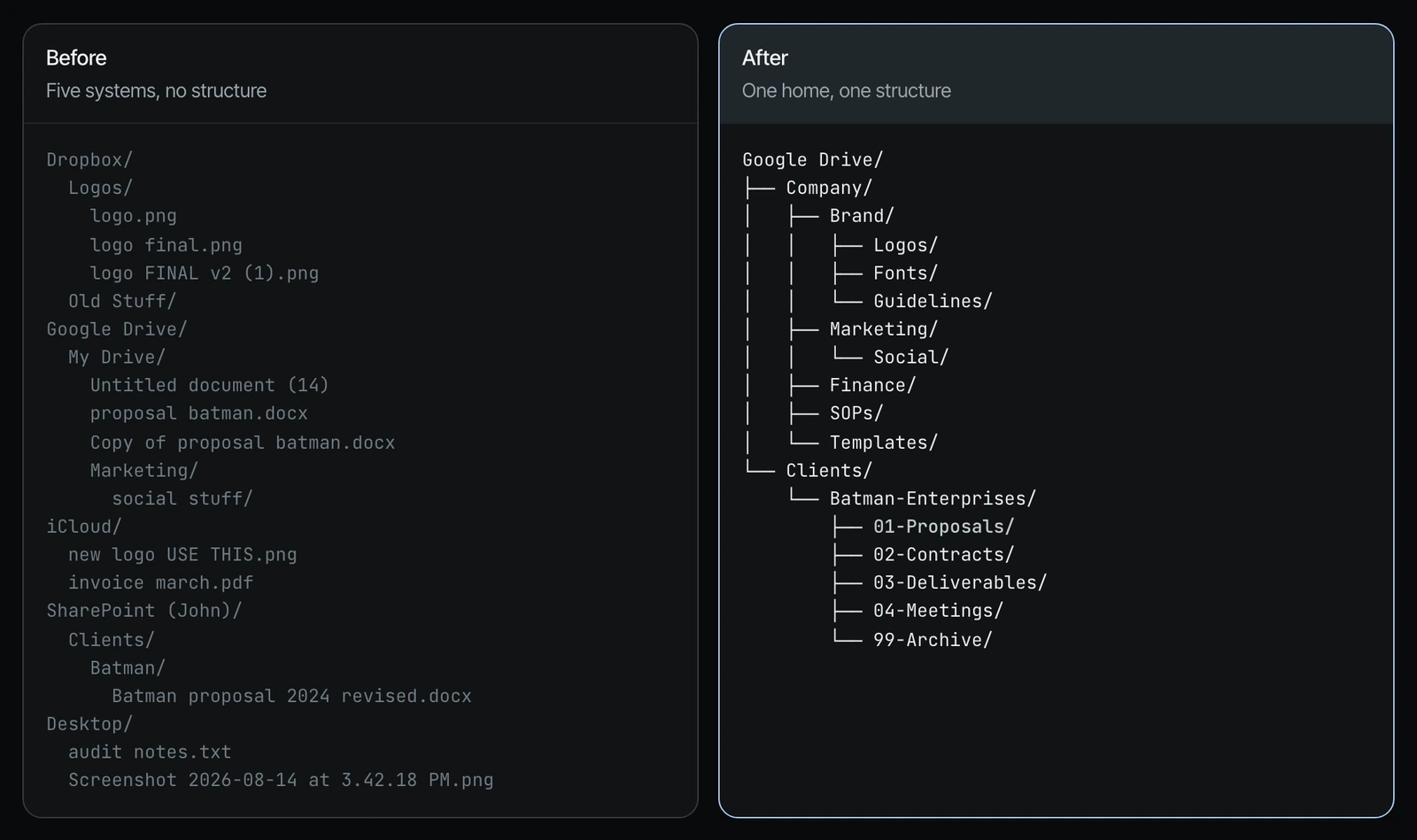
Ask for "the current Batman Enterprises proposal" on the left, and the agent searches five systems, opens at least four files, and guesses which one is current. On the right, it goes straight to Clients, then Batman-Enterprises, then 01-Proposals.
File naming conventions best practices, with before and after examples
I share this example a lot, but it's a good, simple one. Someone on a client's team, a human, named an old logo "Newest Logo," and they didn't name the newest one properly (25:11). So every time they asked the agent to bring up the new logo, it brought up the old one, because it was named inappropriately and the agent looked at the name, not the date.
So you need to pick the one source of truth for your files, and you also need an agent and human friendly naming system (25:43).
| Before | Why it costs you | After |
|---|---|---|
| logo FINAL v2 (1).png | Three "finals." The agent opens every one to guess. | Brand_Logo-Primary_v2.png |
| new logo USE THIS.png | True until the next logo. A version number never lies. | Brand_Logo-Primary_v3.png |
| proposal batman.docx | No date, no version. It can't tell old from current without opening it. | 2026-09-15_Batman-Enterprises_Proposal_v1.docx |
| Copy of proposal batman.docx | Duplicate: read twice, and maybe the wrong one gets sent. | Duplicate. Deleted. |
| Batman proposal 2024 revised.docx | "Revised" makes an old file look current. | 2024-11-03_Batman-Enterprises_Proposal_v2.docx, moved to 99-Archive |
| invoice march.pdf | Which year? Which client? It has to open it to find out. | 2026-03-31_Batman-Enterprises_Invoice-1042.pdf |
| audit notes.txt | Could belong to any client. | 2026-08-14_Batman-Enterprises_Audit-Notes_v1.md |
| Untitled document (14) | Zero clues. The whole file gets read every time. | Reviewed, then renamed or deleted |
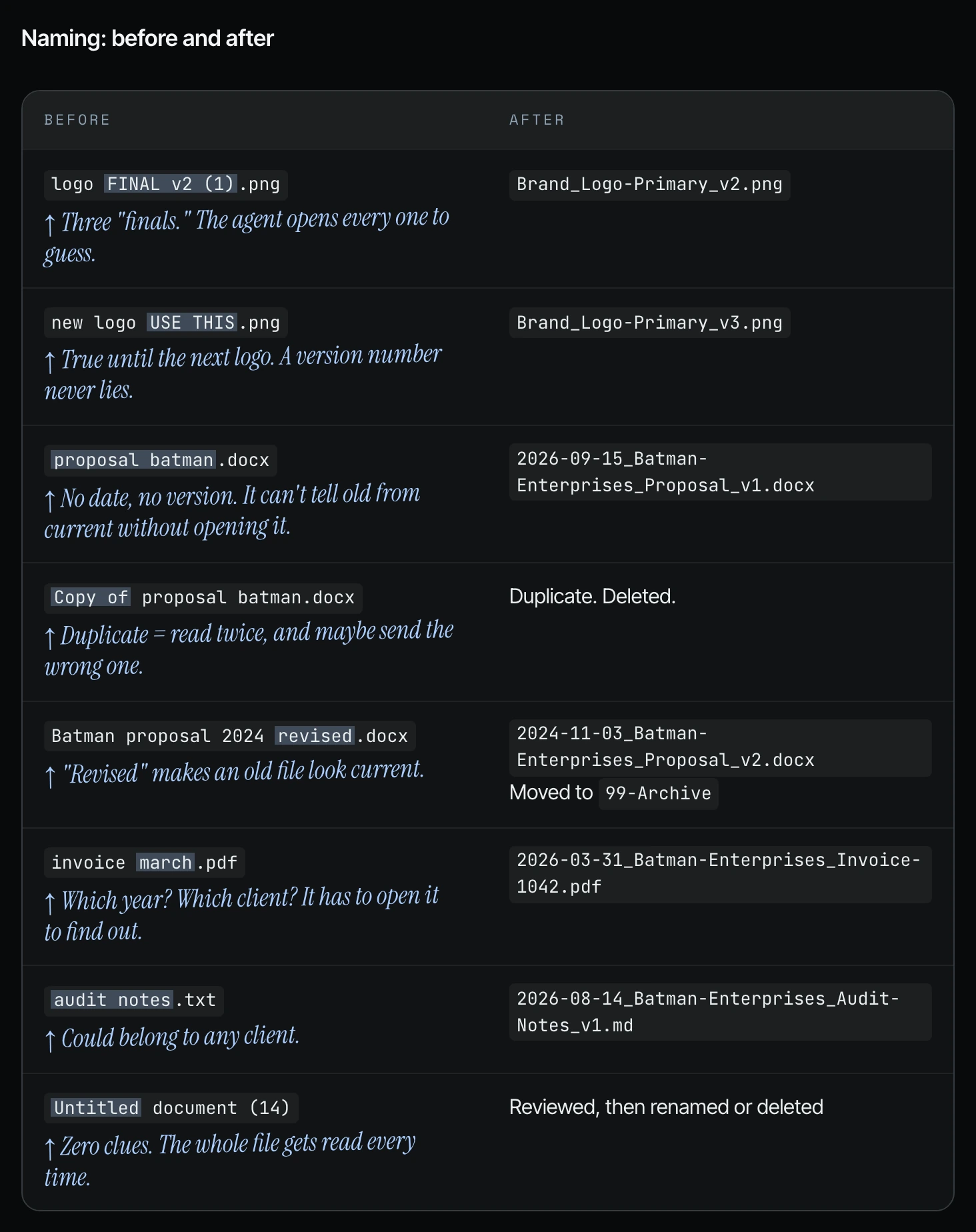
Here is how that plays out. With logo final V2 and three finals, the agent opens every one to guess. You say, "Hey, go give me the final logo." It has to look through three every time before it comes back, and then you say, "Why is it taking so long?" (25:43) With "proposal batman.docx," there's no date and no version, so it can't tell old from current. Six months from now you say, "Pull the proposal we did for this company," and it pulls the old one because the newest one was never named appropriately (26:14). A copy of a proposal is a duplicate the agent reads twice, and maybe it sends the wrong one, and you're burning tokens for no reason. With "invoice march.pdf," which year, which client? It has to open it to find out, and then it has to burn tokens to read a PDF (26:47).
The naming pattern is YYYY-MM-DD_Client_Document-Type_v#:
- Date first. Files sort in order, so the newest version is easy to find.
- Client and document type next. The agent knows what a file is without opening it.
- Version number last. Never "final," "FINAL," or "USE THIS." There's always a next version.
- Hyphens inside a part, underscores between parts. No spaces.
- Evergreen files skip the date. Logos and brand guidelines, for example.
A good file name is a small index. Every file the agent doesn't have to open to identify is usage you don't pay for.
How to clean up a shared drive using AI
You don't need to do this all yourself. It takes a lot of time and energy to migrate all these things and think about it, but now your agent can do it for you (23:37). You just have to be the architect of the plan. You know your business better than anyone. You probably know which infrastructure you should be on, or you could co-think through that with an executive or with an agent (24:08).
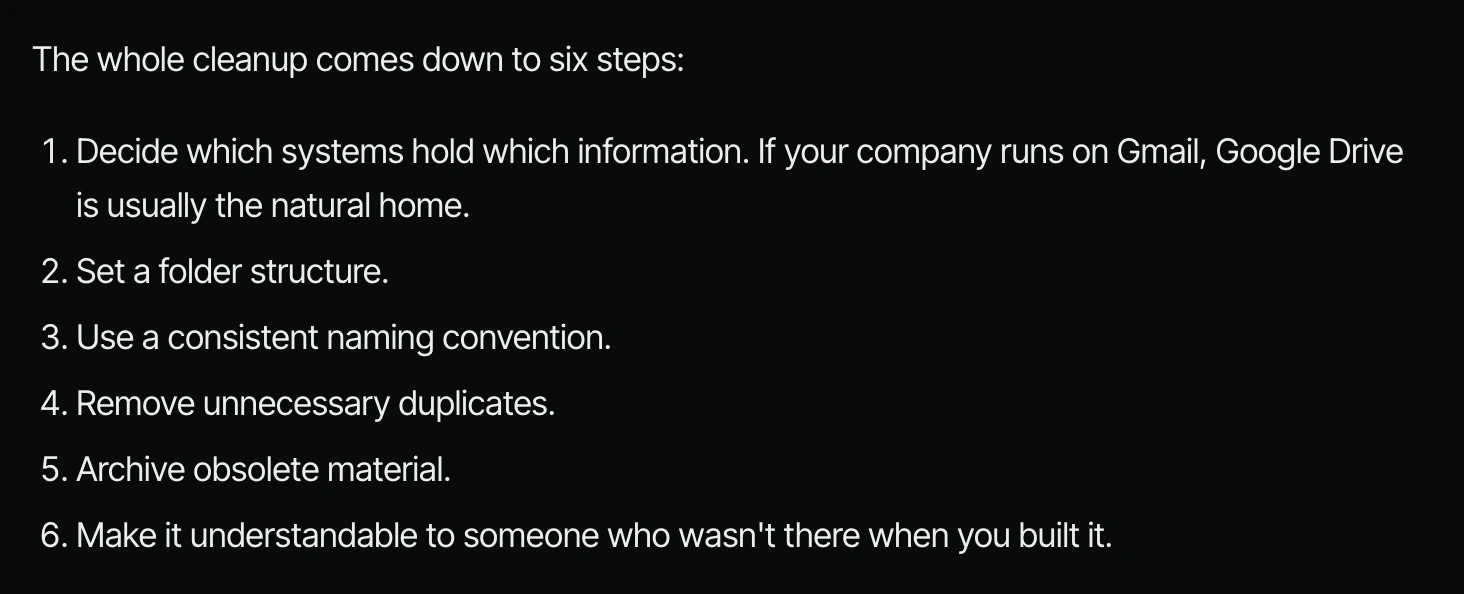
The whole cleanup comes down to six steps:
- Decide which systems hold which information. If your company runs on Gmail, Google Drive is usually the natural home.
- Set a folder structure.
- Use a consistent naming convention.
- Remove unnecessary duplicates.
- Archive obsolete material.
- Make it understandable to someone who wasn't there when you built it.
Step 1. Have the agent audit first. Let's say you decide to move everything into SharePoint. You want it to take an audit of how things are currently organized, what needs to be migrated, and what it recommends for the new organizational structure of your business files (24:08). Start with discovery, not moving files. Copy this prompt into Codex or Claude Code (26:47):
Audit where my business files live and propose a cleanup plan.
This is read-only. Do not move, rename, delete, or share anything.

STEP 1: FIND EVERY PLACE FILES LIVE
Start with the "Files and search order" section of AGENTS.md.
Then check every storage location you can reach:
- Local folders on this computer (Desktop, Documents, Downloads)
- Every connected storage plugin or connector:
  Google Drive, Dropbox, OneDrive, SharePoint, Box, iCloud, or others
List each location, and whether you could access it.
If a location I use isn't connected, tell me. Don't switch to the browser.

STEP 2: AUDIT EACH LOCATION
Skim folder and file names. Don't open files unless a name tells you nothing.
For each location, report:
- What kinds of files are in it (client work, finance, brand, contracts, etc.)
- Roughly how many files, and how recently they were used
- Duplicates, including the same file saved in more than one place
- Files that look obsolete (untouched for over a year, superseded versions)
- Names that don't tell you what the file is

STEP 3: UNDERSTAND MY BUSINESS
Use AGENTS.md, my email, and the files themselves to figure out:
- What we sell and who our clients are
- Which files the team uses every week
- Which tools are our source of truth (CRM, accounting, project management)

STEP 4: PROPOSE THE PLAN
Based on how my business actually works, recommend:
- One home for each type of file, and why (usually the storage that matches
  our email and calendar: Google Workspace means Drive, Microsoft 365 means
  SharePoint or OneDrive)
- A folder structure, with client folders if we do client work
- A naming convention, with 3 examples using my real file types
- What to archive, what to delete, and what to leave alone
- The order to do it in, starting with the folders we use most

Keep it to two pages. Flag anything you're unsure about as a question.
Stop after the plan. Nothing moves until I approve it.
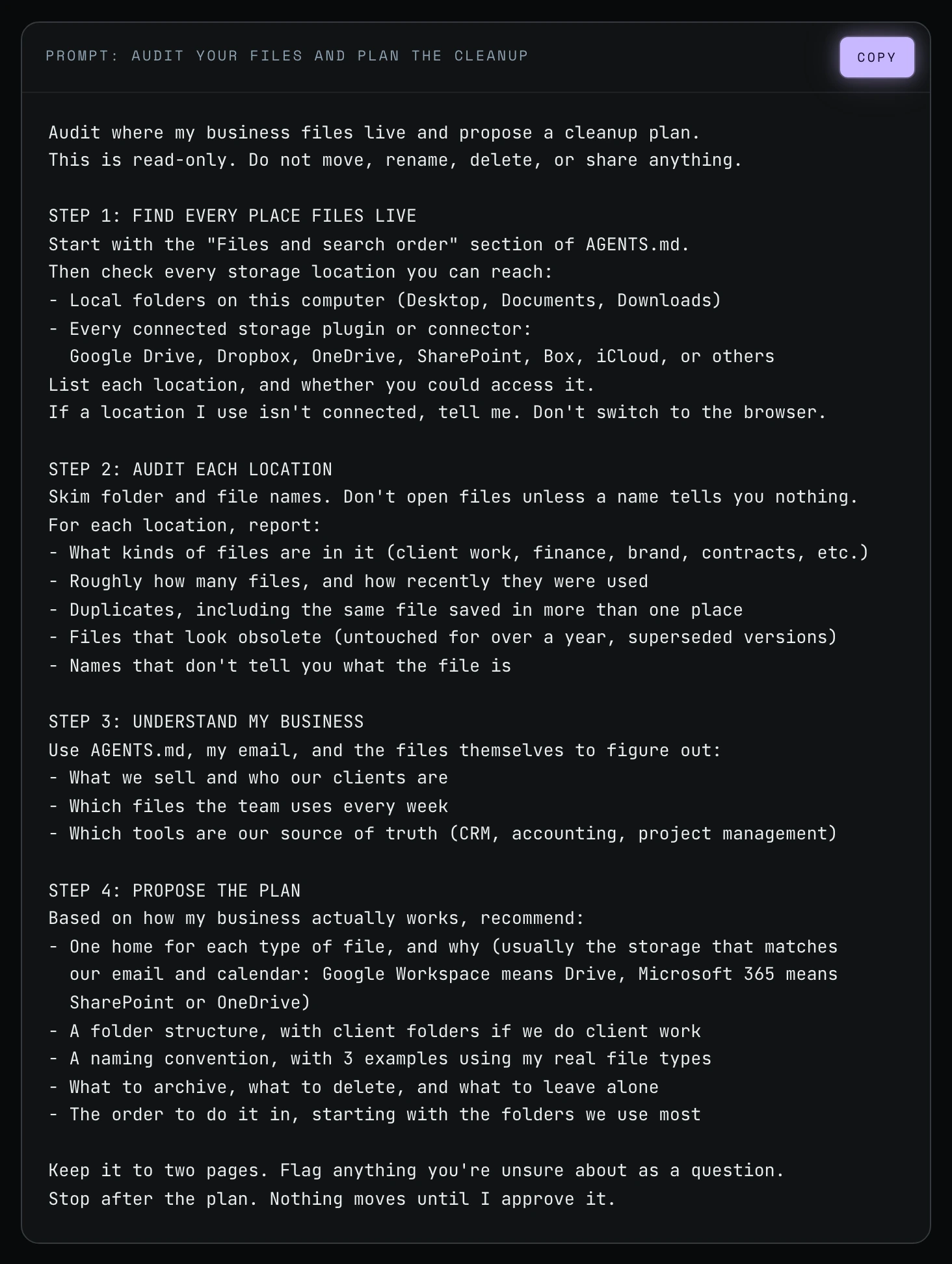
Step 2. Review and approve the plan. Nothing moves until you approve it.
Step 3. Once the plan is approved and the files are moved, update the agents.md (the standing instruction file every agent reads first) (27:20) you set up in way 7:
The cleanup is done. Update AGENTS.md.
Only add what an agent couldn't work out by searching:
- The source of truth for each type of information
- The naming rule, with one good and one bad example
- Any place agents looked in the wrong spot during the cleanup
Don't add a folder map. Keep the file under 60 lines.
Add a line to the change log.
Step 4. Put agents in charge of keeping it clean. Do one baseline operational cleanup of your files to make it human and agent friendly, and then have agents in charge of maintaining that cleanup and the structure and order of it, or else entropy will take over (26:47).
Frequently asked questions
How do I organize Google Drive using AI?
Have Codex or Claude Code run a read-only audit of every place your files live, then propose one folder structure, one naming convention and what to archive. You approve the plan, the agent moves and renames files, and agents keep the structure clean afterward.
Can AI organize files and folders for my business?
Yes. Shanee says the agent can do the audit and the migration; your job is to be the architect, choosing the infrastructure and approving the plan. Your team doesn't need technical skills, because the audit prompt is plain English and read-only.
What are file naming conventions best practices for AI agents?
Shanee uses YYYY-MM-DD_Client_Document-Type_v#, for example 2026-09-15_Batman-Enterprises_Proposal_v1.docx. The date sorts files in order, client and document type tell the agent what a file is without opening it, and a version number replaces "final."
How do I clean up a shared drive?
Decide which systems hold which information, set a folder structure, use one naming convention, remove duplicates, archive obsolete material, and make it understandable to someone who wasn't there. Write your agents.md first so permissions are in place before an agent touches your files.
Where should a small business keep its files for AI agents?
In one home that matches the rest of your systems. Shanee's rule of thumb: Gmail and Google Workspace means Google Drive; Microsoft 365 means SharePoint or OneDrive. Keep a backup, but give agents one place to look.
Why does file naming affect token usage?
Vague names force the agent to open files to find the right one, and reading a PDF costs tokens. With three logos named "final," the agent opens all three every time you ask for the logo.
Related ways in this series
- Create a really good agents.md or claude.md: set permissions before the cleanup and update the file after.
- Make your business data agent-friendly: the next level, so agents don't reread the same folder for every question.
- Turn repeat agent work into a script: a daily script that checks new files follow your naming rules.
- Point the agent to a file instead of uploading it: why a well-named file in one place costs nothing until it's opened.
- Get your business ready for AI agents: where the file cleanup fits in the wider readiness work.
- Back to the full guide: How to Reduce Codex and Claude Code Token Usage, 20 Ways
Sources
Official / Primary Sources
- Shanee Moret, "20 Ways to Use Codex and Claude Code Without Burning Your Usage (Part 1)" (YouTube, 2026-10-02) , the one-home recommendation, before/after layout, logo naming story, naming examples and cleanup prompt.
- Shanee Moret, "20 Ways to Optimize How You Use Codex and Claude Code Part 2" (YouTube, 2026-10-03) , the daily script that checks new files follow the rules.
- Shanee Moret, "20 Ways to Optimize Your Token Usage in Codex and Claude Code" (GrowthAcademy.Global field guide, 2026) , full file trees, naming table, naming pattern, six steps and the update-AGENTS.md prompt.