The best way to handle AI agent mistakes in Codex or Claude Code is to read what the agent says, ask why it failed, fix that one thing, then fix the root cause in its rule book. A mistake you skip comes back every week, and your business pays for it in usage and staff time. I help established business owners build agents inside their companies, and on the day I recorded this video, an agent for one of my clients said it didn't have access to something it should have been able to do (video, 17:33). We had it look at the root cause, found a loophole, and closed it.
In short: - When Codex or Claude Code says "Sorry, I can't do that," ask why instead of saying "try again." - The answer usually points to one fixable thing: an expired sign-in, a missing browser login, or a plugin that has hit its limit. - After the one-time fix, ask why it keeps happening, and have the agent propose one new line for agents.md (Codex) or claude.md (Claude Code), the rule book your agents read at the start of every session. - Approve that line before it is saved, and add a standing "Mistakes" section so every agent finds the root cause before it retries.
Part of the series: How to Reduce Codex and Claude Code Token Usage: 20 Ways. This is way 16. Previous: If the same thing fails twice, make the agent stop · Next: Test it on a small piece before the agent does the whole job
16. What to do when an AI agent makes a mistake: read what it says first
Read what the agent says before you say it again. When an agent says it can't do something, it usually tells you why. Fix that one thing. Then ask again (16:31).
Why does my agent keep saying "Sorry, I can't do that"?
| Turn | The loop | The way out |
|---|---|---|
| You | "Update the contacts in [software]." | "Update the contacts in [software]." |
| Agent | "Sorry, I can't do that." | "Sorry, I can't do that." |
| You | "No, you can do it. Try again." | "Why can't you do that?" |
| Agent | "Sorry, I can't do that." | "The plugin sign-in expired." |
| You | (back to the start) | "Okay, let's sign back in." |
You have to ask why (16:31). Retrying doesn't change the fact that the agent can't reach the software. A "plugin" here is the built-in connection between your agent app and a piece of software like your CRM.
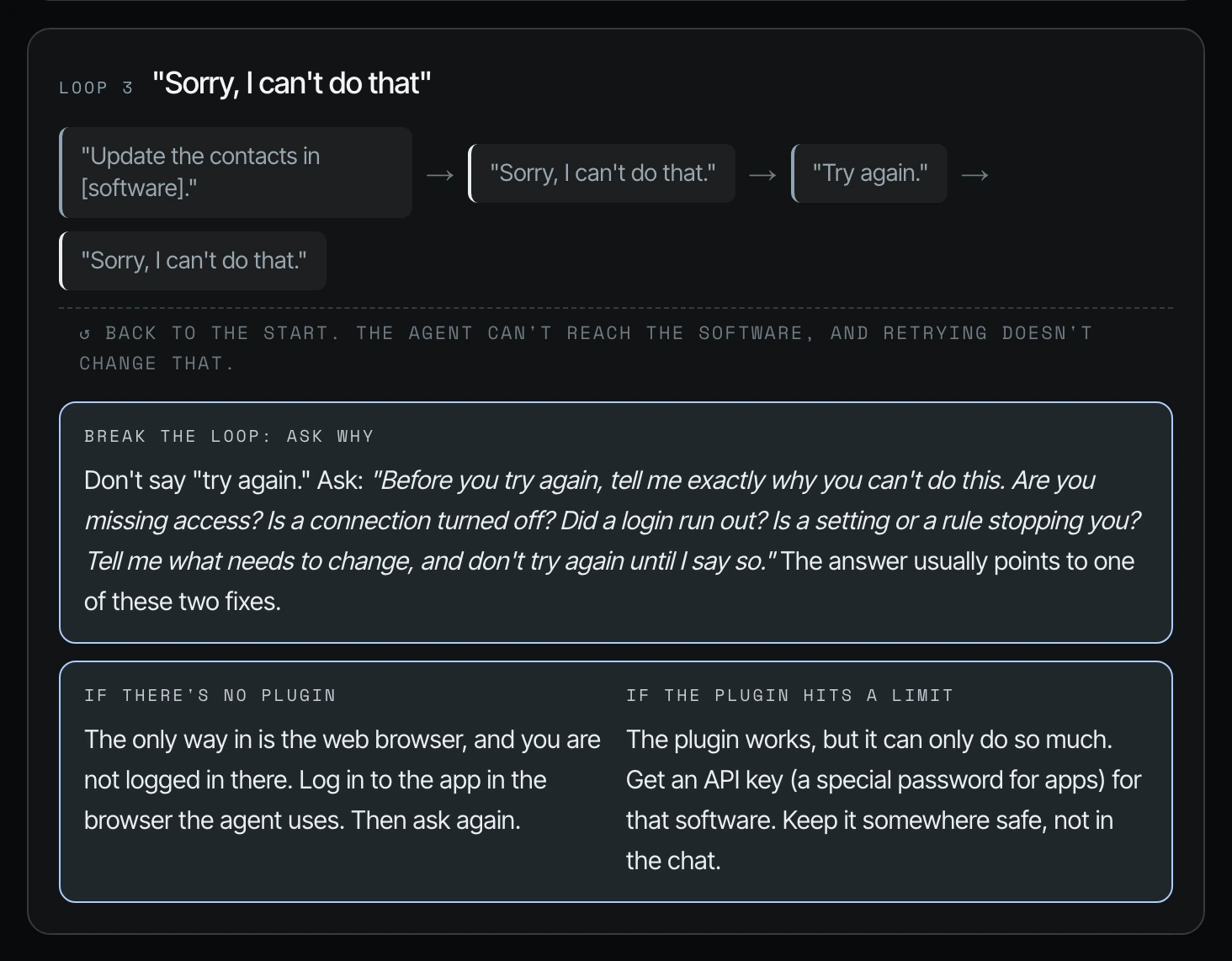
Instead of "try again," you can paste this ask-why prompt from my field guide:
Before you try again, tell me exactly why you can't do this.
Are you missing access? Is a connection turned off? Did a login run out?
Is a setting or a rule stopping you?
Tell me what needs to change, and don't try again until I say so.
The answer usually points to one of two fixes:
- If there's no plugin, the only way in is the web browser, and you are not logged in there. Log in to the app in the browser the agent uses, then ask again.
- If the plugin hits a limit, the plugin works but can only do so much. Get an API key (a special password that lets apps talk to each other) for that software, and keep it somewhere safe, not in the chat. See way 3.
Why AI agent mistakes repeat, and how to fix the root cause
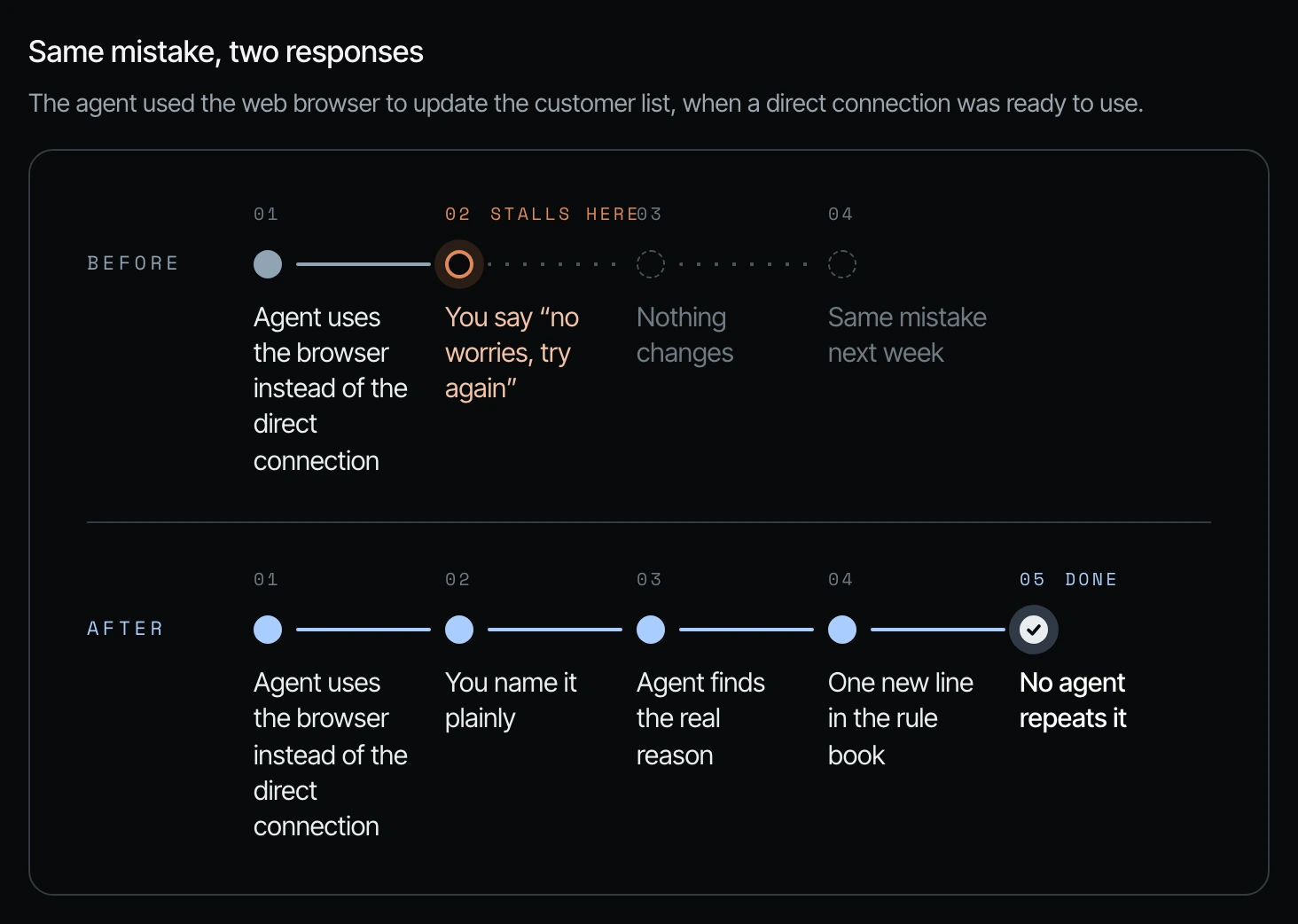
Then you need to fix the root causes (16:31). If you constantly need to sign back in and it's annoying you, you need to ask: why does this keep happening? How can we prevent this in the future (17:02)?
Here is a good example. The agent uses the browser instead of the direct connection. You say, "No worries. Try again." Nothing changes, and it repeats the same error next week (17:02).
When it does something it isn't supposed to do, like using the browser when you have an API key, you say, "Stop. Why are you using the browser?" The agent finds the real reason, and then the agent is able to fix the agents.md, the claude.md, the instructions for the future agents (17:33).
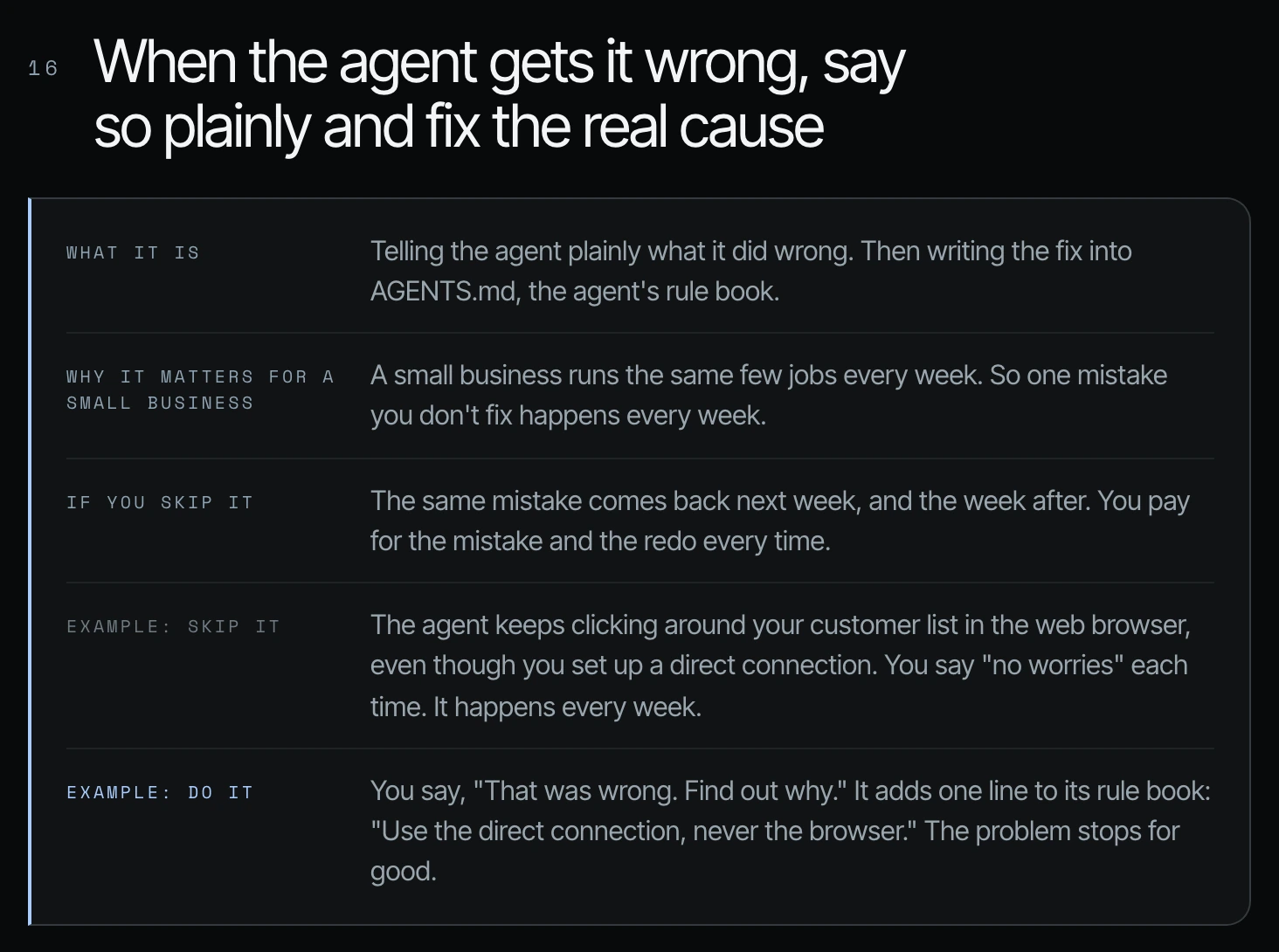
Same mistake, two responses
| Step | Before: "no worries, try again" | After: name it and fix the cause |
|---|---|---|
| 1 | Agent uses the browser instead of the direct connection | Agent uses the browser instead of the direct connection |
| 2 | You say "no worries, try again" (this is where it stalls) | You name it plainly |
| 3 | Nothing changes | Agent finds the real reason |
| 4 | Same mistake next week | One new line in the rule book |
| 5 | Done: no agent repeats it |
A client story: the master Google credential loophole
This actually happened to a client of mine the day I recorded. She has the master Google credential for all her Google Cloud projects and Workspace. The agent wanted to do something and said it didn't have access, or it was using slow browser use (17:33).
We had it look at the root cause of why that happened. It basically said: yes, the master credential key is available, but there was a loophole where the agent could revert back to the basic connector that didn't have what she needed at that time. So we got rid of the loophole (18:04).
I had the same thing happen to me. I knew my agents had a YouTube API key, gave one a task to upload a video, and saw it taking a very long time through the browser. I stopped it and asked, "Don't we have a YouTube API key?" It only had read capabilities, so I took about 20 minutes to enable upload and put rules in place for future agents (Part 1, 10:24). That browser trouble still showed up as a cost in my own weekly usage report (Part 2, 25:51).
How to fix the root cause in Codex or Claude Code
Step 1. Stop the agent and name the mistake plainly. Don't say "no worries."
Step 2. Ask why before you let it redo anything. Use this prompt from my field guide. Change the details to match your mistake.
Stop. You used the browser to update the CRM. There's an API key for it,
so that was the wrong route, and it cost a lot more usage than it should have.

Don't redo the work yet. First, find the root cause:
1. What did you do, step by step, and where did you choose the browser?
2. Why? Quote the instruction, the missing instruction, or the failed
   connection that led you there.
3. Was the problem in AGENTS.md, in my prompt, or in the setup
   (key missing, expired, or stored somewhere you couldn't find)?

Then propose the exact line to add to or change in AGENTS.md so no
future agent makes this mistake. Show me the line before you save it.
Only after I approve it, redo the task the right way.
Step 3. Approve the new rule book line. Read the line it proposes. Some of the best lines come from an agent telling you your own instructions were unclear.
Step 4. Add a standing "Mistakes" section to your agents.md or claude.md so every agent handles mistakes this way:
## Mistakes
- If I tell you something was wrong, don't apologize and retry.
  Find the root cause first, and tell me plainly what it was.
- If you break a rule in this file, say so before I find it.
- Every root cause ends with a proposed change to this file.
- Never use the browser for software that has an API or plugin listed
  under Tools. If the API fails, stop and report it.
Don't turn your cheek to agent mistakes
This is very important. I would retitle this one: don't turn your cheek when an agent makes a mistake and you know that it isn't supposed to be doing that thing, because it will repeat that mistake if you don't rectify it (18:04).
Frequently asked questions
What should I do when an AI agent makes a mistake?
Stop the agent, name the mistake plainly, and ask why it happened before you let it redo anything. In Codex or Claude Code, fix the one thing the agent names, then have it propose a line for agents.md or claude.md so no future agent repeats the mistake (16:31).
Why does my AI agent say "Sorry, I can't do that"?
It usually can't reach the software, and it will tell you why if you ask. In Shanee's example, the agent explains that the plugin sign-in expired, you sign back in, and then you ask how to stop it happening again. (16:31).
Why does Claude Code ignore my claude.md and use the browser?
Usually something in the setup leaves a gap that lets Claude Code or Codex fall back to a slower route, even when the rule book says otherwise. In Shanee's client example, the master Google credential was available, but a loophole let the agent revert to a basic connector. Asking "Why are you using the browser?" surfaced it (18:04).
Where do I write the fix so Codex and Claude Code don't repeat the mistake?
Write it in agents.md for Codex or claude.md for Claude Code, the rule book your agents read at the start of every session, after you approve the exact line the agent proposes.
What does an unfixed agent mistake cost a small business?
You pay for the mistake and the redo every time it comes back. A small business runs the same few jobs every week, so a mistake you don't fix shows up again next week.
Related ways in this series
- If the same thing fails twice, make the agent stop: the vague-feedback and Chrome loops that come right before this one.
- Stop forcing agents to click around software that has an agentic connection: why browser clicking burns so much usage.
- Graduate to API keys: the fix when a plugin hits its limit.
- Create a really good agents.md or claude.md: where every root-cause fix ends up.
- How to supervise AI agents with work trails: how to read what your agents did so you catch mistakes early.
- Why Codex asks permission for everything (and the 2-minute fix): a related setup problem worth fixing at the root.
- Back to the hub: How to Reduce Codex and Claude Code Token Usage: 20 Ways
Sources
Official / Primary Sources
- Shanee Moret, "20 Ways to Optimize How You Use Codex and Claude Code Part 2" (YouTube, 2026-10-03) , the "Sorry, I can't do that" loop, asking why, fixing root causes, the master Google credential loophole and "don't turn your cheek."
- Shanee Moret, "20 Ways to Use Codex and Claude Code Without Burning Your Usage (Part 1)" (YouTube, 2026-10-02) , the YouTube upload through the browser when an API key existed.
- Shanee Moret, "20 Ways to Optimize Your Token Usage in Codex and Claude Code" (GrowthAcademy.Global field guide, 2026) , the ask-why prompt, the two fixes, the "same mistake, two responses" comparison, the root-cause prompt and the Mistakes block for AGENTS.md.