Run the math on your own Google situation. A business inbox, a personal account that still receives half your calendar invites, maybe a second venture with its own domain. Most owners operate at least two.
Until late August, ChatGPT could connect one Google account per conversation, so every answer came from half the picture. On August 28, 2026, 9to5Mac reported multi-account support for Gmail, Google Calendar, and Google Contacts in ChatGPT and Codex. A public X post supplied the interface screenshots used below.
Open Settings in ChatGPT or Codex, find the connected apps area, and connect each Google account separately, granting its scopes. One conversation can then check every connected calendar, search every connected inbox, and look up contacts across accounts. The capability is available globally on Plus, Pro, Business, and Enterprise plans across web, desktop, iOS, and Android.
Why One Account Was a Problem
An agent that sees one calendar schedules against one calendar. The Tuesday slot it confidently offers may already hold a school pickup or a call booked on the other account, and you find out when the conflict does.
Email had the same blind spot. Ask for yesterday's important messages and the answer skipped the other inbox entirely, which meant triage still ended with you checking everything by hand.
Multi-account support closes that gap. In a single conversation, the agent can now check all connected calendars when planning, find emails across every connected inbox, and look up contacts across the organization.
The same support landed in Codex, which matters if an agent does structured work for you across projects. It can now pull calendar and inbox context from every connected account rather than from whichever one it happened to be wired to.
How to Connect a Second Google Account
The flow takes a few minutes per account. Expect the exact menu wording to differ slightly by app version and platform.
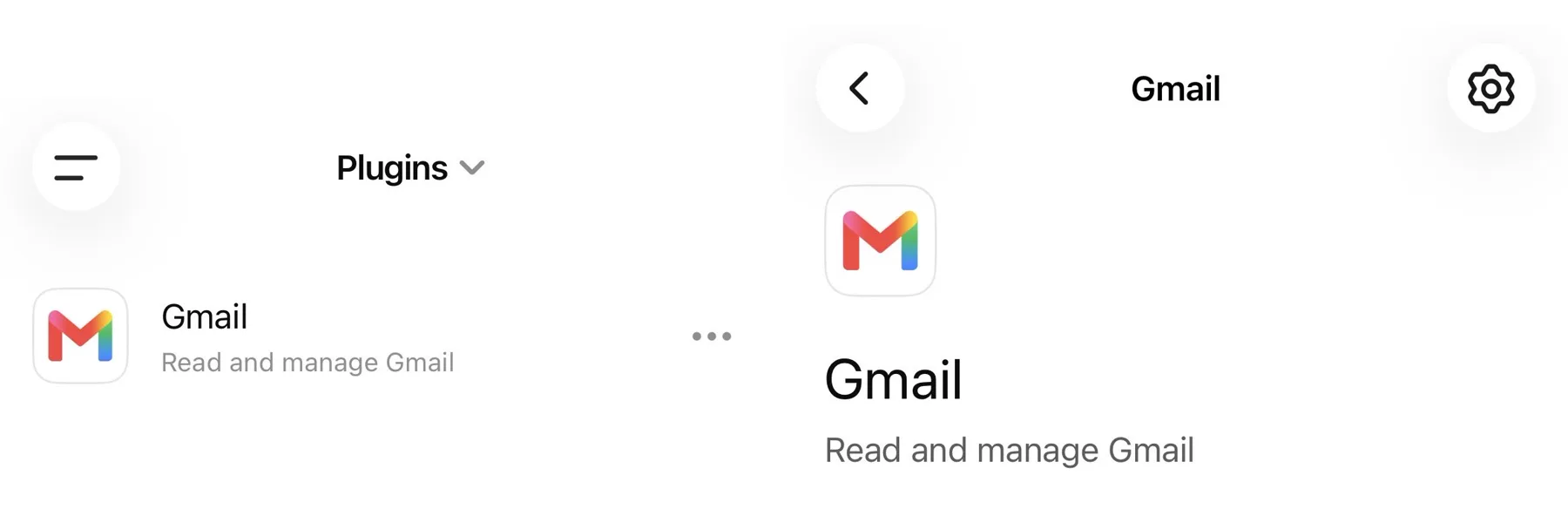
- Open Settings in ChatGPT or Codex on web, desktop, iOS, or Android.
- Find the connected apps or connectors area. This is where Google connections live, whatever your version labels it.
- Connect the first Google account if it is not already there, granting the Gmail, Calendar, and Contacts scopes you intend to use.
- Repeat for each additional account. Sign into that account when prompted and grant its scopes deliberately.
- Confirm every account shows as connected before you rely on a cross-account answer.
Grant scopes with intent. Each connected account widens what the agent can read, so the connection step is the real decision, and it deserves a moment of thought per account.
The First Three Tasks to Run
These three prove the connections are working and pay for the setup immediately.
Cross-Calendar Conflict Check for Next Week
Ask for every conflict, double-booking, and suspiciously tight transition across all connected calendars for the next week. This is the check that single-account access could never do honestly.
Unified Inbox Triage of Yesterday
Ask for everything that arrived yesterday across both inboxes, grouped into what needs a reply, what needs a decision, and what is noise. One list replaces two scanning sessions.
Contact Lookup Across Accounts
Ask for a person's details without remembering which account holds them. Contacts scattered between a personal account and a business directory finally resolve from one question.
Each of these is a one-line prompt, and running them on day one catches scope problems early. If an answer comes back half-blind, you will see which account is missing before a real decision depends on it.
The Caveats Worth Respecting
Connect only accounts you control. A shared inbox or a client's account raises questions of consent and access that a convenience feature should never answer for you.
Disconnecting an account removes its context. If a conversation depends on data from a connected inbox and the connection goes away, that context goes with it.
The wording will drift. Menus, labels, and connector names vary slightly between app versions, so treat the steps above as the shape of the flow rather than a script.
Review the connection list on a schedule. Accounts accumulate, ventures wind down, and access that made sense in March deserves a fresh look in September. A quarterly pass is cheap insurance.
Reading is the grant here, and outward actions deserve their own gate. An agent with two inboxes of context can draft better replies and tighter schedules; keep sending and booking behind your approval, the same standard we apply to event-triggered tasks.
Once your accounts are connected, the follow-on features compound. Scheduled tasks can run against a complete calendar and inbox picture, and agents that can log into websites extend the reach past Google entirely.
Frequently Asked Questions
Which plans support multiple Google accounts in ChatGPT?
Plus, Pro, Business, and Enterprise, available globally across web, desktop, iOS, and Android as of the August 28, 2026 rollout. It covers Gmail, Google Calendar, and Google Contacts in both ChatGPT and Codex.
Can I mix a personal account with business accounts?
Yes, that is the headline use case: personal plus business, or several business accounts at once. Connect only accounts you control, and decide deliberately whether personal context belongs in business conversations.
What happens if I disconnect an account?
Its context is removed. The agent loses access to that account's mail, calendar, and contacts, so expect answers that depended on it to change.
I cannot find the option. Where is it?
Look in Settings under the connected apps or connectors area. The exact wording differs slightly by app version, and rollouts can reach accounts at different times.