If you heard that ChatGPT can now react when a client email arrives and then opened Codex desktop looking for a button labeled Choose your trigger, you are not overlooking it.
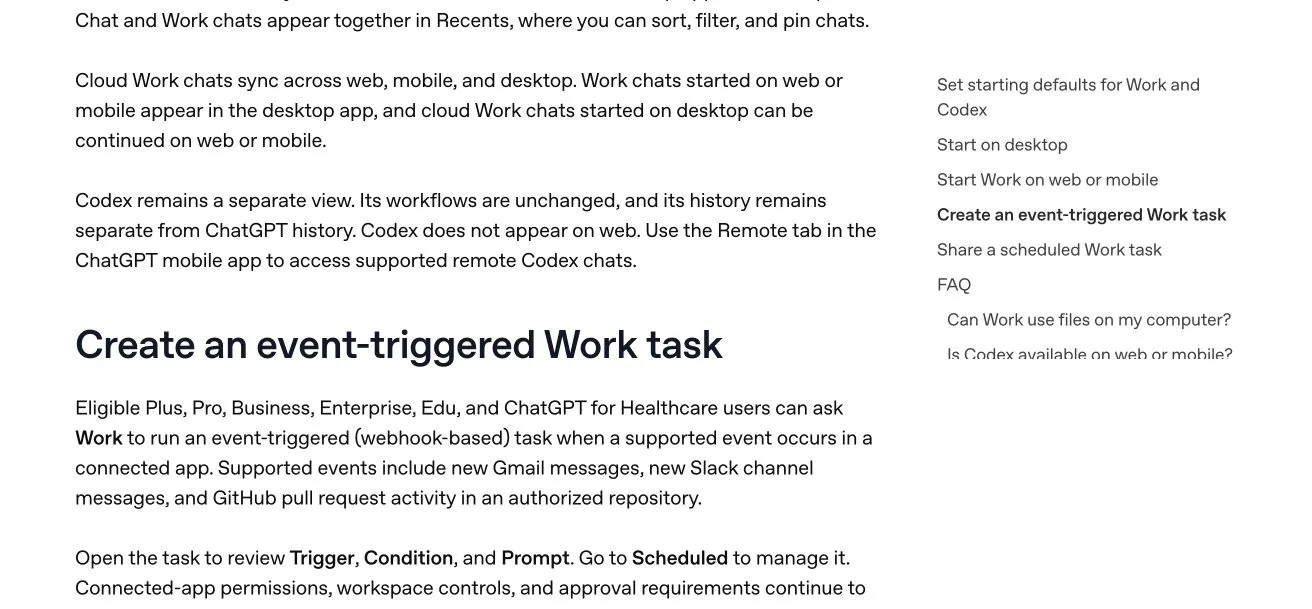
OpenAI introduced event-triggered tasks on August 25, 2026. They run in ChatGPT Work. OpenAI's current documentation says you create or edit them in ChatGPT on the web or in a supported mobile app. The desktop app can display an existing event-triggered task, but it cannot create or edit the trigger conditions. Codex automations are a separate system.
That product boundary matters. A useful new capability becomes confusing very quickly when people are told to look for it in the wrong interface.
Use ChatGPT Work on the web, iOS, or Android. Describe the event and the result you want in normal language. ChatGPT then shows the Trigger, Condition, and Prompt for review. Do not expect a trigger picker inside Codex desktop.
The Difference Between Scheduled and Event-Triggered
A scheduled task is a timer. You tell the agent to run every day at 9am, and it does.
An event-triggered task starts from a supported app update. You describe what should happen after a new Gmail message, a Slack channel message, or supported GitHub pull-request activity.
Think about how your business actually works.
A client does not email you at 9am because your agent is scheduled to check email at 9am. They email you when they are ready. A prospect does not signal interest on a schedule. A vendor does not send an invoice update at a time that is convenient for your agent.
Your business runs on events, not clocks.
That can reduce polling and delay. It does not mean ChatGPT is watching every part of your company, and it does not give the task unlimited access. The task can use only the connected app, account, channels, repositories, and permissions that are available to it.
What Triggers Are Available Right Now
OpenAI documents three supported event sources: Gmail, Slack, and GitHub. Eligible Plus, Pro, Business, Enterprise, and Edu users can create event-triggered tasks, as can eligible ChatGPT for Healthcare workspaces. Availability still depends on the account, region, workspace settings, app connection, and supported client. Free, Go, and FedRAMP workspaces cannot create them.
Gmail: New Incoming Message
Your agent fires when a new email arrives in a connected Gmail inbox. You can filter it by sender (only fire when this specific person or domain emails you) or by subject line keywords (only fire when the subject contains a specific word or phrase).
Example: When a message from an approved client domain arrives, summarize the request, classify its urgency, and prepare a reply draft for review. Use only the connected sources and permissions that the business has approved.
Slack: New Message in a Channel
A task can respond to new messages in a Slack channel that the connected ChatGPT app can access. OpenAI requires adding @ChatGPT to each monitored channel.
Example: When a new message appears in an approved client-delivery channel, summarize the message, identify any commitment or blocker, and prepare an internal decision note.
GitHub: Pull Request Activity
A task can respond to supported pull-request activity in an authorized github.com repository.
Example: When a pull request changes, prepare a plain-English summary of what changed, the checks that passed or failed, and what still needs a human decision. This is a ChatGPT Work trigger; a separate Codex task may still be the right place for a deep code review.
Why You May Not See the Trigger Option
Before assuming anything is broken, check these boundaries in order:
- Confirm the interface. Open ChatGPT Work on the web, iOS, or Android. Codex desktop is not where trigger conditions are created or edited.
- Confirm the plan and workspace. The account must be eligible. Free, Go, and FedRAMP workspaces do not support event-triggered tasks.
- Confirm the connected app. Go to Settings > Apps and connect the specific Gmail, Slack, or GitHub account the task is allowed to use.
- Confirm workspace controls. Enterprise, Edu, and ChatGPT for Healthcare administrators must enable Allow event-triggered scheduled tasks. Availability in Business workspaces can still depend on app and workspace settings.
- Describe the task in Work. The documented setup is conversational. Ask Work to respond to the supported event; then review the generated Trigger, Condition, and Prompt.
If those conditions are satisfied and the feature still does not appear, the honest conclusion is that it is not currently available in that account or workspace. Do not build an operating process around a control you cannot verify.
Why This Matters If You Are Not a Developer
GitHub is the third trigger, and yes, that one is aimed at teams that build software. But the Gmail and Slack triggers are squarely built for how established business owners actually operate.
Most business owners spend a significant part of every day doing three things: responding to email, following up on Slack, and making decisions based on who said what and when.
All three of those are reactive loops.
You open your inbox. Something is there. You read it, remember the context, decide what to do, and respond.
Then you do it again. And again.
Event-triggered agents can prepare that loop before you even get there.
The task can summarize the incoming email and, when an approved source is available to that task, use that context to prepare a draft. By the time you open the thread, you can be reviewing a draft instead of starting from scratch.
That is not eliminating your judgment. That is applying your judgment to something that is already prepared.
Five Real Business Use Cases
Here are five controlled ways an established business could test it:
1. Client support that does not wait until morning. A client emails your support inbox at 9pm. The event trigger fires. The task summarizes the email, uses only the approved context available to it, and prepares a first-response draft for review. When you wake up, you can review the draft instead of facing a cold inbox.
2. New prospect follow-up while the window is open. A prospect emails your inquiry address. The task summarizes the request and drafts a personalized reply using only approved sources. You review it before anything is sent.
3. Slack deal channel monitoring. Your sales team or contractors post updates in an approved deal channel. The task prepares a structured update containing the commitment, owner, deadline, and decision required.
4. Escalation detection in your inbox. Filter the Gmail trigger by subject keywords like "urgent," "problem," or "disappointed." When a message with those words arrives, your agent fires immediately and flags it as a priority, preparing a draft response before you even open it.
5. Contractor deliverable review. If you work with developers or technical contractors who use GitHub, set an event trigger to fire when they submit a pull request. Your agent can check the work against the brief, flag inconsistencies, and prepare a review summary. You spend five minutes approving or redirecting instead of reading raw code.
How to Set Up Your First Event Trigger
The setup is conversational, but the permissions and business rules still require judgment:
- Open ChatGPT Work on the web or a supported mobile app. Do not start in Codex desktop.
- Connect the approved app. In Settings > Apps, connect only the Gmail, Slack, or GitHub account the task should use. Review the requested permissions.
- Describe the event and result. For example: "When a new email from this client domain arrives, summarize the request and draft a reply for my review."
- Review Trigger, Condition, and Prompt. Confirm the account, sender or subject filter, Slack channel, or authorized GitHub repository before activating anything.
- Add the approval boundary. State what the task may prepare and what it may not send, post, forward, or change without approval.
- Test with a low-risk event. Use a controlled sender, channel, or repository event. Verify both the trigger and the output before using it with client work.
You may not need to write code, but you are still managing an integration: an external app connection, its permissions, the task condition, and the resulting action boundary.
The Approval Rule You Must Keep
Every event-triggered agent instruction needs one non-negotiable line.
Do not send, reply, post, forward, or take any outward-facing action. Prepare the draft and present it for my review. Nothing leaves this workspace until I approve it.
This is not a technicality. This is how you keep control of your business reputation while still getting the speed benefit.
An agent that fires the moment a client emails and then autonomously sends a response on your behalf introduces risk you do not want. The context might be wrong. The tone might be off. The client relationship might have nuances the agent does not know.
The value is the preparation, not the automation.
You still send. The agent just makes sure you are sending something good, fast, instead of starting from zero under pressure.
Even after repeated successful tests, expand authority only for a clearly defined, low-risk action with monitoring, a rollback path, and an owner who can stop the workflow. Good drafts do not prove that autonomous sending is safe.
Start Here: Your First Event-Triggered Prompt
Use this as the instruction when ChatGPT Work asks you to review the Prompt for a Gmail-triggered task:
A new email has arrived that matches my trigger filter. Read the full email carefully. Check if we have any prior context on this sender in my approved sources. Identify the main request or concern. Draft a clear, professional reply in my voice: direct, warm, no unnecessary filler. Flag whether this is urgent, routine, or something that needs my personal attention before any response goes out. Do not send, forward, reply, or take any action. Present the draft and your assessment for my review only.
Run this for two weeks before you change anything. Watch how the output evolves. Refine the instruction based on what the agent gets right and what it misses.
The goal is not a perfect first attempt. The goal is a system that gets better each time you use it.
Sources
Official / Primary Sources
- OpenAI: Scheduled and event-triggered tasks in ChatGPT
- OpenAI: ChatGPT Work and Codex
- OpenAI: ChatGPT release notes
What Comes Next
Event-triggered agents are the foundation for a bigger shift in how AI operates inside businesses.
Right now, most business owners are still managing AI the way they managed software a decade ago: you open it, you use it, you close it. The agent is passive until you activate it.
Event triggers change the posture. Your agent is now subscribed to your business. It is paying attention even when you are not.
That is not a reason to stop paying attention yourself. It is a reason to pay attention to the right things.
The client email you would have spent twenty minutes on gets a draft in two. The Slack thread you would have scrolled back through is already summarized. The decision is still yours. The groundwork is already done.
That is the practical value of an event-triggered agent for an established business owner.
Not replacing judgment. Removing the prep work that sits between you and using that judgment well.