A meaningful share of your business already happens in iMessage: the client who texts instead of emailing, the vendor confirming a delivery, the prospect replying to a follow-up. Until now, ChatGPT could see none of it.
On August 20, 2026, OpenAI shipped an Apple Messages plugin for the ChatGPT desktop app on macOS. TechCrunch and MacRumors covered the release. The capability is real, and so are the permissions it asks for.
With the plugin enabled in a ChatGPT Work or Codex workspace and macOS permissions granted, ChatGPT can search the iMessage, SMS, and RCS conversations stored on your Mac, draft replies from conversation context, and send messages through Apple Messages. A confirmation step is required before anything sends. It runs on Apple Silicon Macs, across all ChatGPT subscription tiers.
What the Plugin Actually Does
Three capabilities, in increasing order of consequence. It searches your message history across the iMessage, SMS, and RCS threads stored on the Mac. It drafts replies grounded in the actual back-and-forth of a conversation. And it sends messages through Apple Messages, after you confirm.
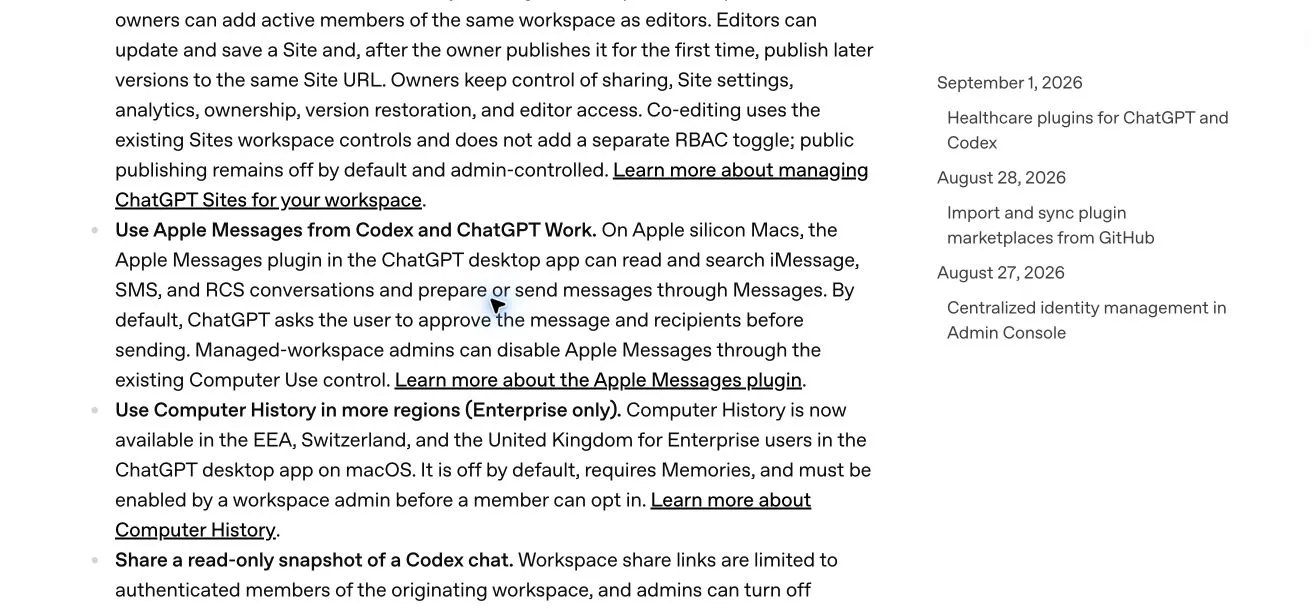
The processing runs locally on your device, and OpenAI states it does not build a full index of your messages. The plugin works inside ChatGPT Work and Codex workspaces; regular chat conversations are excluded.
This is the first time ChatGPT can act on live personal communication context. For an owner who runs prospects, clients, and vendors over text, that turns it into a genuine communication agent rather than a writing tool that never saw the thread.
The Setup
- Start on the right machine. The plugin requires the ChatGPT desktop app on an Apple Silicon Mac.
- Open a ChatGPT Work or Codex workspace. The plugin operates there; regular chat is excluded.
- Enable the Apple Messages plugin in the workspace.
- Grant the macOS permissions when prompted. The significant one is full disk access, which is how the plugin reads the Messages data stored on your Mac.
- Test on a low-stakes thread. Summarize a harmless conversation and draft one reply before pointing it at anything involving a client.
Nothing about the setup is difficult. The judgment calls come before it: which Mac, which workspace, and whether your message history belongs in an agent's reach at all. The caveats section below is for exactly that decision.
Three Business Uses Worth the Setup
Thread Summary Before a Call
Five minutes before a client call, ask for a summary of your recent thread with them: open items, commitments made in both directions, anything with an edge to the tone. You walk in current instead of scrolling in the parking lot.
Drafted Replies to Routine Client Texts
Scheduling confirmations, quick status answers, the yes-that-works class of message. The plugin drafts from the thread's context and your phrasing, and you read, edit, and confirm before anything sends.
Follow-Up Drafts After Meetings
After a meeting, ask for a short follow-up text to the person you met, grounded in your existing thread with them. The draft waits for your confirmation like everything else, and you capture the follow-up while the conversation is fresh instead of remembering it at 9pm.
The Honest Caveats
Full disk access is a serious grant. On a Mac it reaches well past Messages, so make the decision consciously, on a machine you control, and revisit it if the plugin stops earning its place.
Decide whether business texting belongs in scope at all. Some owners will connect everything; others will keep client threads out entirely. Both are defensible, and the choice deserves to be made on purpose instead of by default.
The confirmation step is your gate, so protect your own review habit. A gate you click through without reading stops being a gate. Read every draft as if it were about to leave, because it is.
Keep client-sensitive threads away from drafting. If a conversation contains things you would never want paraphrased back to anyone, leave it out of the drafts you ask for.
A graduated rollout keeps the risk proportional. Run summaries for a week, add drafting for routine threads once the summaries prove accurate, and let sending remain a deliberate, confirmed act every single time.
The pattern matches how we treat every agent capability: the tool prepares, the owner approves anything outward. This plugin ships with that gate built in, a better default than many of the setups our security guardrails guide was written to fix. It also landed in the same stretch of weeks as secure website login for ChatGPT Work, which says something about the direction: agents are reaching further into real operations, and your approval habits matter more with each step.
Frequently Asked Questions
Can ChatGPT send a text without my approval?
A user confirmation step is required before anything sends. That step is your approval gate, and keeping the habit of actually reading each draft is what makes it one.
Does OpenAI upload or index my messages?
The plugin runs locally on-device, and OpenAI states it does not build a full index of your messages. It still requires full disk access on the Mac, so weigh that grant against the value for how you work.
Does it work in regular ChatGPT conversations?
The plugin operates inside ChatGPT Work and Codex workspaces on the macOS desktop app; regular chat is excluded. It is available across all ChatGPT subscription tiers.
What hardware does it require?
An Apple Silicon Mac running the ChatGPT desktop app. The plugin reads the iMessage, SMS, and RCS conversations stored on that machine.