On August 19, 2026, LinkedIn added AI-powered event highlights to its event management tools. After a LinkedIn Live or virtual event ends, a "recommended clips" section automatically surfaces the strongest segments of the recording, along with suggested chapter breaks, per Social Media Today.
Most hosts let the recording sit unwatched once the event ends. The people who attended saw it, everyone else missed it, and an hour of your best material earns nothing further.
After your next Live ends, open the event in LinkedIn's event management tools and find the recommended clips section. Pick the four to six segments that each carry one complete idea, trim each clip to that idea, and publish them as standalone posts spaced across the following week.
What Shipped and Where It Lives
The feature lives inside LinkedIn's event management tools and activates after your event ends. Recommended clips appear alongside suggested chapter breaks for the recording.
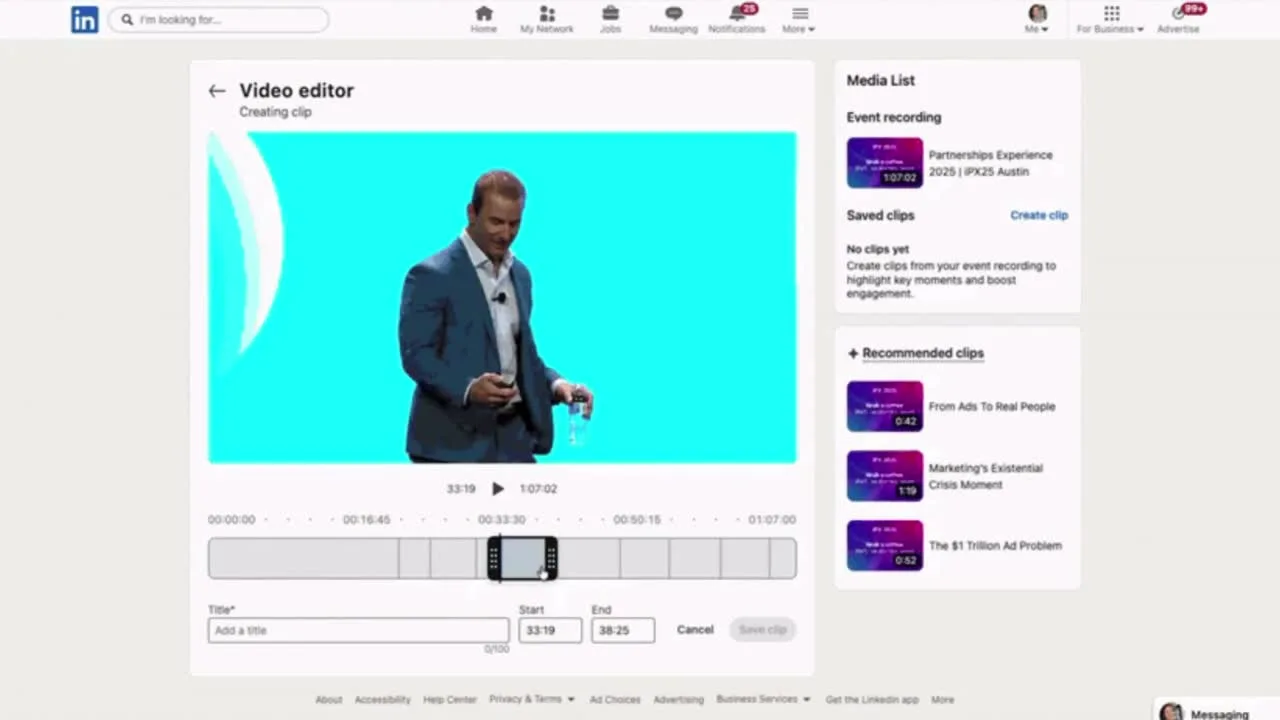
You work in a preview panel on the right side of the screen: select a clip, then extend or trim the segment before publishing it as a standalone short-form post. The stated purpose is extending reach beyond the people who attended, per Social Media Today's coverage.
That removes the usual friction. No editing software, no contractor, no export-and-upload round trip. Selection and judgment stay with you, which is exactly where they belong.
The Workflow: One Live Into Six Posts
- Host the Live as usual. Run the session for the people in the room. Teach well first; the clips are a byproduct of a strong session, never the goal of it.
- Open the recommended clips panel. When the event ends, go to the event in your event management tools and review what the system surfaced.
- Pick segments that carry one complete idea each. Skip anything that needs surrounding context to make sense on its own.
- Trim each clip to the idea. Extend or cut so the clip opens at the start of the thought and ends the moment the thought lands.
- Write a one-line setup for each clip. One sentence of post text telling the viewer what question this clip answers.
- Publish spaced across the following week. One clip per day or every other day, instead of six posts dumped on event day.
Total time after the event: minutes, most of it judgment rather than production.
What Makes a Segment Worth Clipping
The panel will offer more candidates than you should publish. Three tests separate a clip from filler.
A complete answer. Someone asked a question, and this segment answers it start to finish. Viewers who never saw the event can still walk away with the answer.
A strong claim you can stand behind. A clear position, stated with your reasoning. Clips of you hedging politely earn nothing; clips of you committing to a view travel.
A demo moment. You showed something on screen and it worked. Watching a real thing happen beats hearing it described.
If a segment passes none of the three tests, leave it in the archive. Six strong clips beat twelve mediocre ones.
Run the final check from the viewer's side. A clip is a standalone post competing in the same feed as everything else you publish, so ask whether someone who missed the event would save or share it on its own merits.
Honest Notes Before You Rely on It
Auto-selection surfaces candidates; your judgment still makes the cut. Some suggested segments will be setup, tangents, or half-answers that looked energetic to the system.
Check that every clip starts and ends clean before you publish. A clip that opens mid-sentence or cuts away before the payoff undercuts the credibility the Live earned you.
Expect the suggestions to be a starting point on judgment-heavy sessions. The extend and trim controls exist because the machine's first cut is rarely the right cut.
The Bigger System: The Live Is the Factory
The live event is the content factory. Clips are the distribution arm. Attendance on event day matters less than what the recording produces over the following weeks.
Consistency across weeks beats a single event-day spike. Six spaced clips keep you in the feed between events, each one carrying a complete idea to people who never registered.
The timing also lines up with LinkedIn's own AI visibility guide, which pushes creators toward substantive, durable reference content. A clipped answer from a real teaching session is exactly that material in video form.
Treat the week after each event as part of the event. Put the clip slots on your calendar before you go live, and the session earns attention for seven days instead of sixty minutes.
Frequently Asked Questions
Where do I find the recommended clips?
In LinkedIn's event management tools, after your LinkedIn Live or virtual event ends. The recommended clips section appears with suggested chapter breaks, and you select and adjust clips in a right-side preview panel.
Can I adjust what the system selects?
Yes. You can extend or trim each suggested segment before publishing, and you choose which suggestions get published at all. The auto-selection surfaces candidates; your judgment makes the final cut.
How many clips should one event produce?
Aim for four to six, each carrying one complete idea. Publish them spaced across the following week rather than all at once, with a one-line setup text on each.
Does this help if my live attendance was small?
Yes, and that is the purpose of the feature: clips publish as standalone posts, so the recording reaches people who never registered. A small room with a strong recording can still fill a week of distribution.