Short answer: Log into Codex, click the blue down arrow in the top left, let the app update and restart, then open the Codex menu and choose Check for Updates. When Codex confirms you are up to date, you are done.
I want business owners to treat Codex differently than a chatbot tab. ChatGPT answers questions. Codex does work across your files, local apps, browser sessions, websites, data, and business systems. That is exactly why the desktop app needs to stay updated.
When you are running an agent that can inspect a repo, update a website, generate a report, use plugins, or follow instructions from your operating system, old software creates avoidable friction. You can lose access to newer features, run into bugs that have already been fixed, or miss stability and security patches that matter when the tool is touching real business assets.
This guide shows the simple update path inside the Codex desktop app. It takes less than a minute, and it should become part of your normal operating rhythm before serious Codex work.
Why updating Codex matters
Codex is not just a writing surface. It is the place where your AI agent can work with the actual context of your business. That makes the update habit more important than it feels.
- New features show up in the app. If Codex ships a better workflow, model option, plugin experience, or tool behavior, you want the current app before you judge what Codex can or cannot do.
- Bug fixes remove false blockers. Sometimes the problem is not your prompt, your project, or your instructions. Sometimes the app simply needed the latest fix.
- Security patches matter. If an app can work with files, connectors, local projects, or browser sessions, you should not run it weeks behind.
- Agents need a stable surface. Serious Codex work depends on predictable menus, permissions, plugins, and runtime behavior. Updating reduces weirdness before it costs you time.
My rule is simple: before you ask Codex to do important work, make sure Codex itself is current.
Update the Codex desktop app
Step 1. Log into Codex.

Step 2. Click the blue down arrow on the top left of the Codex window.
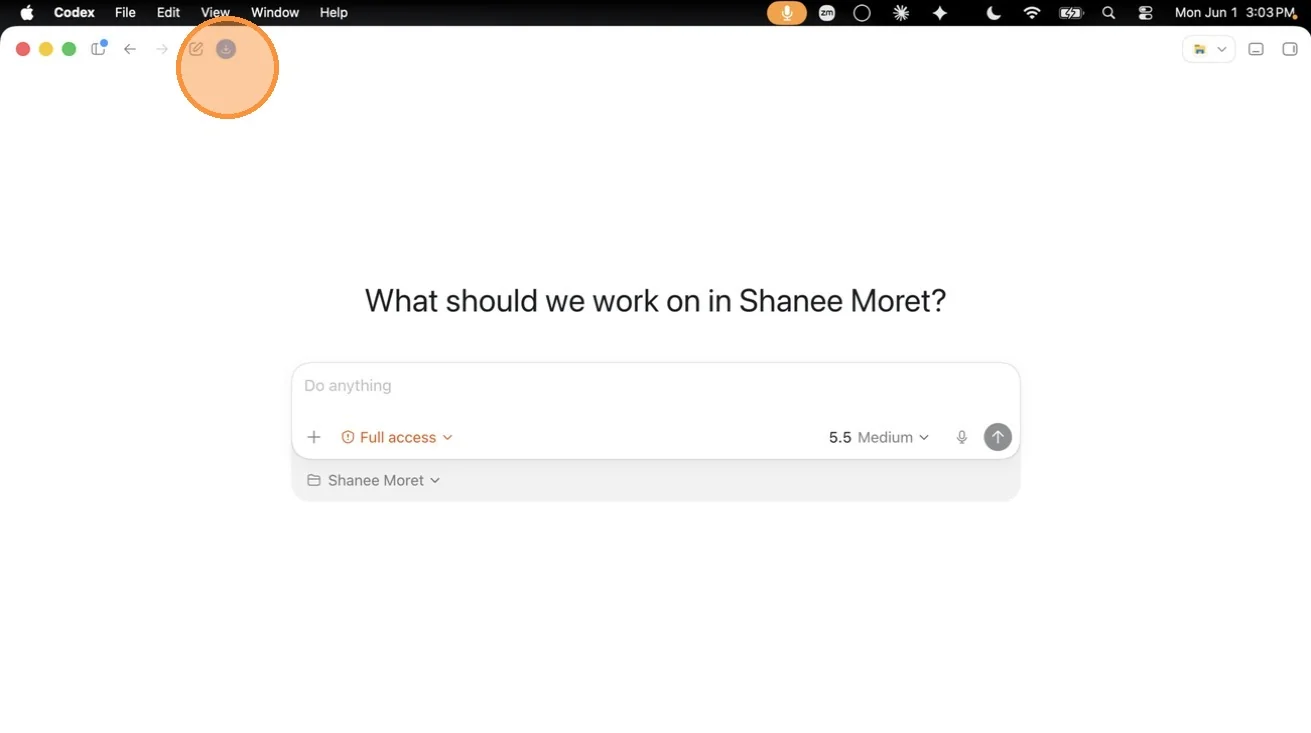
Step 3. Wait for the app to update. Once the update is complete, Codex will close and restart.
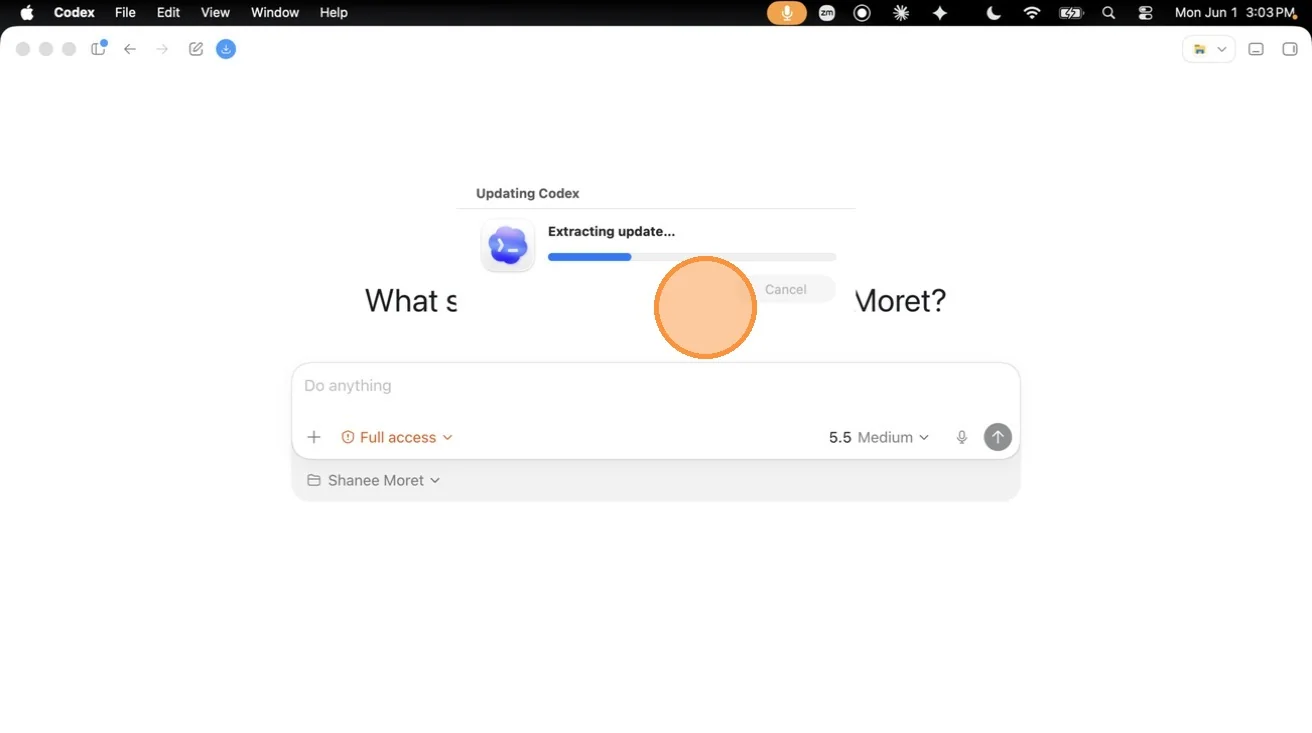
Confirm Codex is up to date
After the restart, do not assume the update finished correctly. Confirm it inside the app.
Step 4. Click Codex at the top left of your Mac menu bar, then click Check for Updates.
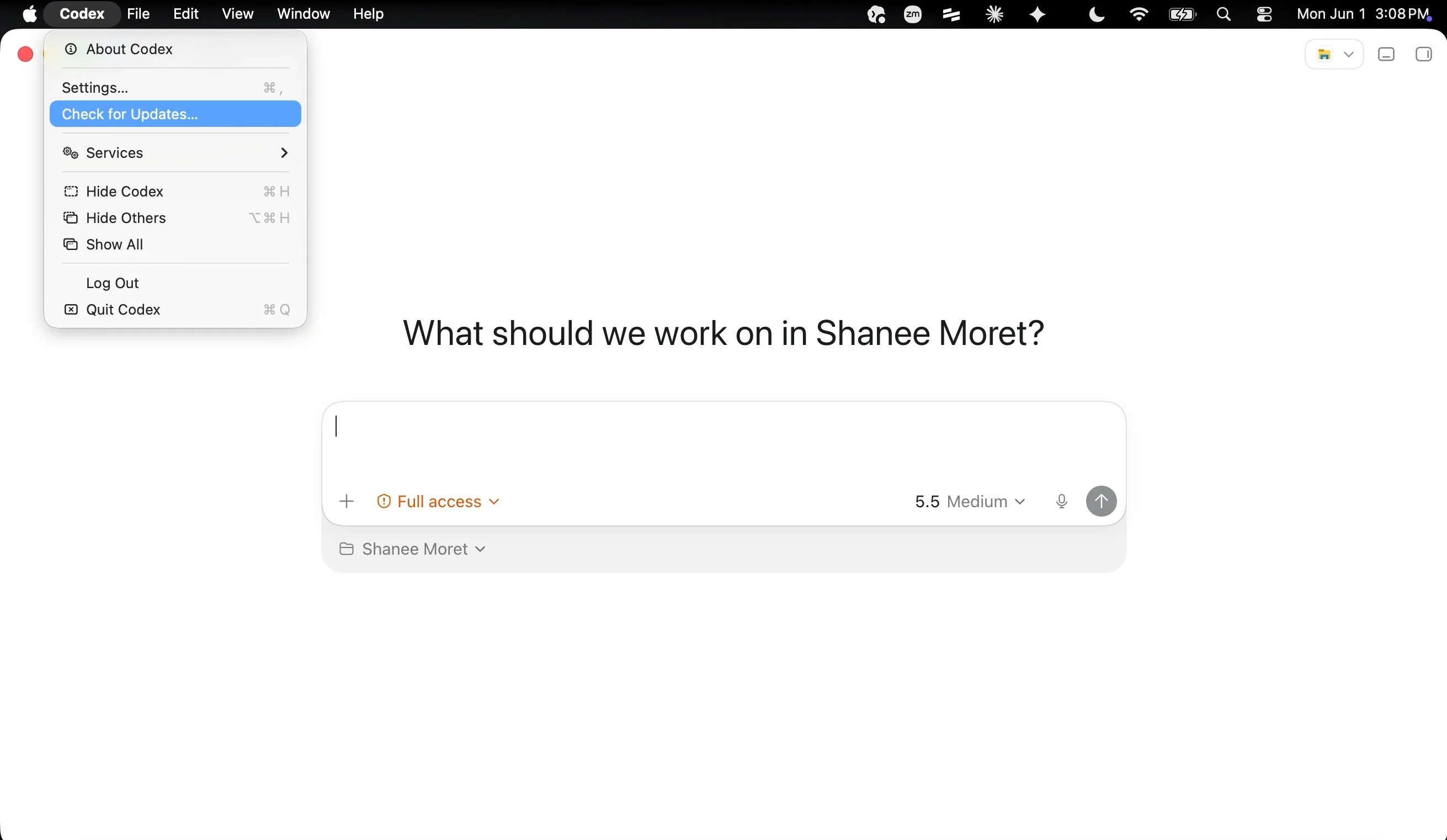
Step 5. You should see a popup that confirms Codex is up to date.
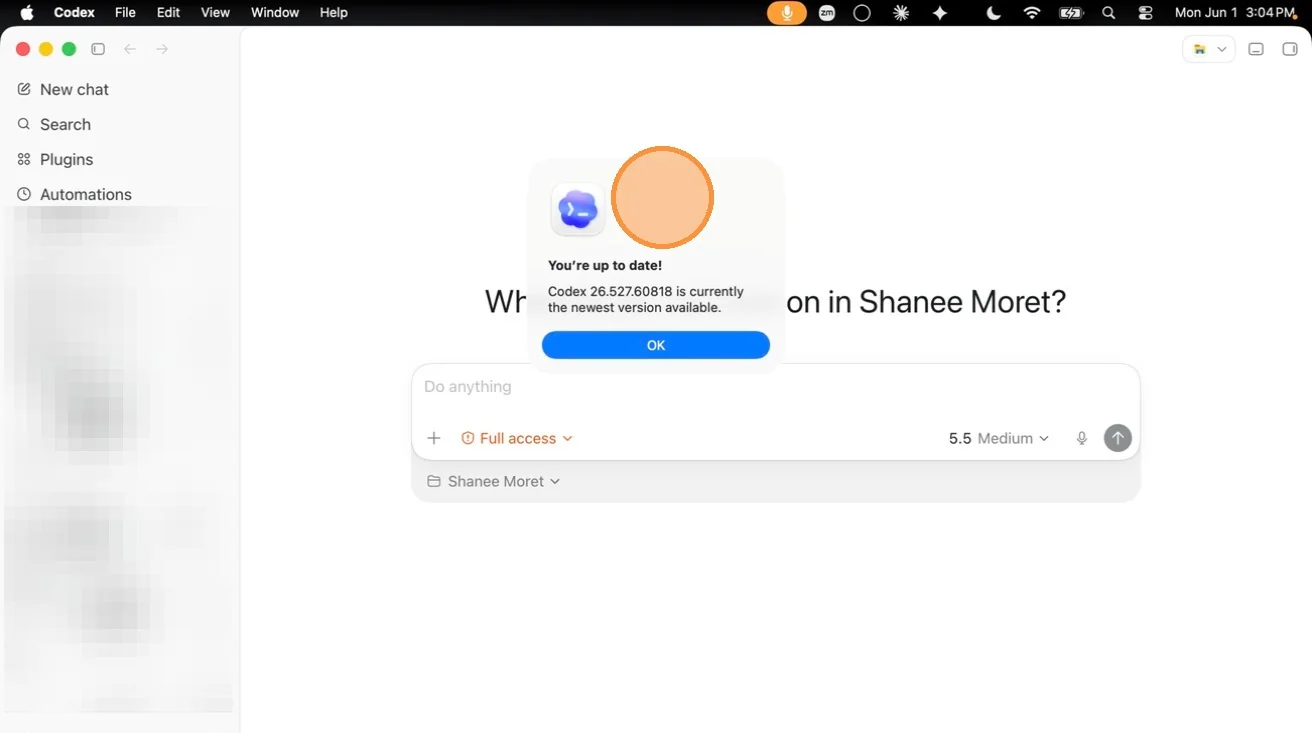
When should you check?
Check before high-stakes work, after the app tells you an update is available, and any time Codex starts behaving differently than expected. If Codex is part of your daily business workflow, checking weekly is a reasonable minimum.
That does not mean every issue is solved by updating. It means you remove the simplest variable first. Then, if something still breaks, you know you are testing against the current app.
Quick answers
How do I update the Codex desktop app? Log into Codex, click the blue down arrow in the top left, wait for the update and restart, then use Codex > Check for Updates to confirm.
Why is updating Codex important? Codex works across real business context. Updates can include feature improvements, bug fixes, stability improvements, and security patches. If you rely on Codex to do work, keep the app current.
How do I know the update worked? After restart, choose Check for Updates. Codex should show a confirmation popup that you are up to date.
Update the app before the work matters. It is a small habit that prevents a lot of avoidable agent friction.