Short answer: In the Codex desktop app, open the workspace dropdown, go to Plugins, open the one you want, and read three things before you install: who built it, the skills it bundles, and the capabilities line. Install it, toggle the skills you need, then run a real task. If a plugin is read-only or comes up short, your next route is giving your agent an API token.
This is the hands-on companion to a question I get constantly: what a plugin actually is, and why one won't let your AI agent do everything. That post is the concept. This one is the click-by-click.
Here is the part most owners skip. They install a plugin because the name matches a tool they use, then they're surprised when the agent can read their data but can't change anything. A plugin is a pre-packaged set of skills someone else built. You can see what it claims to do before you install it, and you can test whether it holds up after. Both of those are decisions, not formalities. I'll show you where to make them.
The whole flow takes about five minutes. The judgment takes a little longer, and it's the part worth slowing down for. For this walkthrough the example is Codex's own Security plugin, built by OpenAI, but the screens are the same for any plugin you open.
Find the plugins list
Everything starts from the workspace dropdown. It's the same menu you use to switch context, so it's easy to walk past without noticing Plugins lives inside it.
Step 1. Open the workspace access dropdown at the top of the Codex desktop app.
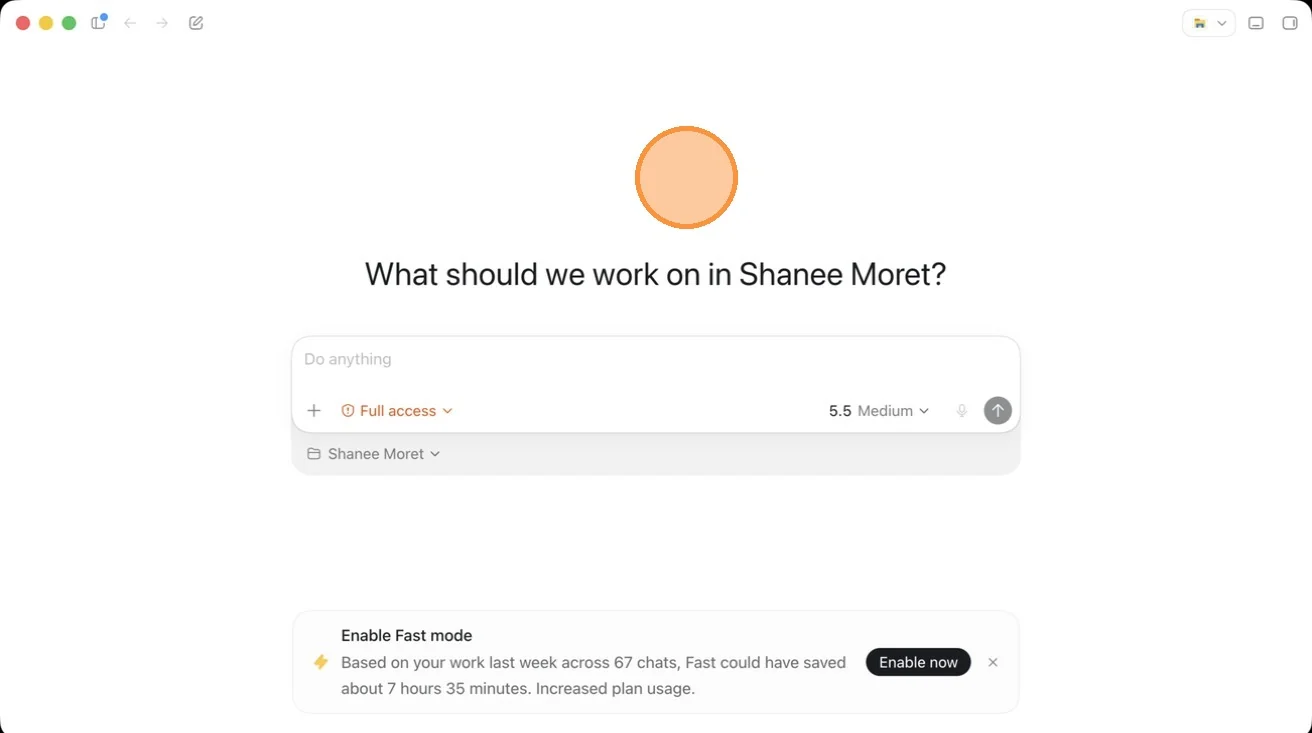
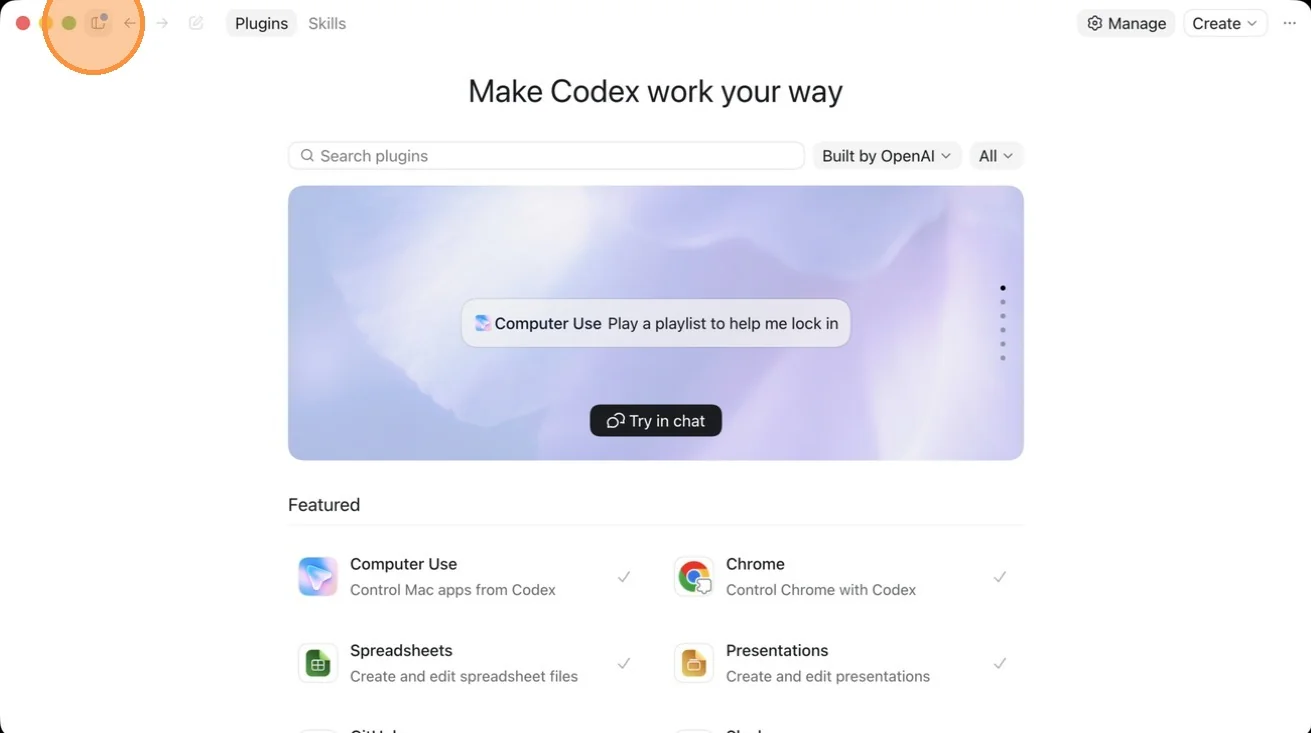
Step 2. Select Plugins from the sidebar.

Step 3. The Plugins page opens, headed "Make Codex work your way," with a search bar, a Built-by-OpenAI filter, and a featured row across the top. This is your catalog of what you can connect.
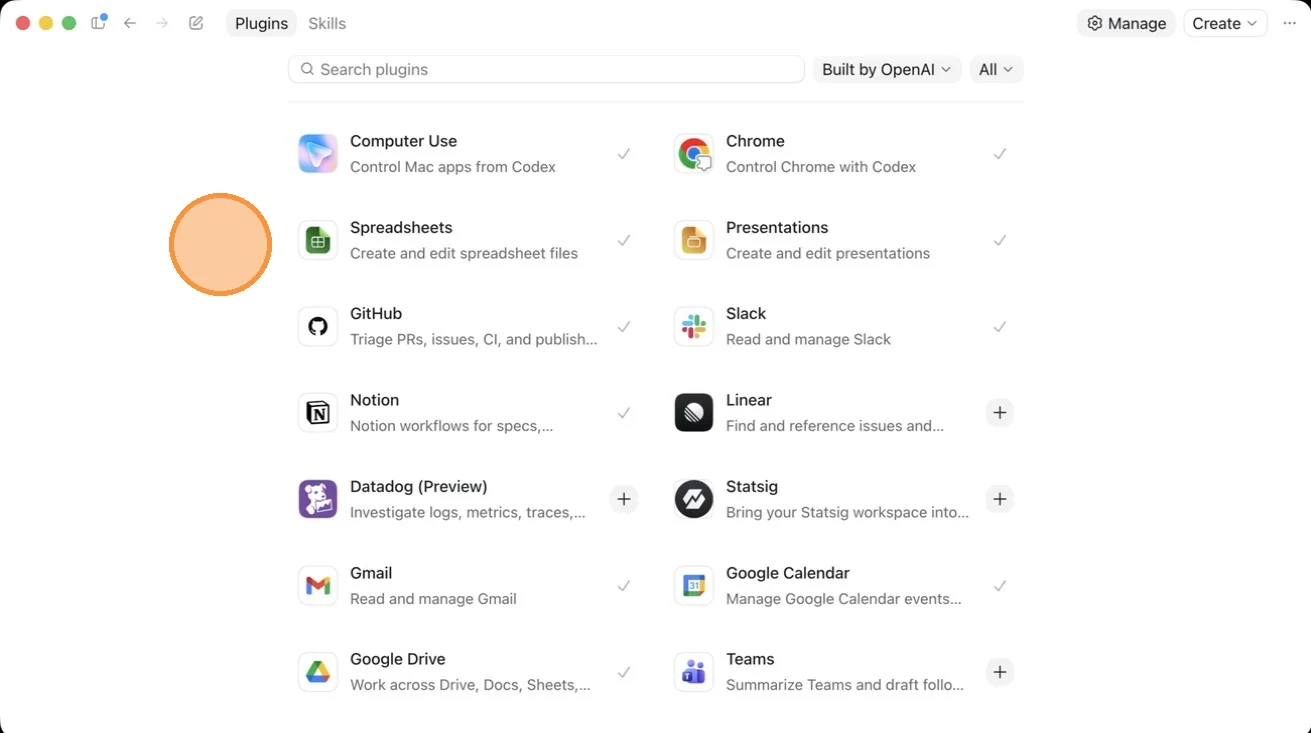
Step 4. Scroll and you see the apps that offer plugins, things like Computer Use, Chrome, Spreadsheets, and Presentations. They're familiar names, but their capabilities differ. Two plugins for two tools you recognize can give your agent very different levels of access. The logo tells you nothing about what the agent can actually do.
Read the plugin before you install it
This is the section I'd tattoo on every owner's hand if I could. Before you click install on anything, open it and read it. One install screen tells you four things, and three of them are decisions.
Step 5. Click into a plugin to open its install screen.
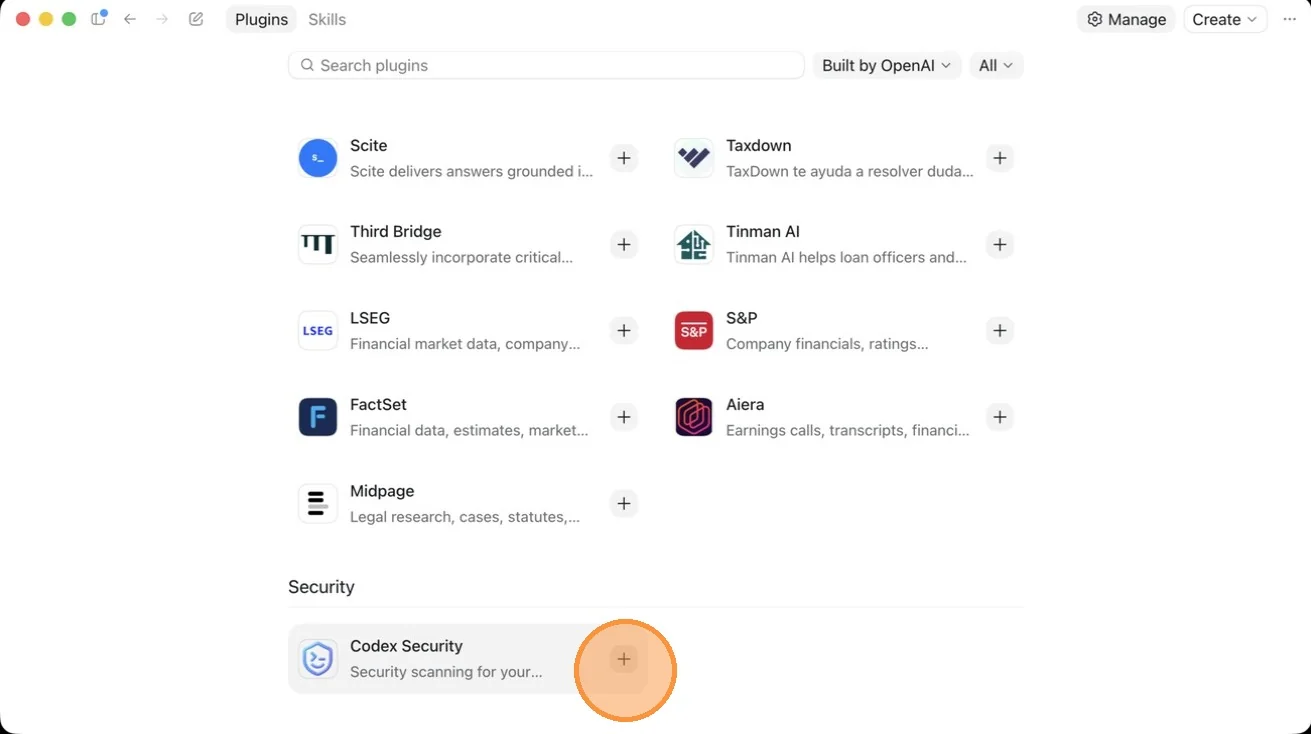
Step 6. The developer is listed at the top. Here it reads "Developed by OpenAI," tagged openai-curated. Read this first. A plugin built by the company that owns the tool is a different bet than one built by a third party. Neither is automatically wrong, but you should know which one you're looking at.
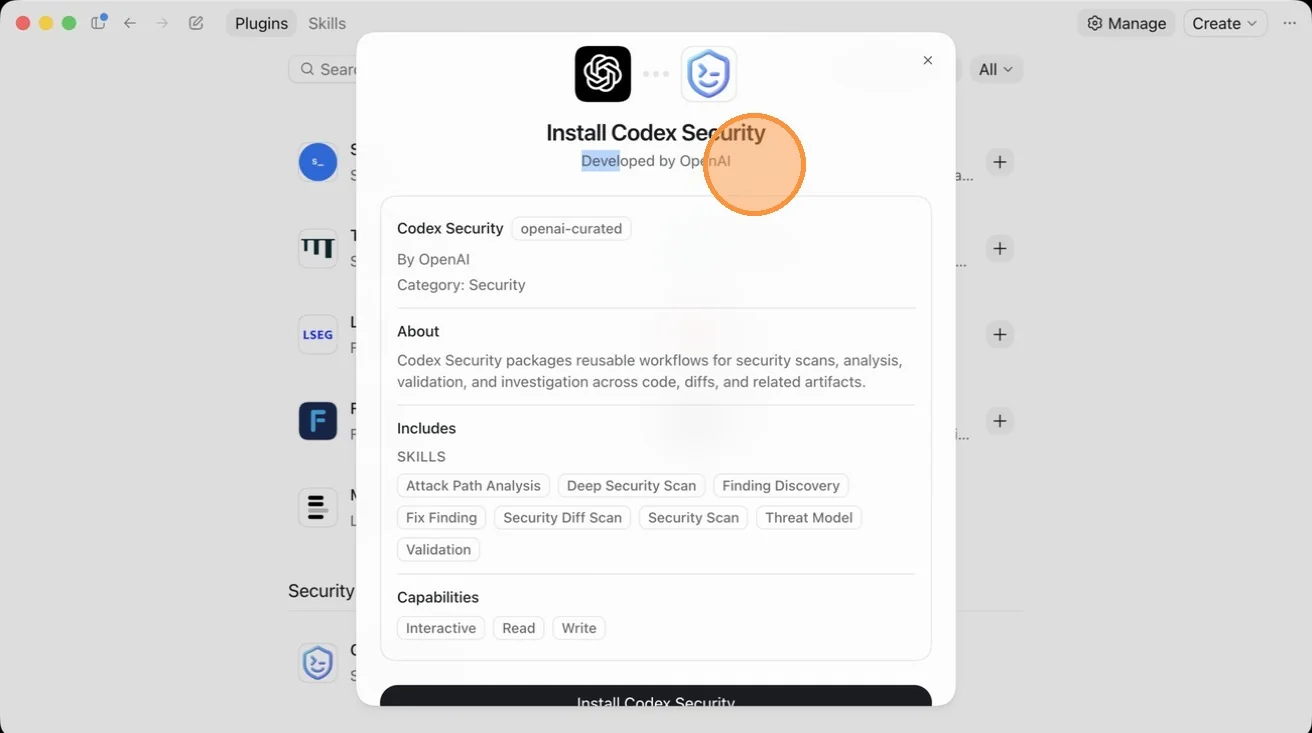
Step 7. The About section is the plain-language description of the job. This plugin "packages reusable workflows for security scans, analysis, validation, and investigation." If the About section and the task in your head don't line up, stop here.
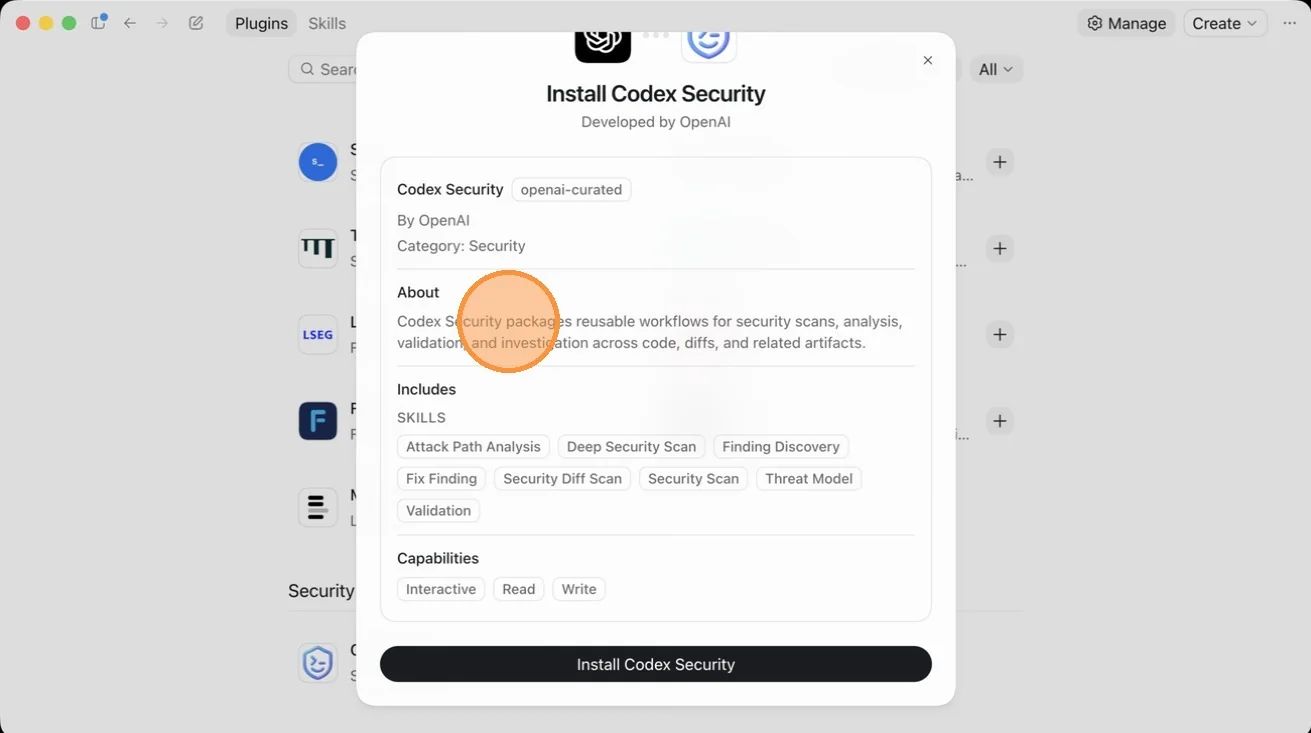
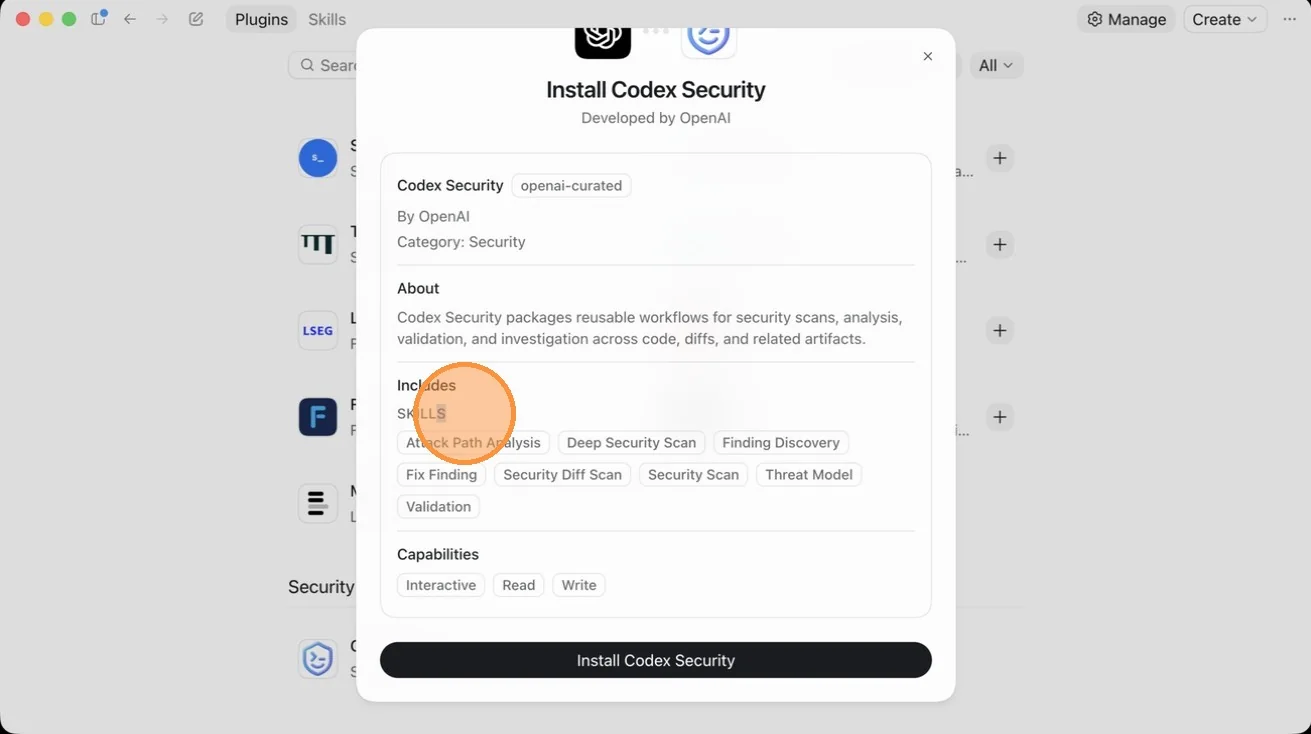
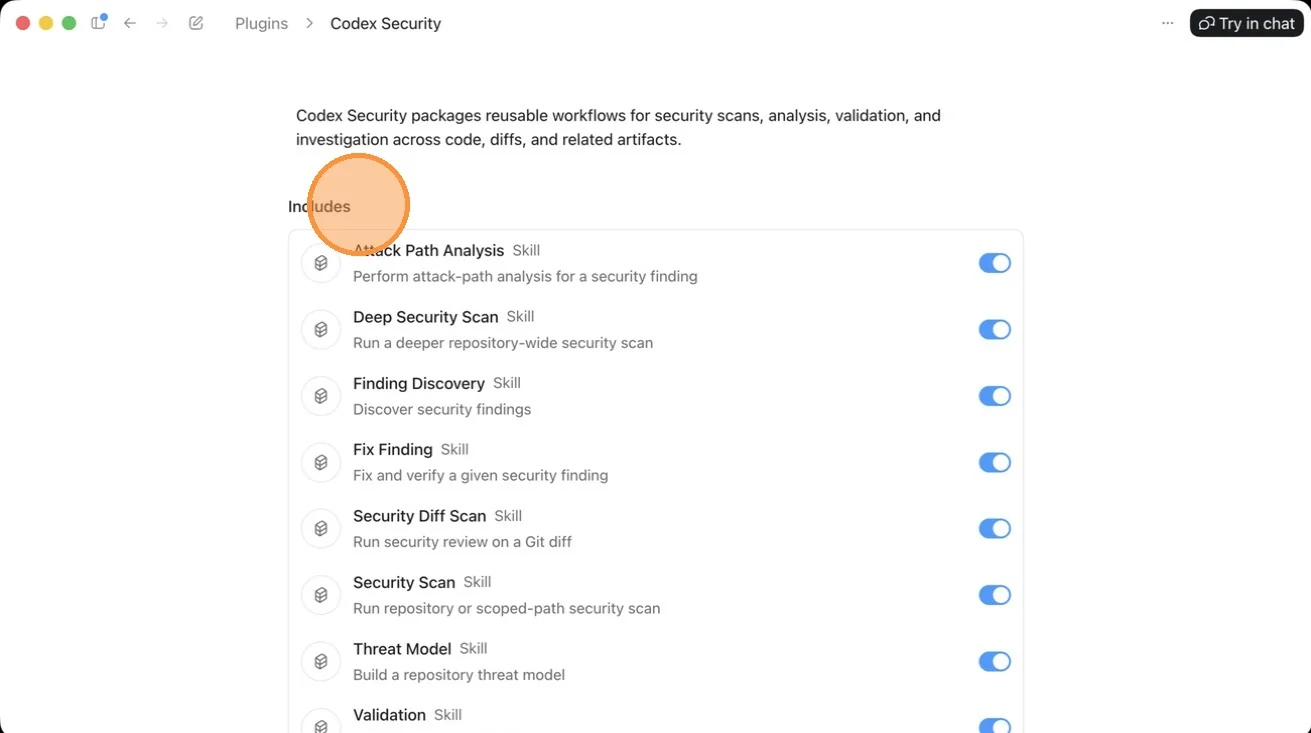
Step 8. Under Includes, you see the skills the plugin bundles. This one carries eight, from Attack Path Analysis to Threat Model to Validation. You can see the names of the skills, but you cannot see the makeup of each one. You're trusting the developer on how they're built. That's the trade you make with a packaged plugin.
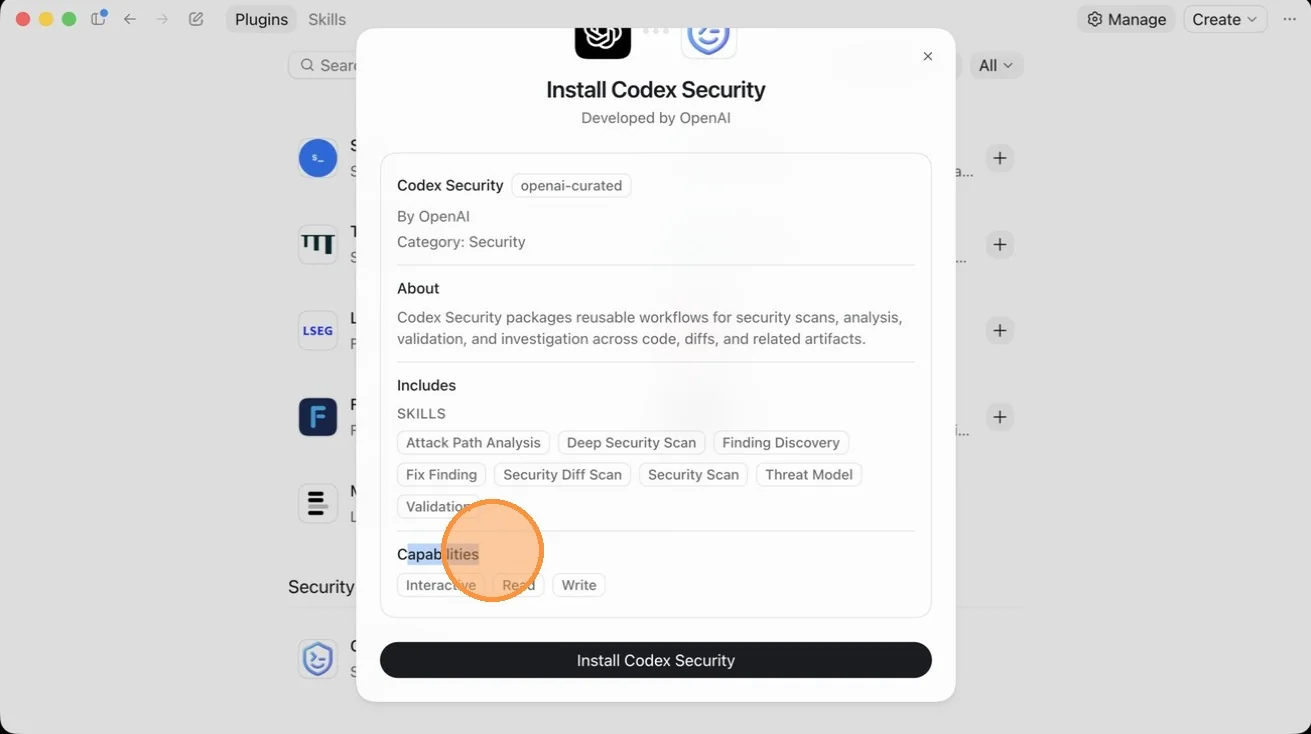
Step 9. The capabilities line is the one that matters most, so read it before you rely on anything. For Codex Security it reads Interactive, Read, Write, which means the agent can act, not just look. Read-only is the case to watch for: a plugin whose capabilities show only Read can summarize your data and nothing more. If you need the agent to write, send, or change something, the capabilities line has to say so. The logo and the About text will not save you here.
Install, toggle, and prove it on real work
Once the capabilities match the job, installing is the easy part. The last step is the one almost nobody does.
Step 10. Click Install to add the plugin to your Codex desktop app.
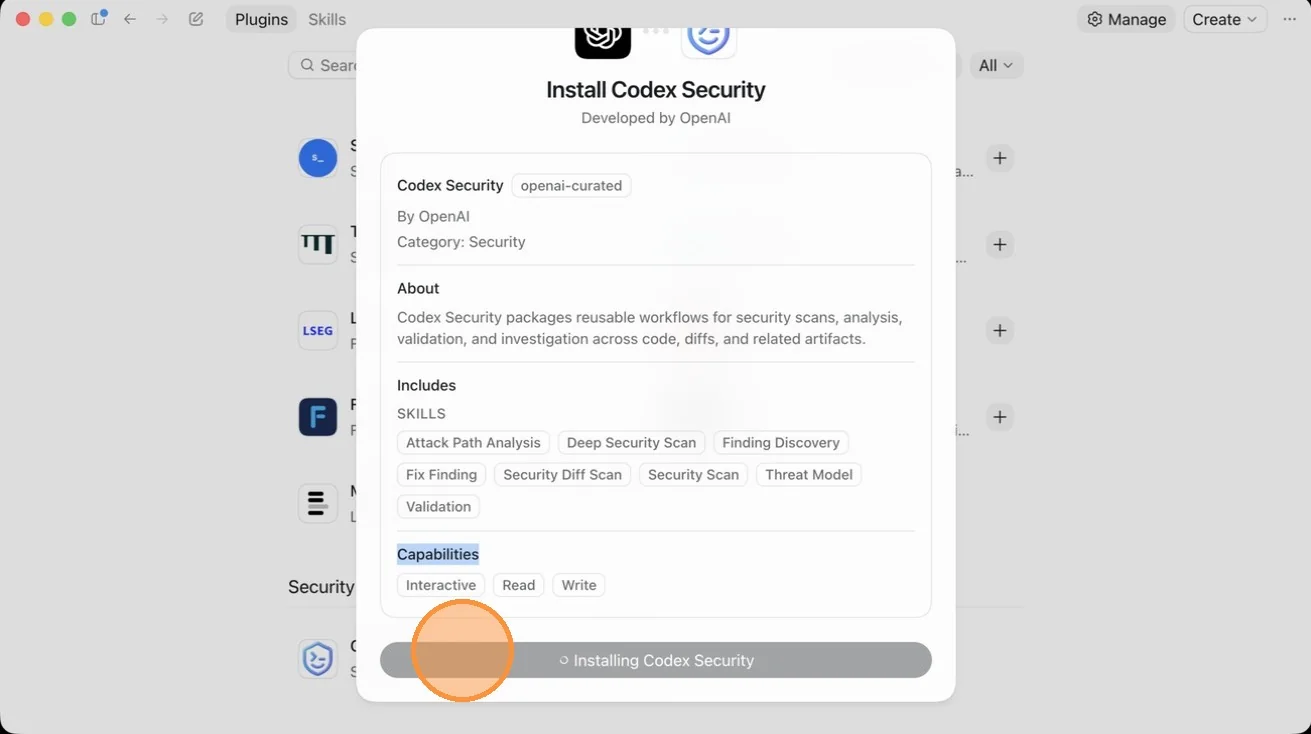
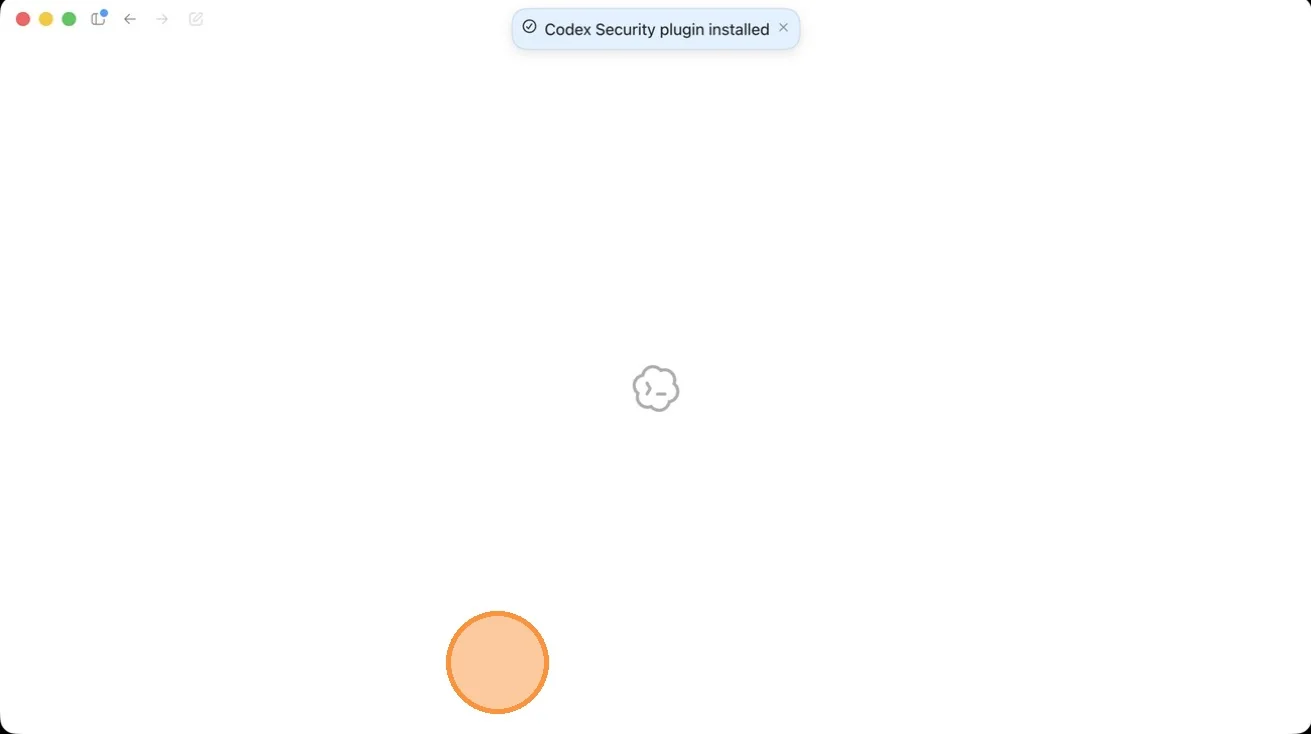
Step 11. Wait for the confirmation. It's a small toast at the top of the window telling you the plugin installed.
Step 12. You land on the plugin's settings page, where every skill it bundles has its own on or off toggle. They arrive on by default. This is real control, so use it. If a plugin carries eight skills and you only need one, switch the rest off. A narrower surface is an agent that's easier to predict.
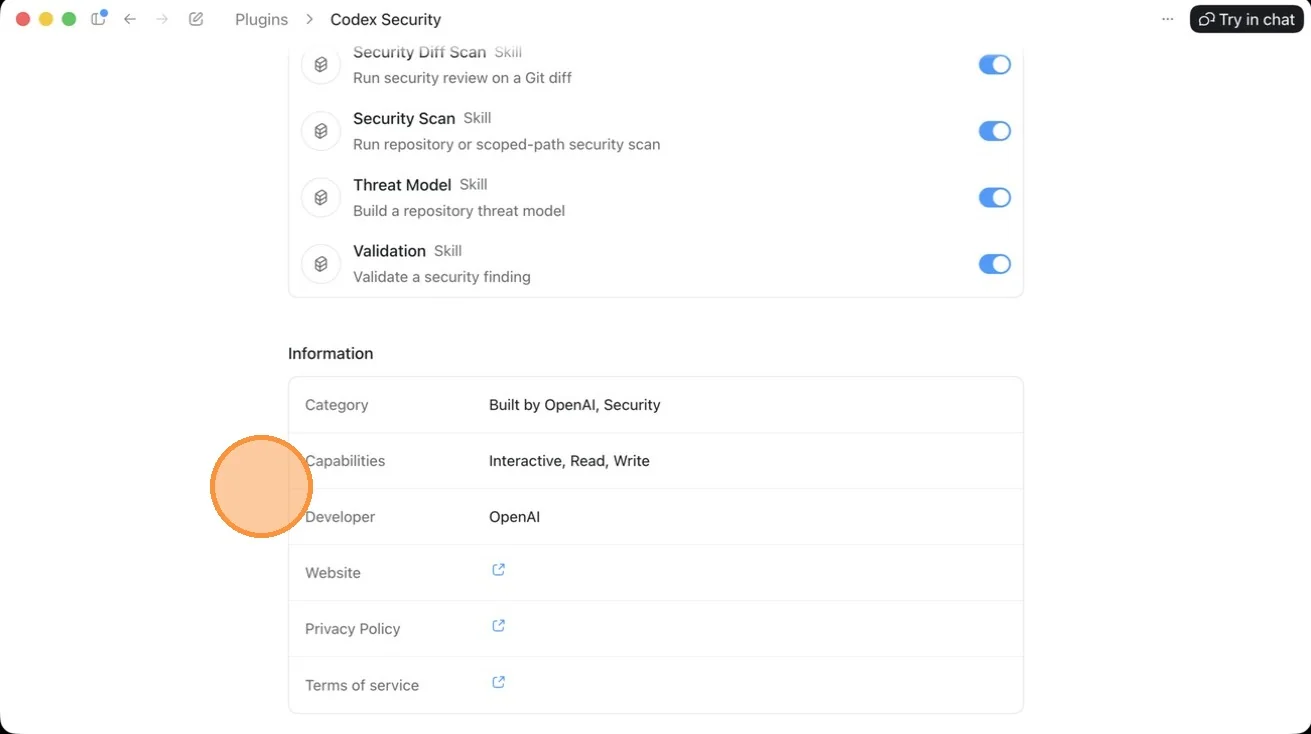
Step 13. Scroll down and the same page shows an Information panel: Category, Capabilities (Interactive, Read, Write again), Developer, and links to the website, privacy policy, and terms. Read it, then do the one thing the panel can't do for you. Go run the plugin on a real task and see whether it's genuinely enough for what you need. If it does the job, you're done. If it doesn't, you go another route and give your agent an API token instead, which can give it more direct access to the tool than a packaged plugin allows.
The pattern under all thirteen steps is the same one I teach for every agent tool: read what it can do, install it deliberately, narrow it down, then prove it on real work before you trust it. A plugin that passes that test earns a place in your stack. One that doesn't just told you, for free, that it's time for an API token.
Quick answers
Where are plugins in the Codex desktop app? Open the workspace access dropdown at the top, then select Plugins from the sidebar. That opens the page where you browse the apps that offer plugins.
What should I check before installing one? The developer, the About section, the skills it bundles, and the capabilities line. Capabilities matter most. Codex shows them as Interactive, Read, and Write. A plugin showing only Read is the least useful, because the agent can look but not act.
Can I turn off individual skills? Yes. After install, the plugin's settings page gives every bundled skill its own toggle, on by default. Keep the ones you need, switch the rest off.
What if the plugin can't do what I need? Run it on a real task first. If it falls short, give your agent an API token instead, which can reach the tool more directly than a packaged plugin.
Install the plugin. Then make it prove it.
Start with the concept: what a plugin is and why one is never enough