Want this set up for you?
If you run an owner-led 5-25 person business and want practical AI agents doing real work without learning all of this yourself, GrowthAcademy.Global sets it up with you.
See Small Business AI Agent Setup →Short answer: To export your ChatGPT data, open ChatGPT, go to Settings, choose Data controls, click Export, confirm the request, complete identity verification if prompted, then use the email OpenAI sends you to download the export. OpenAI says the download link expires after 24 hours, and chat exports are not available for ChatGPT Business or Enterprise accounts.
Once your packet is ready, run the four free prompts in Your First Hour With an AI Agent. They check what Codex understood about your business before you give it real work.
Every business owner I talk to says the same thing about ChatGPT: "my chat knows me."
That is the real reason most people hesitate to move serious work into Codex. You are not protecting the tool. You are protecting the months of context you built with it: the drafts, decisions, client notes, prompts, positioning language, offer ideas, and examples of how you think.
Do not abandon that context. Make it portable: export your ChatGPT data, keep the raw file private, then turn the safe and useful parts into a clean Codex context packet.
The unlock: your ChatGPT history is not trapped inside the chat window. The export email turns it into a file you can review, clean, and use to help Codex understand your business without starting from zero.
Can you keep what ChatGPT knows when you move to Codex?
Yes, but not by dumping every old conversation into a new agent. Codex works better when it has durable context: what your business does, what you sell, how you talk to clients, what systems you already use, and what decisions have already been made.
Your ChatGPT history is often where that context is hiding. The export gives you raw material. Your job is to decide what belongs in the agent context and what should stay private.
| What may be in your ChatGPT history | How it helps Codex |
|---|---|
| Old prompts that worked | Turn them into reusable agent instructions. |
| Offer language and buyer notes | Help Codex write pages, emails, and docs in the right voice. |
| Client-safe process notes | Build SOPs without starting from a blank page. |
| Technical troubleshooting history | Show Codex which systems have already been changed or fixed. |
| Content ideas and drafts | Recover assets that can become blog posts, guides, scripts, or FAQs. |
Before you export: the safety rule
Assume your ChatGPT export may contain sensitive data. It can include business ideas, private client details, names, pasted documents, account references, and conversations you forgot existed.
Do not upload the raw export to a public repository, shared folder, random chatbot, or client workspace. Download it, store it privately, and use it as a source for a cleaned-up Codex context packet.
How do you export your ChatGPT data?
The screenshots below come from my Scribe walkthrough. You can also open the original walkthrough here: How to Export Your ChatGPT Data.
Account settings access
- 01
Go to chatgpt.com.
Click your profile icon in the bottom-left corner.

Start from the account you want to export. If you use more than one ChatGPT account, make sure you are in the right one. - 02
Click Settings.
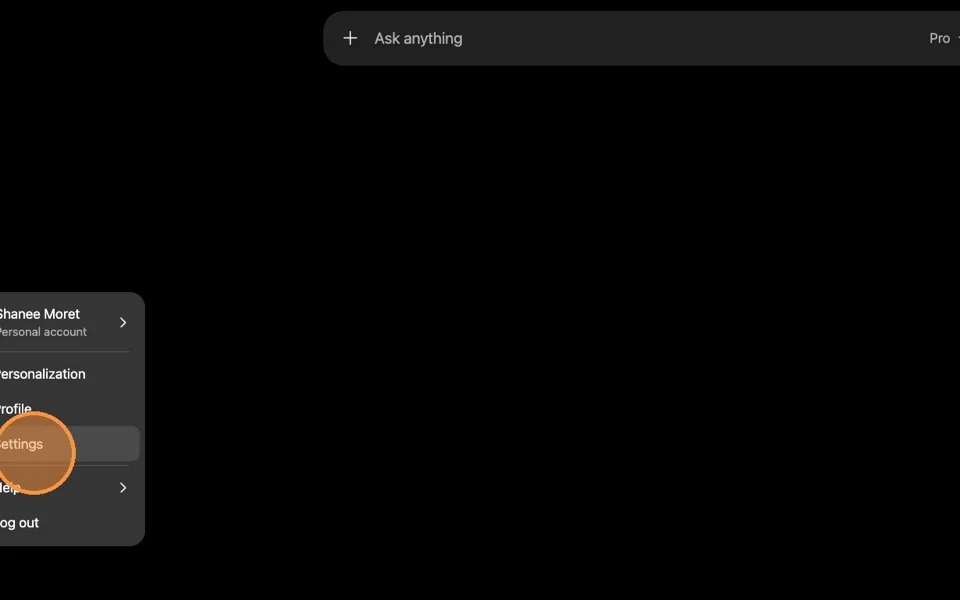
Settings is where ChatGPT keeps your account, data, and privacy controls. Data export initiation
- 03
Click Data controls.
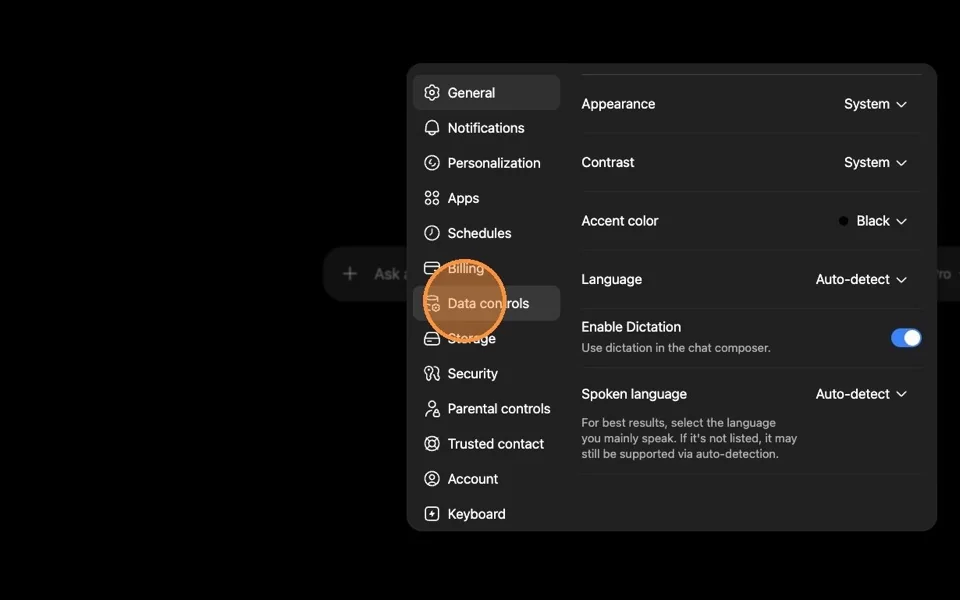
Data controls is the section that contains the export option. - 04
Click Export in the Export data section.
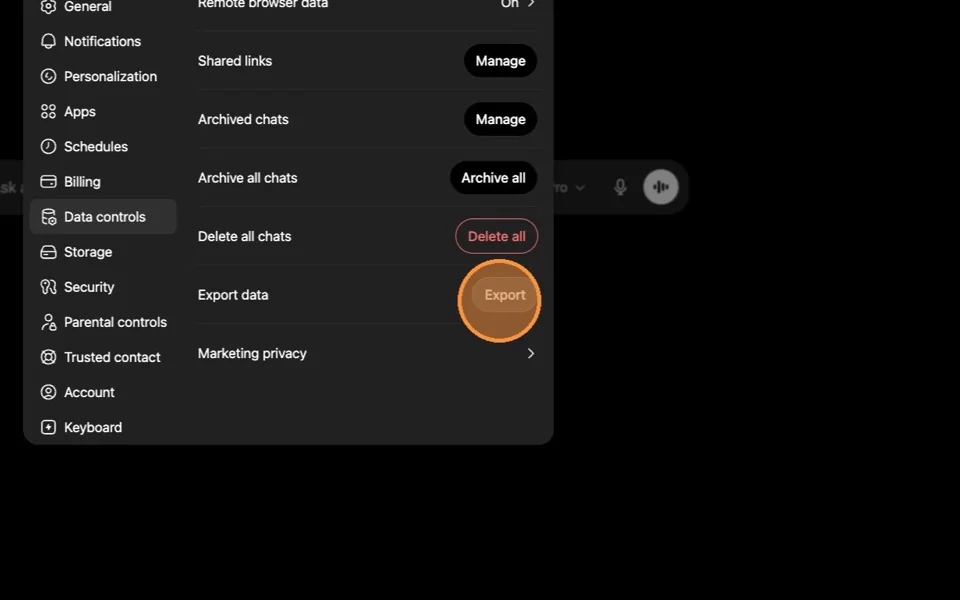
This starts the request. It does not instantly download the file. - 05
Click Confirm export.
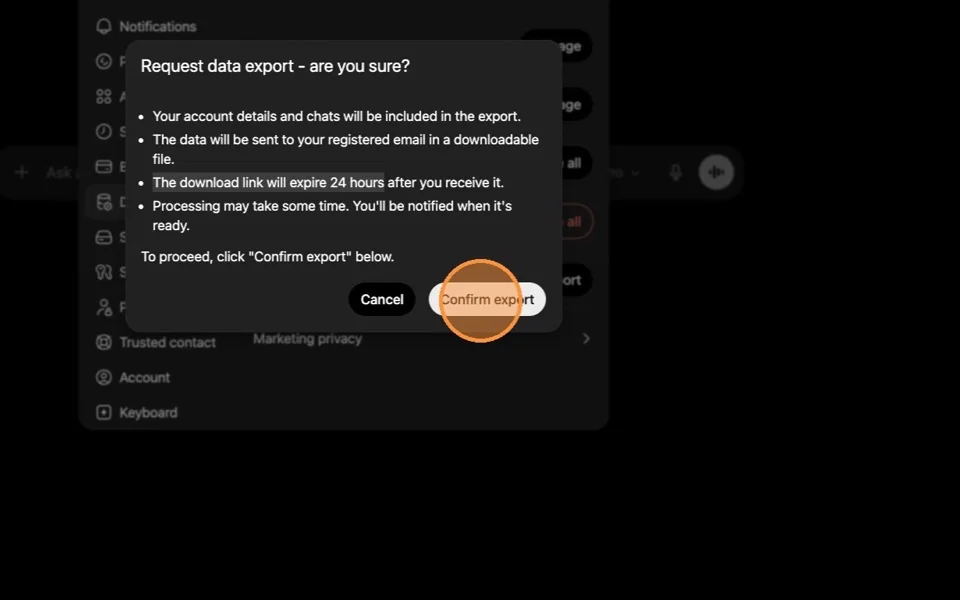
Confirm the export request only when you can access the email inbox or phone number tied to the account. Identity verification
- 06
Complete identity verification if ChatGPT prompts you.
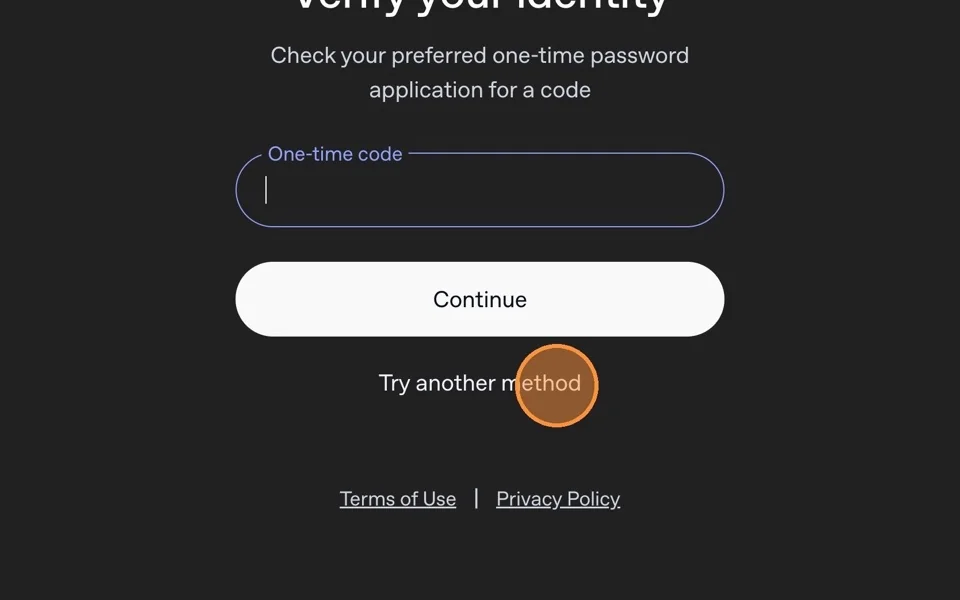
Verification protects your export. This is normal for account data requests. - 07
Type the verification code and press Enter.
Click Export again if ChatGPT returns you to the Data controls screen.
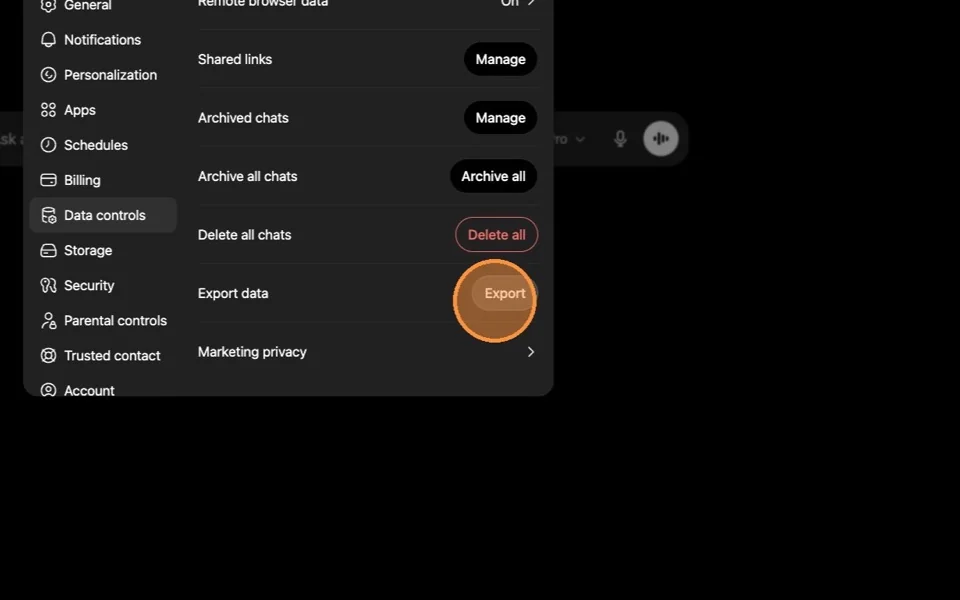
After verification, you may need to restart the export request. - 08
Click Confirm export to finalize the request.
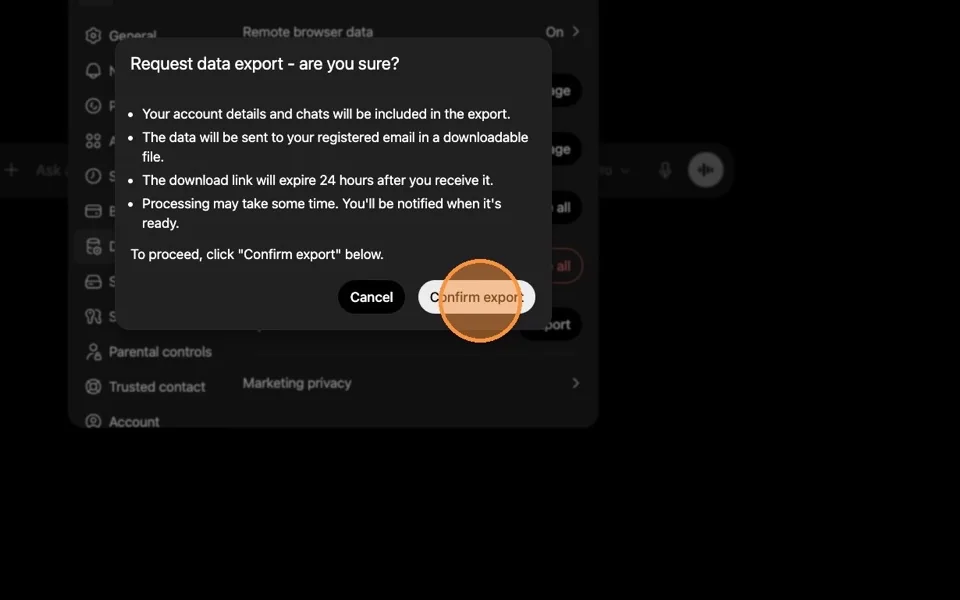
Confirm the export again after verification. - 09
Look for the success confirmation.
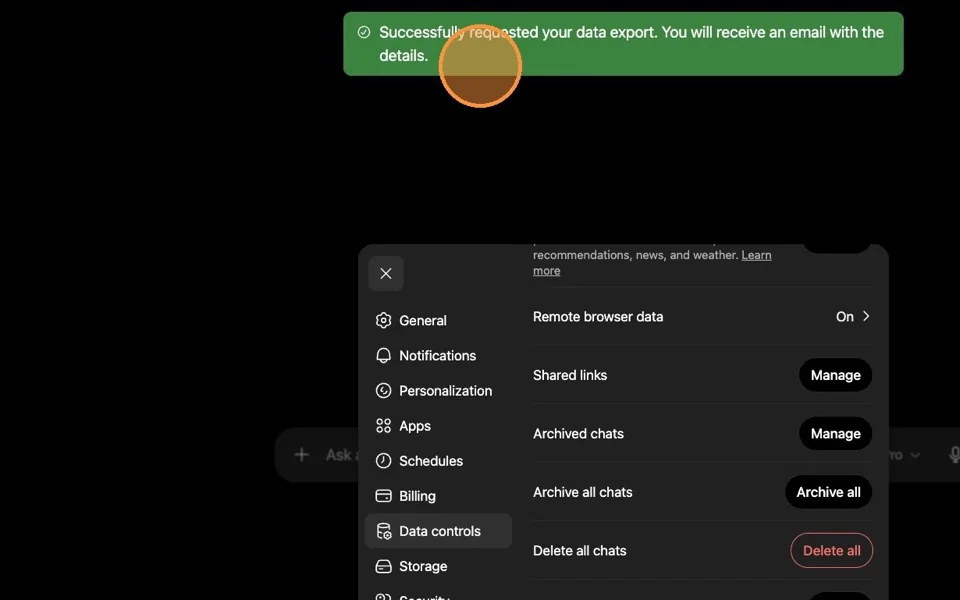
ChatGPT will confirm that the data export request has started. - 10
Open the email from OpenAI and download the export before the link expires.
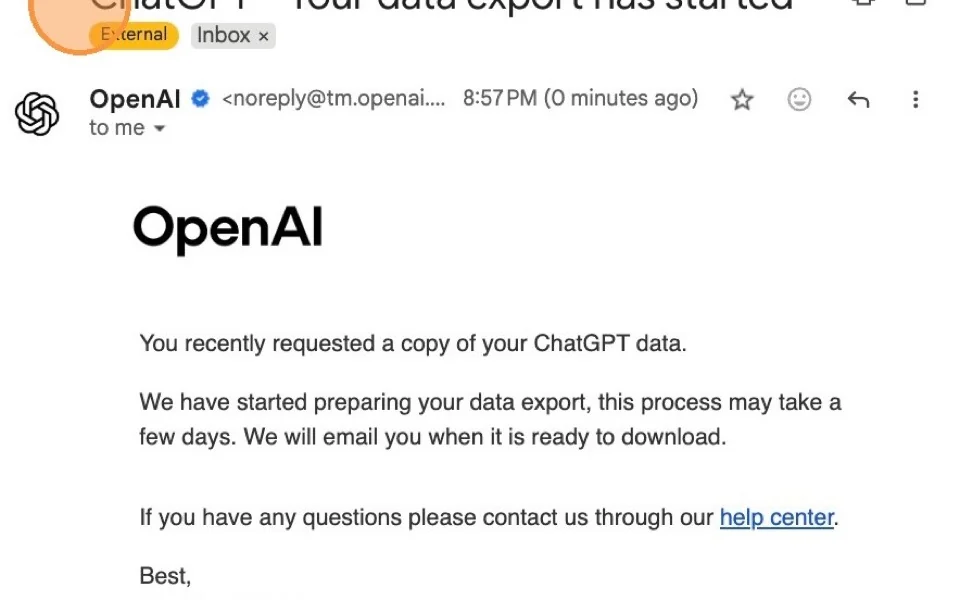
OpenAI sends the export link by email or text, depending on your account. Do not forward the link.
What should you do with the export before giving Codex context?
Do not make Codex sort through your entire raw history. That is noisy, risky, and usually unnecessary.
Use the export to create a smaller context packet:
- A short business description.
- Your current offers and audience.
- Your voice and writing examples.
- Important client-safe workflows.
- Decision history that prevents an agent from repeating old debates.
- Links to active systems, repos, sites, and docs.
- Rules for what the agent is not allowed to do.
That cleaned packet is what belongs in your agent home base. The full export stays private.
Common mistakes to avoid
- Do not paste the raw export zip into a public repo.
- Do not upload the entire export to an agent unless you have reviewed what is inside.
- Do not assume every old chat is still true. Old decisions may be stale.
- Do not use the export as a substitute for current credentials, live dashboards, or source-of-truth files.
- Do not forget the download link expires. If you miss the window, request a new export.
FAQ
Can I keep what ChatGPT already knows when I move to Codex?
Yes. Export your ChatGPT data, review it privately, then turn only the useful and safe context into a smaller Codex setup packet. The export proves the context is portable, but the raw file should stay private.
Should I give my full ChatGPT export to Codex?
No. Treat it as a private backup and source file. Extract only the context Codex needs for the job.
Why does this matter for business owners?
Most business-owner AI setups fail because the agent starts with no business memory. Your export can help recover the context you have already created.
How long does the ChatGPT export link last?
OpenAI says the export link expires after 24 hours.
What if I use ChatGPT Business or Enterprise?
OpenAI says chat exports are not available for Business or Enterprise accounts. Use your organization's approved data process instead.
Sources: OpenAI Help Center, How do I export my ChatGPT history and data?, and Shanee's Scribe walkthrough.

Shanee Moret
Founder, GrowthAcademy.Global. Nearly 1 million LinkedIn followers, 267,000+ LinkedIn newsletter subscribers and 1,000+ clients. Featured in Entrepreneur, LinkedIn Sales Solutions and Social Media Examiner.
Part of the AI agents for business owners library from Growth Academy.
Build the infrastructure before you expect the agent to perform.
Start with the setup guides, then use the Skills Dashboard to turn Codex into a practical operator across files, sales, content, and business intelligence.
See the Skills DashboardShanee Moret