If you opened ChatGPT today and it looked wrong, nothing broke.
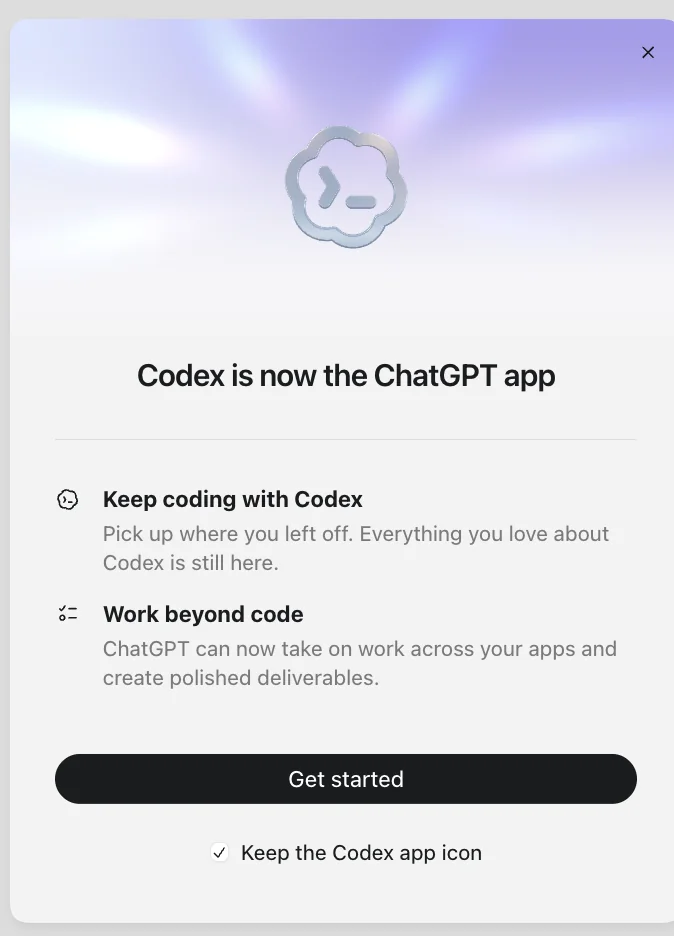
On July 9, 2026, OpenAI shipped the biggest change to ChatGPT since launch. The Codex app became the new ChatGPT desktop app. The app you had been using got renamed ChatGPT Classic. And a new agent called ChatGPT Work arrived inside it.
The announcement was written for developers and tech press.
This tutorial is written for you: the owner who uses ChatGPT every day, has real client files and a real inbox, and wants to know what to actually do with this thing by Friday.
One warning before we start. Every ChatGPT and Codex setup tutorial published before today, including the ones with hundreds of thousands of views, now walks you through download pages, app names, and onboarding screens that changed this morning. If a video tells you to download a separate Codex app, it is out of date. Every screenshot in this guide comes from the new app running on my own Mac, taken today.
Prefer to watch? I recorded the full walkthrough on the new app, permissions and plugins included:
What Actually Changed on July 9
OpenAI collapsed its apps into one. Here is the translation table:
| What you knew | What it is now |
|---|---|
| The ChatGPT desktop app | Renamed ChatGPT Classic. Still installed, still works, still has voice mode. |
| The Codex app | Became the new ChatGPT app. If you had Codex, it updated in place and kept your projects and settings. |
| ChatGPT on the web and your phone | Same as before, now with the Work agent rolling out inside it. |
| Atlas (OpenAI's browser) | Being retired. Its browsing abilities moved into the new app. |
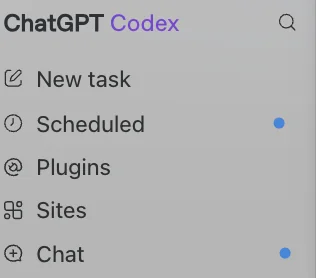
The new app has three modes, switchable at the top: Chat, Work, and Codex. The left sidebar is your map: New task, Scheduled, Plugins, Sites, and Chat.
Chat is the ChatGPT you know. Questions in, answers out.
Work is the new part, and the reason this update matters to you. You describe an outcome, it reads the files and apps you have given it access to, shows you a plan, and then produces finished work: spreadsheets, documents, reports, presentations, even small internal web pages it can host for you.
Codex is the coding lane, for developers. You can ignore it. If you have seen my earlier writing on what Codex is and why owners should care, everything there still applies; the owner-facing parts of Codex now live in Work mode with a friendlier front door.
The fastest way to tell them apart is the question each one greets you with.
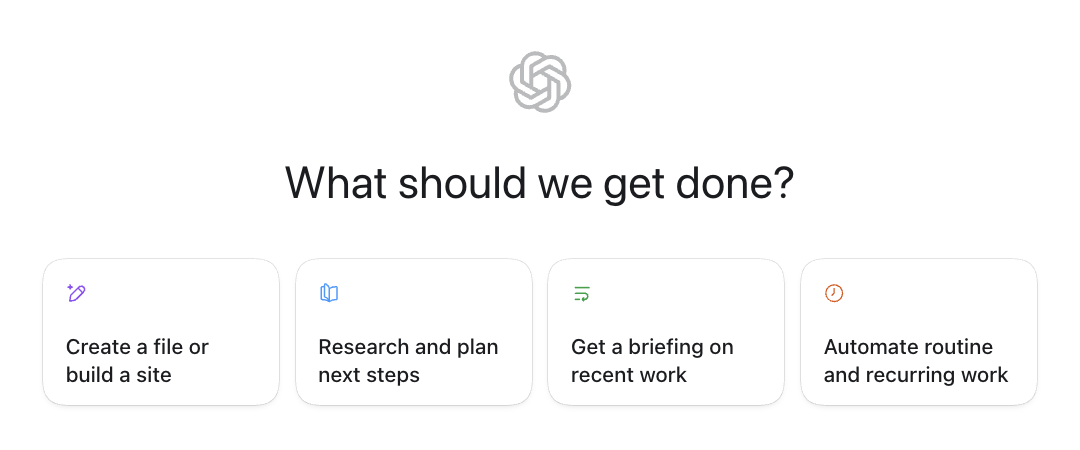
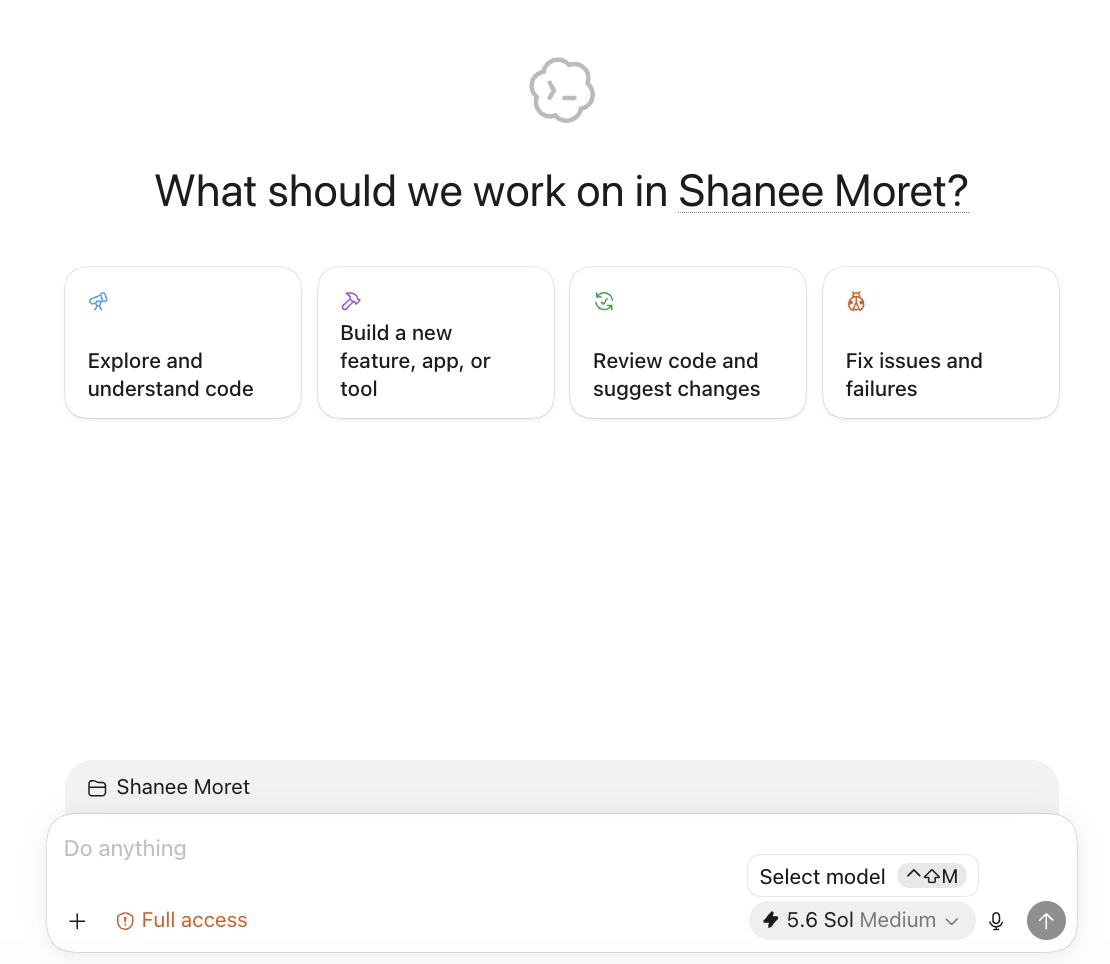
Mid-thread the two modes can look confusingly similar (plenty of people said so on launch day). From a fresh task, the starter cards tell you where you are.
What It Costs and What Plan You Need
Three facts, as of today:
1. The new desktop app is available on every plan, including Free. Mac today, Windows rolling out this week.
2. The Work agent is live for Pro, Enterprise, and Edu today, with Plus and Business following within days. If you do not see Work yet, that is the rollout, and there is nothing to fix.
3. Work is metered. Unlike the ChatGPT you are used to, agent tasks draw from the same usage allowance as Codex. A long task that reads many files and runs for an hour consumes far more than a chat question. OpenAI has not published per-task rates.
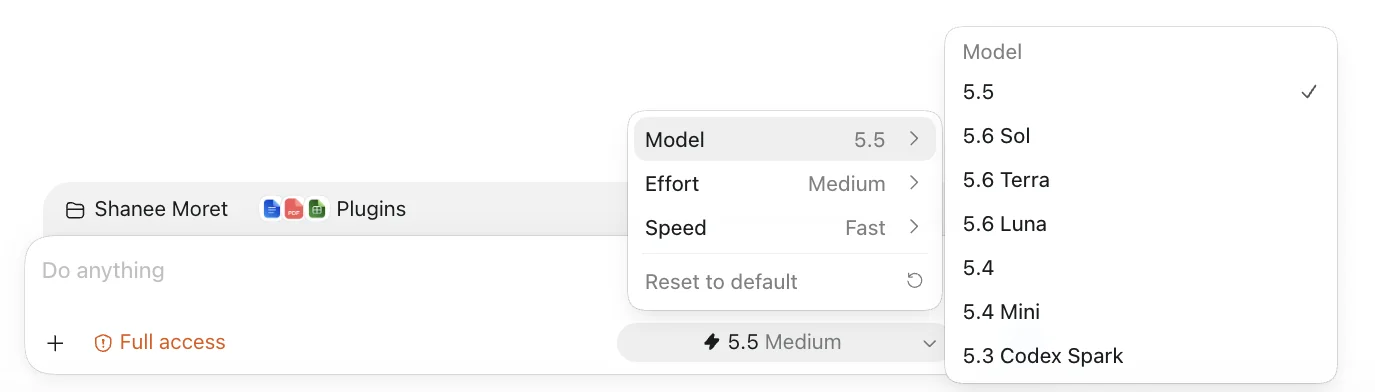
The practical move for your first week: run the tasks in this tutorial, then look at your usage meter before you schedule anything recurring. Measure first, automate second.
For choosing between plans, my ChatGPT Pro vs. Business guide still holds; the same logic now covers Work.
Set Up the New App in 15 Minutes
Do these six steps in order.
Step 1: Get the app. If you had the Codex app, it has already updated; you may notice it is now called ChatGPT. If you did not, download the new ChatGPT desktop app from chatgpt.com. Your existing ChatGPT Classic app can stay; it does no harm and keeps voice mode available.
Step 2: Sign in with your normal ChatGPT account. Same email, same plan. Your chat history comes with you; it lives under a Recent chats view rather than front and center.
Step 3: Create a folder for the agent before the app asks. This is the step every quick-start guide skips and the one that decides whether your first task works. Make a folder on your desktop called Agent Work. Put copies into it, never originals: a price list or service menu, one or two recent proposals, a sample invoice, your standard email replies if you have them saved anywhere. Ten files is plenty.
Step 4: When the app asks where to work, choose that folder. The app will offer to start a task, create a project, or open a folder. Open your Agent Work folder. Whatever location you pick is what the agent can see, which is exactly why you built a clean one.
Step 5: Pick Work mode. Chat for conversation, Work for outcomes. You are here for outcomes.
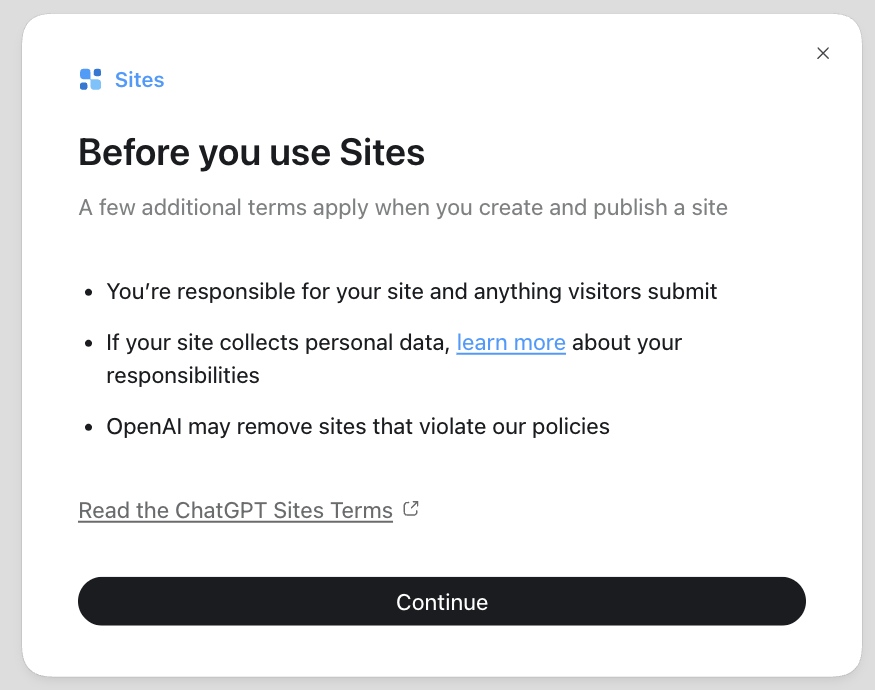
Step 6: Connect one app, and only one. In the left sidebar you will find Plugins, a directory of over a thousand connections: Gmail, Google Drive, your calendar, Slack, HubSpot, and most tools you already pay for. Each one signs in with its own account approval, the same way you approve any app. Start with your calendar or Drive. Save email for the day you trust it, and add connections one at a time so you always know what it can reach. Once connected, you call a tool by typing @ and its name in your request, like @gmail.
That is the whole setup. No terminal, no code, no configuration files.
Your First Real Task
Here is the story that convinced me this release is different, and it did not come from OpenAI's marketing.
A sole proprietor in Japan, drowning in the same receipt shoebox you have, dropped ten receipt photos into a folder and typed one instruction: read these receipts, pull the date, store, amount, and category from each, and build me an expense report in Excel with totals by category.
The agent read the images, categorized them the way an accountant would (hotels under travel, cafe meetings under meeting expenses, workshop tickets under training), built the detail sheet, built the category summary, and then added a bar chart of spending by category.
Nobody asked for the chart.
That is the moment owners need to see. The judgment in the output went beyond the instructions in the prompt. That is what separates an agent that does work from a chatbot that describes work.
Here is that task, ready to paste. Put ten receipt photos in a folder called Receipts inside your Agent Work folder first:
Paste into Work mode
Open the Receipts folder. Read every receipt image inside it. For each one, extract the date, vendor, amount, and a sensible expense category. Create an Excel file called expenses.xlsx in the same folder with one row per receipt, plus a second sheet showing totals by category. Show me your plan before you create anything, and do not change or delete the original images.
Notice the last sentence. You will use that pattern constantly: say what done looks like, and say what it must leave alone.
Two more starters that earn their keep the first week:
Inbox triage (after you connect Gmail)
Check my @gmail. Find the messages from the last 3 days that need a reply from me. Draft a reply to each one in my voice, using my recent sent messages for tone. Save every reply as a draft. Do not send anything.
Client status summary
Read the files in this folder and my @gmail messages with this client from the past two weeks. Create a one-page Word document: what we delivered, what is waiting on them, and what happens next. This is done when I could forward it to the client without editing it.
Every good agent request has the same four parts: the outcome you want, where the context lives, what it must not touch, and how it will know it is finished. If a task disappoints you, the missing part is usually the last one.
The Permission Question, Answered Like an Owner
Every owner I work with asks some version of the same question within the first hour: is it safe to let this thing near my real files?
Here is the plain-language version of how the boundaries work.
The agent sees the folder you opened and the apps you connected. Nothing else. It shows you a plan before a big task and asks approval before consequential actions, and OpenAI added a second safety layer today that reviews risky actions automatically before they run. When it changes files, you can see exactly what changed.
Those are the guardrails OpenAI built. Here are the four I want you to build:
1. Work from the agent folder for the first two weeks. Copies in, originals elsewhere. You lose nothing if a task goes sideways.
2. Keep the approval prompts on. The app will offer to stop asking. Decline that offer until the agent has earned trust on ten real tasks. Yes, the interruptions are annoying. They are also the training period, for both of you.
3. Connect apps one at a time, least sensitive first. Calendar before Drive. Drive before email. Email before anything with money in it.
4. Apply the contractor test. If you would not hand a file to a brand-new contractor on day one, it does not go in the agent folder. Client medical records, payroll files, and anything under NDA wait until you have a real reason and a real boundary.
Drafts, never sends, is the posture for anything customer-facing. You saw it in the inbox prompt above: the agent writes, you approve, you send. Keep that rule for the first month and the scary question mostly answers itself. For a deeper pass, see my security guardrails guide.
Where Your Old ChatGPT Went
Fair warning about what is missing, because you will notice.
As of today, the new app shipped without voice mode, Deep Research, and custom GPTs, and your old chats sit behind a Recent chats view instead of a sidebar. Thousands of people spent this morning asking where the regular chat went.
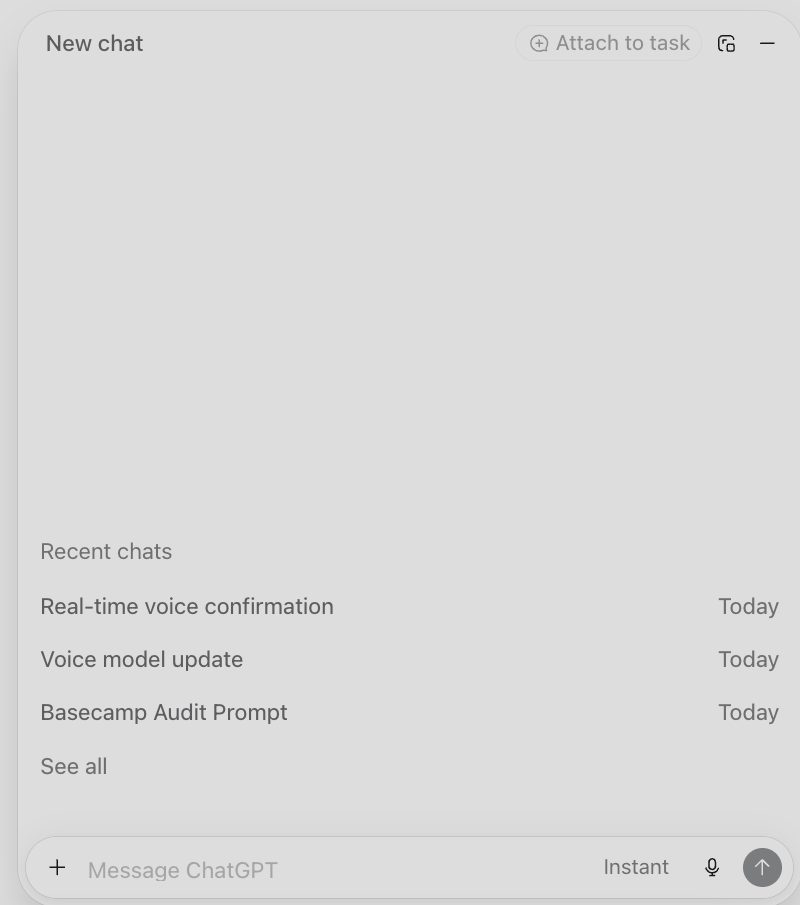
The move that works: keep ChatGPT Classic installed for voice and any custom GPTs you rely on, and do your new work in the new app. Two icons for a transition season is a reasonable price. Expect the missing features to arrive in the new app over the coming months; check OpenAI's changelog before assuming something is gone for good.
And treat the Work agent as a capable new hire rather than a continuation of your chat history. OpenAI has not published details on how much of your ChatGPT memory the agent uses when it works. The reliable path is the folder you built in Step 3: give it context directly instead of hoping it remembers.
When It Feels Slow, Stuck, or Confusing
Three frustrations are near-universal in week one. None of them mean you did it wrong.
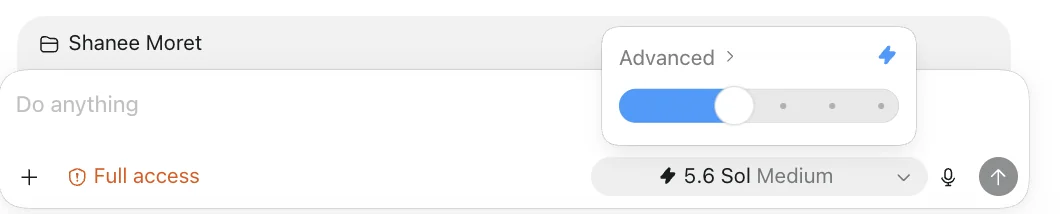
It takes minutes, sometimes longer. A chat answer streams in seconds. An agent task reads files, plans, works, and checks itself, and OpenAI says complex Work tasks can run for hours. Give it the task and go do something else. Watching the agent work is the new watching the kettle boil.
A connection stops working. Connected apps occasionally need to be signed in again, and Gmail is the most common offender. When the agent says it cannot reach a tool, go to Plugins, disconnect that app, and reconnect it. Two minutes. I keep a running list of these fixes, including the Gmail one.
The output is 80% right. Normal, and good news in disguise. Tell it what is wrong the way you would mark up a draft from a junior employee: the categories on rows 4 and 7 are wrong, use my phrasing from the March proposal, shorten the summary to half a page. The second pass is where it gets good, and the corrections teach it your standards for next time.
Common Questions
Is ChatGPT Work free? The desktop app is on every plan, including Free. The Work agent inside it is rolling out to paid plans first, and its tasks are metered against a usage allowance rather than unlimited.
Do I need a Mac? No. Mac shipped today, Windows is rolling out this week.
Did I lose my old chats? No. Same account, same history, now under Recent chats. Classic still has everything too.
Do I need to know how to code? No. Work mode takes plain language in and gives finished files back. Codex mode is the developer lane and you can ignore it entirely.
Is Codex gone? It became the new ChatGPT app. Anything you built in it (projects, skills, scheduled automations) carried over.
Is my data used for training? The same account-level controls you had in ChatGPT apply. Check Settings, Data controls, and if you are on Business or Enterprise, your workspace terms already exclude training.
Sources
- OpenAI: the ChatGPT Work announcement (July 9, 2026)
- ChatGPT Learn: What's new and Get started with Work (OpenAI's official docs)
- OpenAI Help: Moving to the new ChatGPT desktop app
- MacRumors, 9to5Mac, and Engadget launch coverage (July 9, 2026)
- The receipts-to-expense-report account (independent user writeup)
- Hacker News launch-day thread (source of the day-one confusion reports)
Bottom Line
Today's merge means the agent stopped being a separate app for technical people and started being the default way millions of owners will meet AI that does work.
The setup is six steps. The safety posture is four rules. The first task takes one folder of receipts and one pasted prompt.
The app changed overnight. Your advantage comes from giving it real work before your competitors finish arguing about the name.