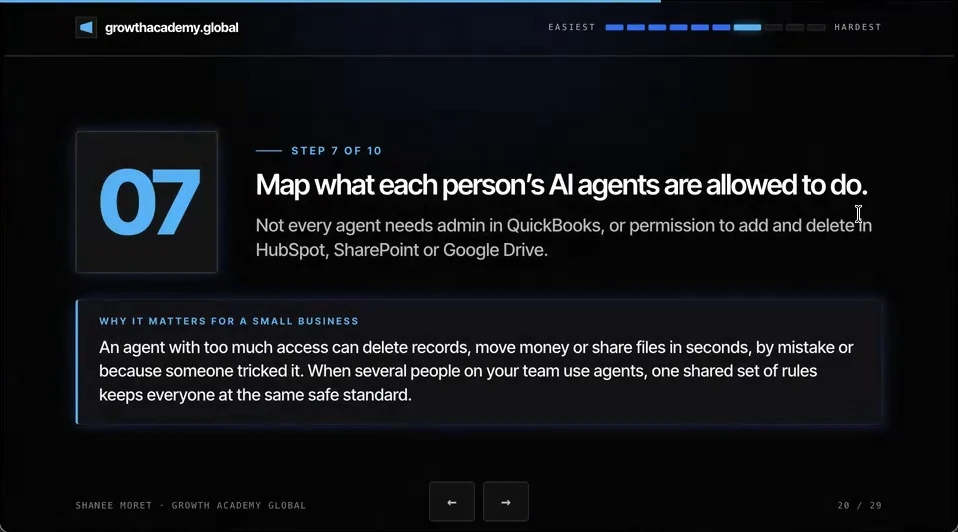
I'm Shanee Moret, founder of GrowthAcademy.Global. I have been teaching business owners to use AI since January 2023, and I implement agents inside established businesses with ChatGPT Work (Codex) and Claude. Step 7 of the 10 ways I protect a small business is to map what each person's AI agents are allowed to do.
An agent with too much access can delete records, move money or share files in seconds, by mistake or because someone tricked it. When several people on your team use agents, one shared set of rules keeps everyone at the same safe standard.
1. Why I start with the owner, then go top-down
This is why I start working with the business owner first, and then it's a top-down approach to implementing AI within the business. You want to really map this out, not just based on your current initiatives or on who the heavy hitters are among your AI users, but also on the unique processes and people you have within your business.
If you skip it, everyone connects their own agent with their own access, and you find out what each one could do only after something gets deleted. A partner of mine described a manufacturing company that turned on agents for every employee at once, with no training and no permissions set. When she asked whether that was really the plan, they asked what was wrong with it.
2. Map your agent permissions this week
How to map what each person's agents may do
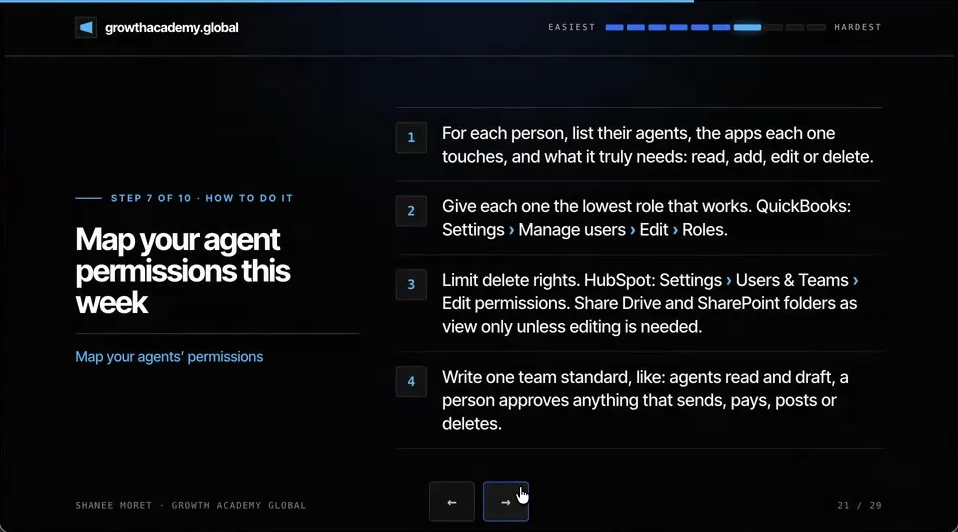
Step 1. For each person, list their agents, the apps each one touches, and what it truly needs: read, add, edit or delete.
Step 2. Give each one the lowest role that works. In QuickBooks Online, that's Settings, then Manage users, then Edit, and choose a role from the Roles list.
Step 3. Limit delete rights. In HubSpot, go to Settings, then Users & Teams, select the person, open the Access tab and choose Edit permissions. HubSpot lets you set delete rights per record type to All, Team, Own or None, and bulk delete is its own permission. Share Drive and SharePoint folders as view-only unless editing is truly needed.
Step 4. Write one team standard, for example: agents read and draft, and a person approves anything that sends, pays, posts or deletes.
When the app's own settings are not enough
You can customize these rights and permissions sometimes through the plugin, but sometimes that's just not enough. You may have to upgrade to an API key, which can be given narrower permissions than a full user login. Store any key in your password manager, never in a document or chat.
3. Decide whose agents maintain the structure
If everyone's agent can read, add, edit and delete in SharePoint or Google Drive, all it would take is one agent to wreak havoc: delete critical customer files, or edit the folder structure after you've made it agent-friendly with naming rules.
Then you have to ask yourself: whose agents are going to be responsible for maintaining the naming and organizational structure once it's updated? And whose agents are not going to be able to just edit or delete? Maybe they could add, but they won't be able to edit or delete.
And this goes for all your core systems, well beyond SharePoint and Google Drive. If the team standard says these people's agents maintain the filing structure and the HubSpot notes, then the other agents have to abide by that. I build these rules into a shared operating guide for the team's agents, which I call a HASOP.
Inside the tools themselves, keep approval turned on for anything that sends, publishes, pays, deletes or changes a live system. If ChatGPT Work keeps asking permission for safe actions, tune the approvals rather than switching them all off.
Here's how to do this for yourself:
- Make a table with one row per person and columns for each agent, each app it touches, and read, add, edit or delete.
- Lower every role in QuickBooks, HubSpot, Drive and SharePoint to the minimum that row needs.
- Turn off delete for every agent that doesn't maintain that system, and turn off bulk delete for everyone but owners.
- Name the one or two people whose agents maintain your folder structure and CRM notes.
- Write the team standard in one line: agents read and draft, a person approves anything that sends, pays, posts or deletes.
Give each agent the job description, not the master key.
Questions business owners are asking
What permissions should an AI agent have in my business apps?
Only what its job needs, broken into four levels: read, add, edit and delete. Most agents only need to read and draft. A few, chosen on purpose, may add or edit in one system, and very few should ever delete. Write the map down per person, because an agent inherits the access of the person who connected it.
Why do agent permissions matter if my team means well?
Because mistakes happen at machine speed. An agent can misread an instruction, loop on a task, or be tricked by text hidden in an email or web page it reads. With delete rights in your CRM or shared drive, any of those can remove client records in seconds. Limiting permissions means a mistake costs a draft, not a database.
How do I restrict what an AI agent can delete in HubSpot or Google Drive?
Restrict the person or the connection the agent uses. In HubSpot, edit the user's permissions under Settings, Users & Teams, and set delete for each record type to None or Own, with bulk delete off. In Google Drive or SharePoint, share folders as view-only and give edit rights only to the people whose agents maintain that folder. If a plugin can't be limited enough, use an API key with narrower permissions.
What is a team standard for AI agents?
A short written rule everyone's agents follow, so the business doesn't run on five people's personal settings. A good starting line: agents read and draft, and a person approves anything that sends, pays, posts or deletes. Add who maintains the folder and naming structure, and which agents may only add, never edit or delete.
Key moments in the video
- 11:26 Map what each person's agents may do
- 11:43 One shared set of rules for the team
- 11:51 Why I start with the owner, top-down
- 12:14 Read, add, edit or delete for each agent
- 12:45 One agent can wreak havoc in a shared drive
- 13:05 Whose agents maintain the structure?
- 13:36 Plugin permissions vs. an API key
- 13:39 Write one team standard
Sources
Official / Primary Sources
- QuickBooks Online: Add and manage users. Path: Settings, Manage users, Edit, then choose a role. Custom roles are a QuickBooks Online Advanced feature.
- HubSpot Knowledge Base: Manage user permissions. Path: Settings, Users & Teams, select the user, Access tab, Edit permissions.
- HubSpot Knowledge Base: HubSpot user permissions guide. Delete rights can be set per CRM object to All, Team, Own or None, and bulk delete is a separate permission.
- 10 Ways to Protect Your Small Business Now That AI Can Call You. Shanee Moret on YouTube, published October 13, 2026; the article above is drawn from this video.