This week a mathematician found out the hard way that a paid ChatGPT subscription is not a privacy agreement. Tristan Buckmaster put a year of unpublished proofs into Codex sessions on tools he paid for himself. When OpenAI announced a result in the same area, its statement said no user data was looked up, and that it “cannot rule out” that de-identified data from his usage helped improve its models. The full story is here. This post is the practical part: the two settings that stop your own work from feeding the model, and what happened when we filed the second one.
Both steps take under five minutes. Most people know the first one. Almost nobody does the second, which is the one OpenAI describes as a permanent opt-out.
Who this is for
Personal ChatGPT accounts: Free, Plus, and Pro. That includes most business owners, and most of their teams, even when the company pays for the seat. If you are on ChatGPT Business, Enterprise, or Edu, OpenAI does not train on your workspace data by default and your administrator owns the settings, so you can stop reading. If you are not sure which one you have, step one shows you.
Step 1: turn off “Improve the model for everyone”
Go to chatgpt.com. At the bottom left, click your name. Click Settings, then Data Controls.
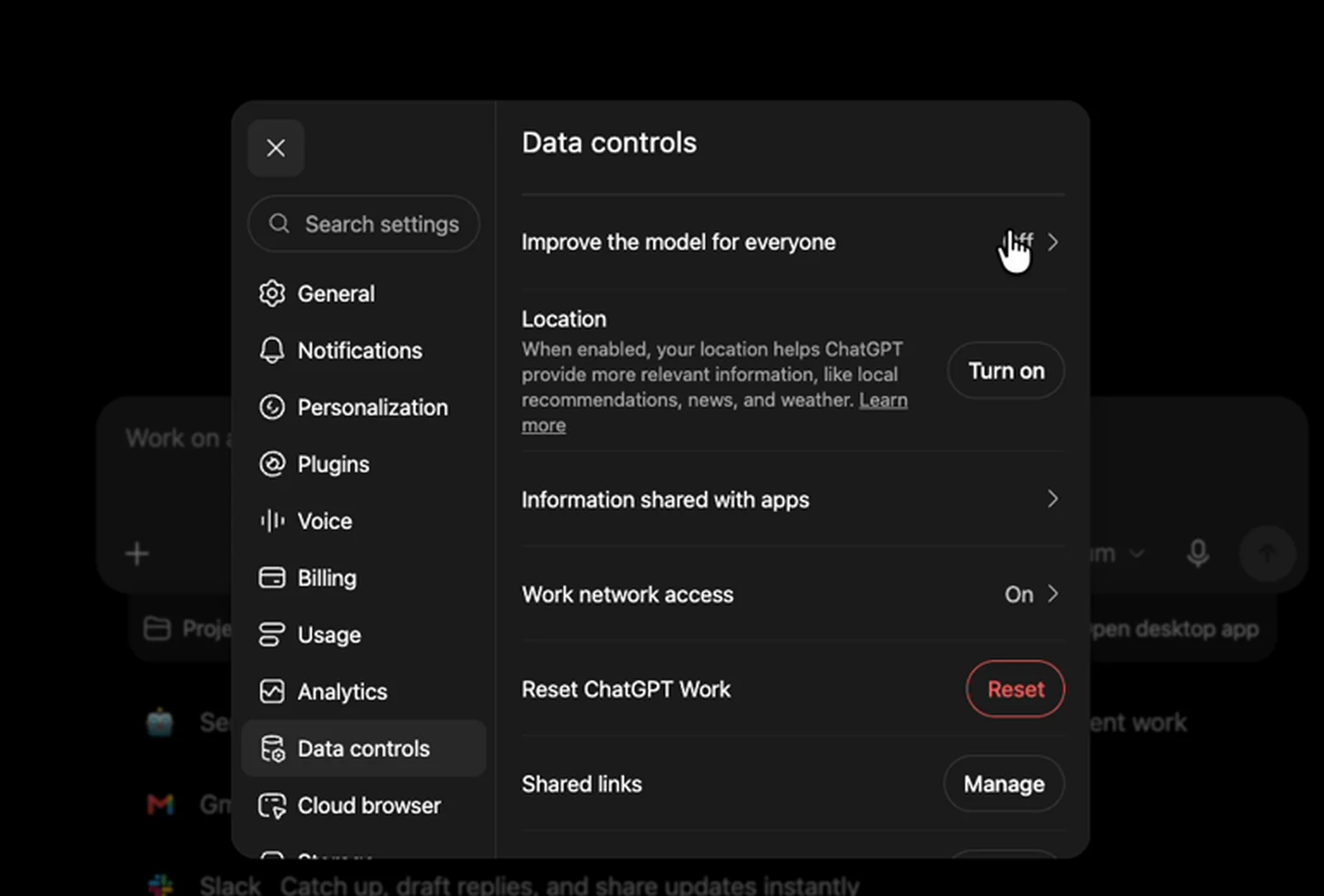
Click Improve the model for everyone and make sure it is off. On the Model improvement screen there are two more toggles, one for voice and one for video. Turn those off too.
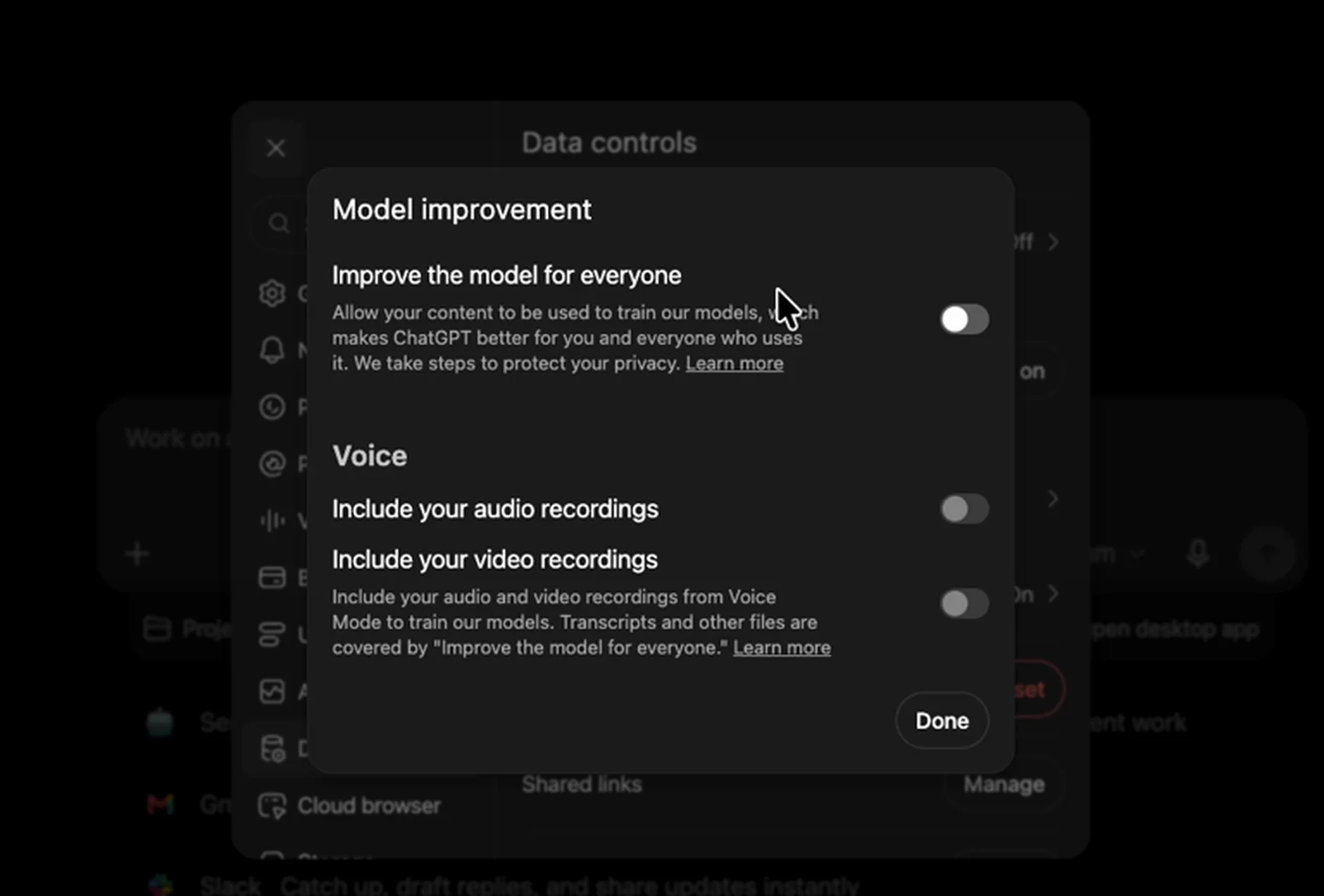
OpenAI says this setting applies to your whole account, on every device, so you do not repeat it in the desktop app or on your phone. Your conversations still show in your history; they are no longer used to improve the model going forward.
Step 2: file the “Do not train on my content” request
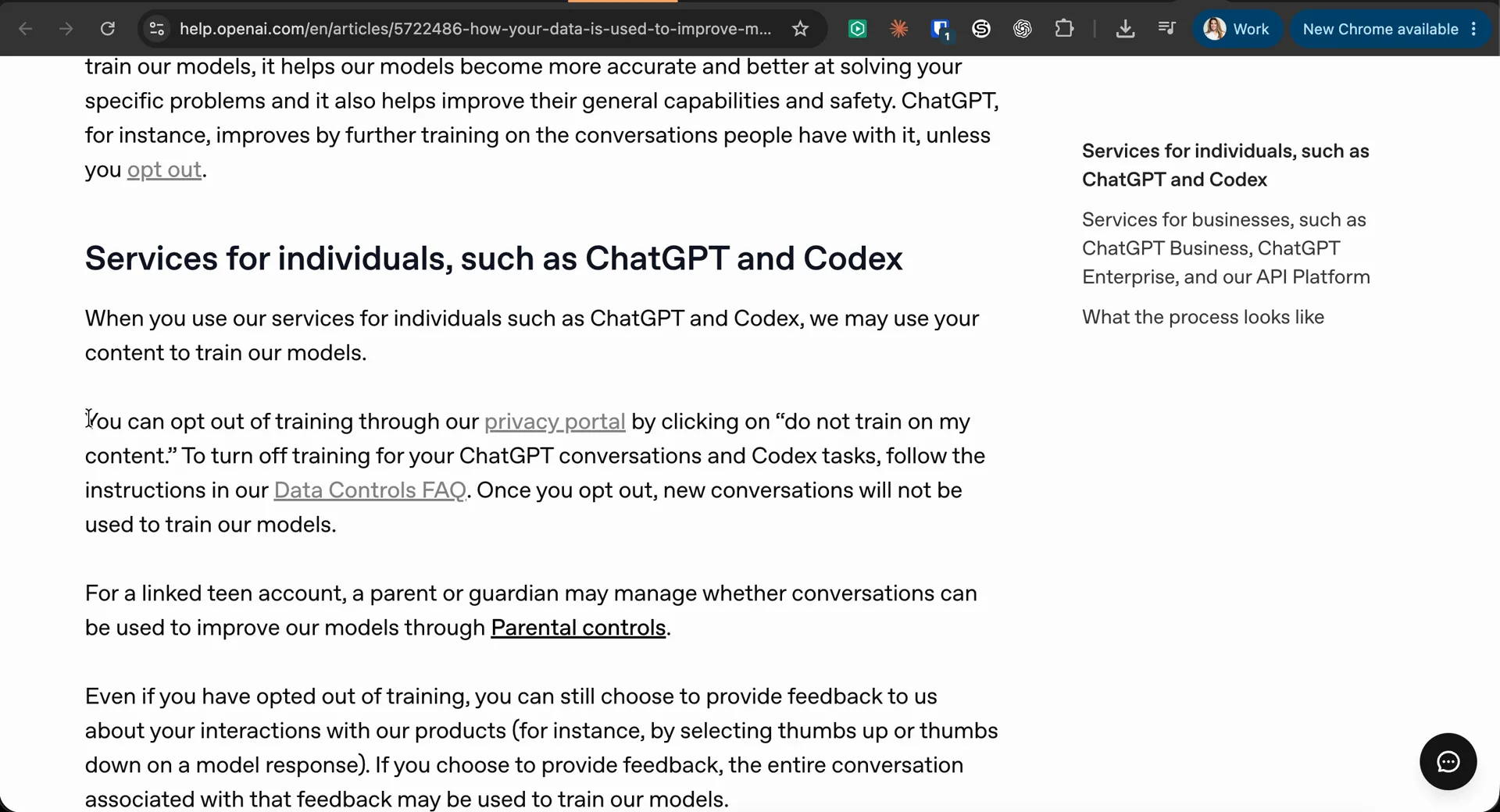
This is the one most people miss. On the Data Controls screen, click Learn more. It opens OpenAI’s help article on how your data is used to improve model performance. Under the heading for individuals using ChatGPT and Codex, the second paragraph says you can opt out of training through a privacy portal by clicking “do not train on my content.”
Or go straight there: OpenAI’s Privacy Portal. You will see a set of options: download my data, do not train on my content, delete my ChatGPT account, delete my GPTs, and remove personal data from ChatGPT responses.
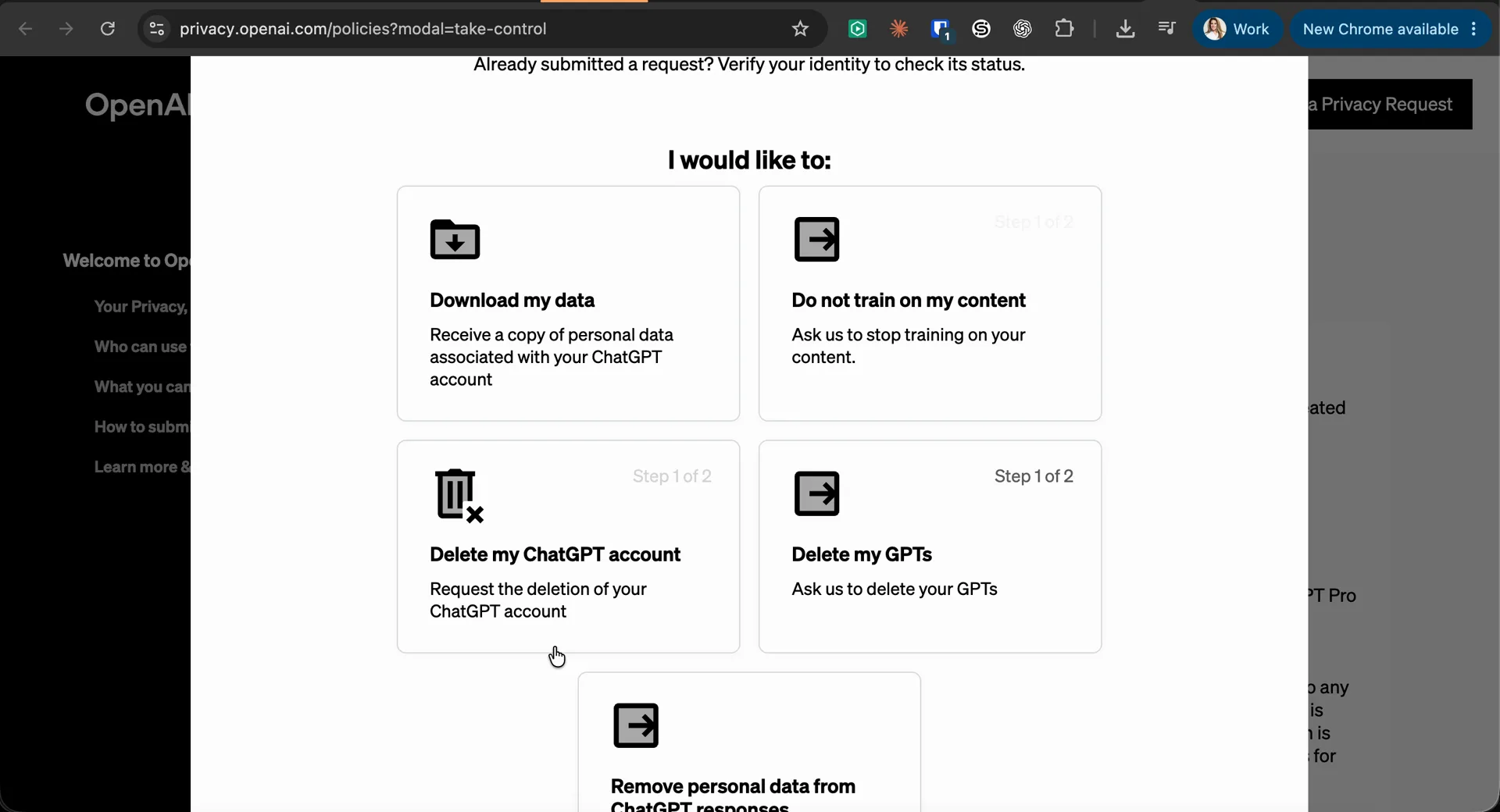
Click Do not train on my content. You will be asked to sign in again, and to verify with your authenticator app, a push notification, or an email code. That second login is normal; it is the portal confirming the account the request applies to. If you have more than one workspace, choose Personal account.
Read the request text, tick I understand, choose your country and state, and click Submit request.
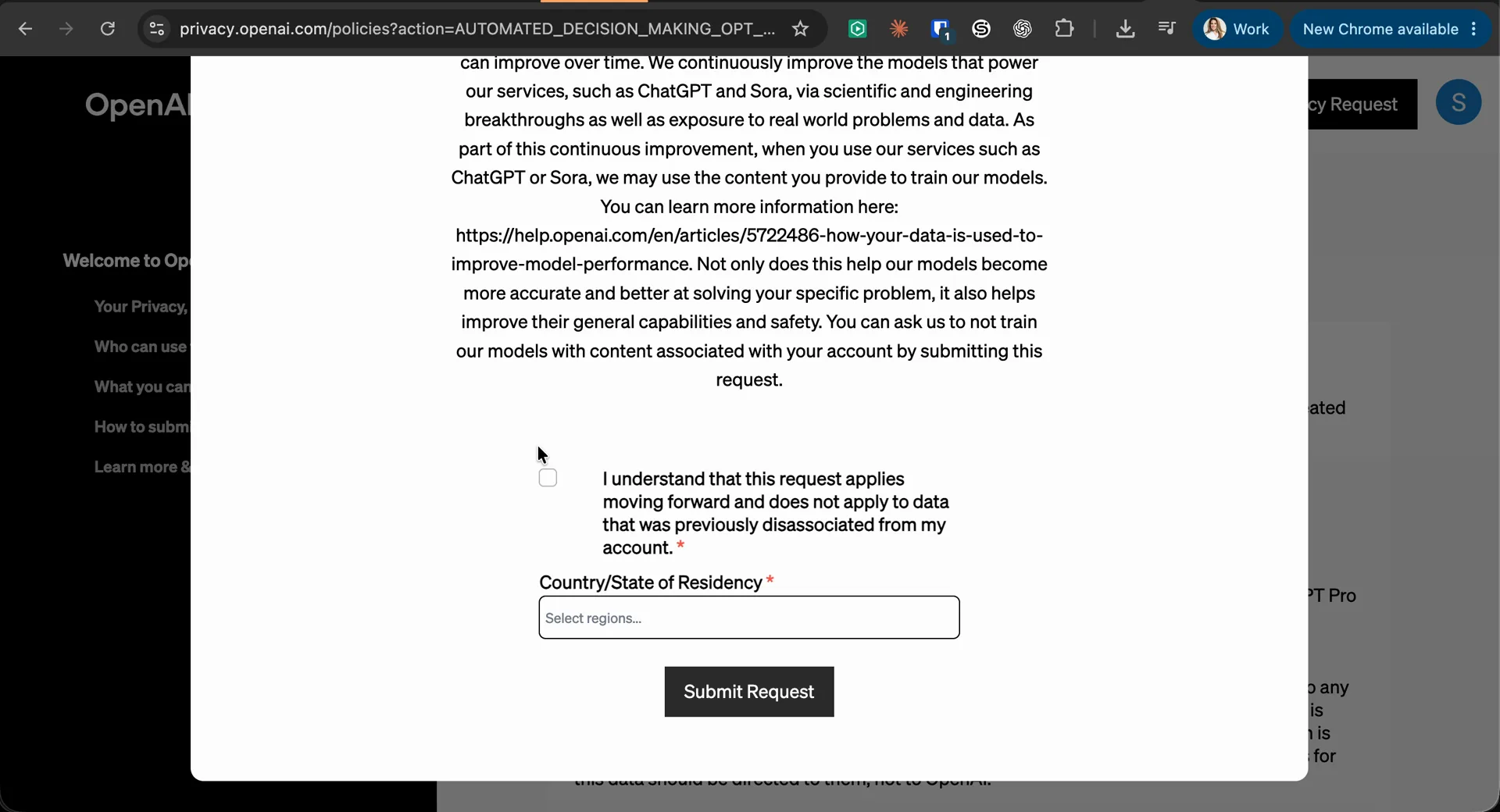
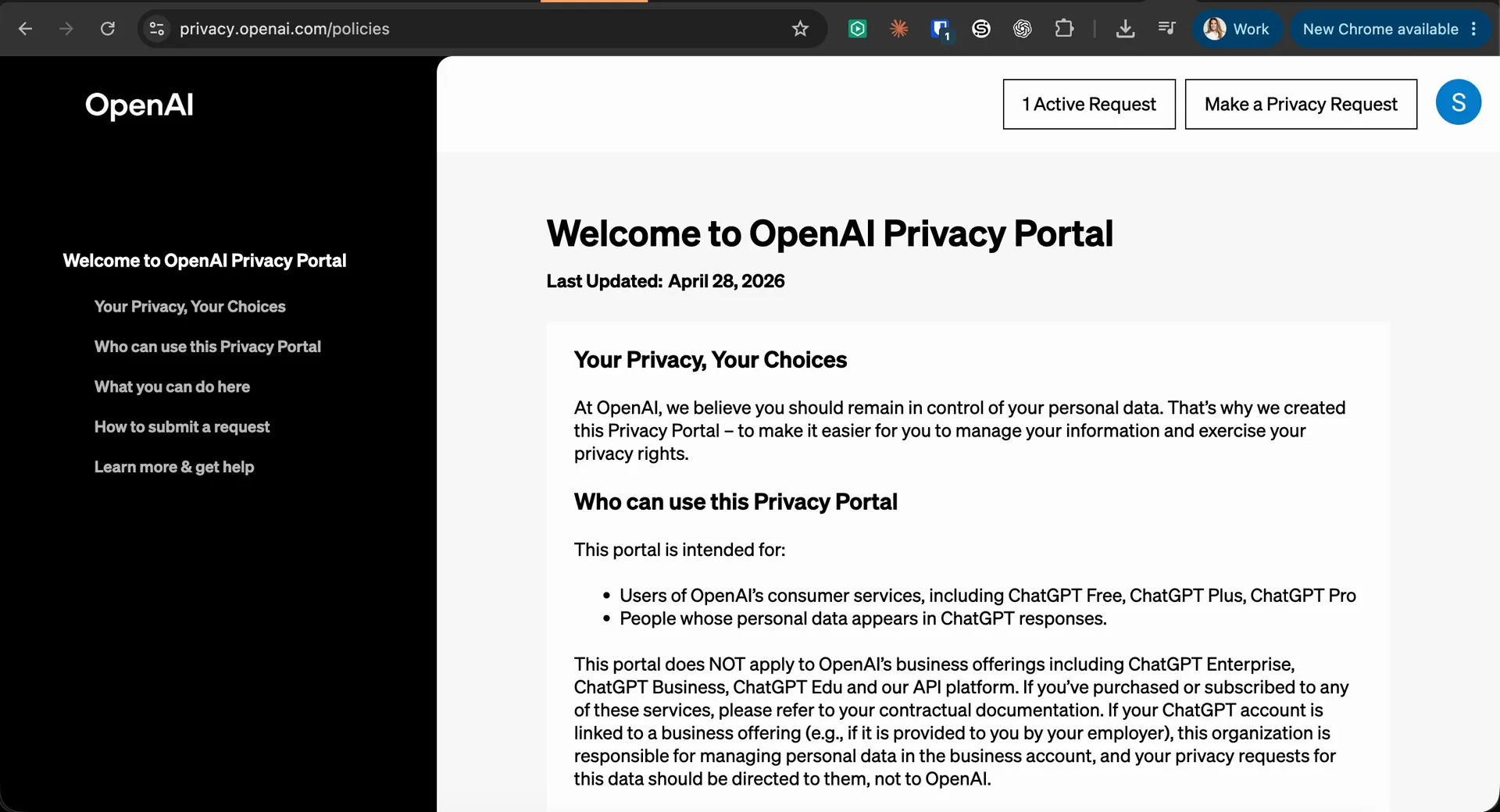
The portal then shows 1 Active Request, and the page says you will get an email when the request has been processed.
Credit where it is due: we knew about the toggle. Eduardo Contente pointed out on X that the second step exists and has to be filed as a formal request.
What happened next
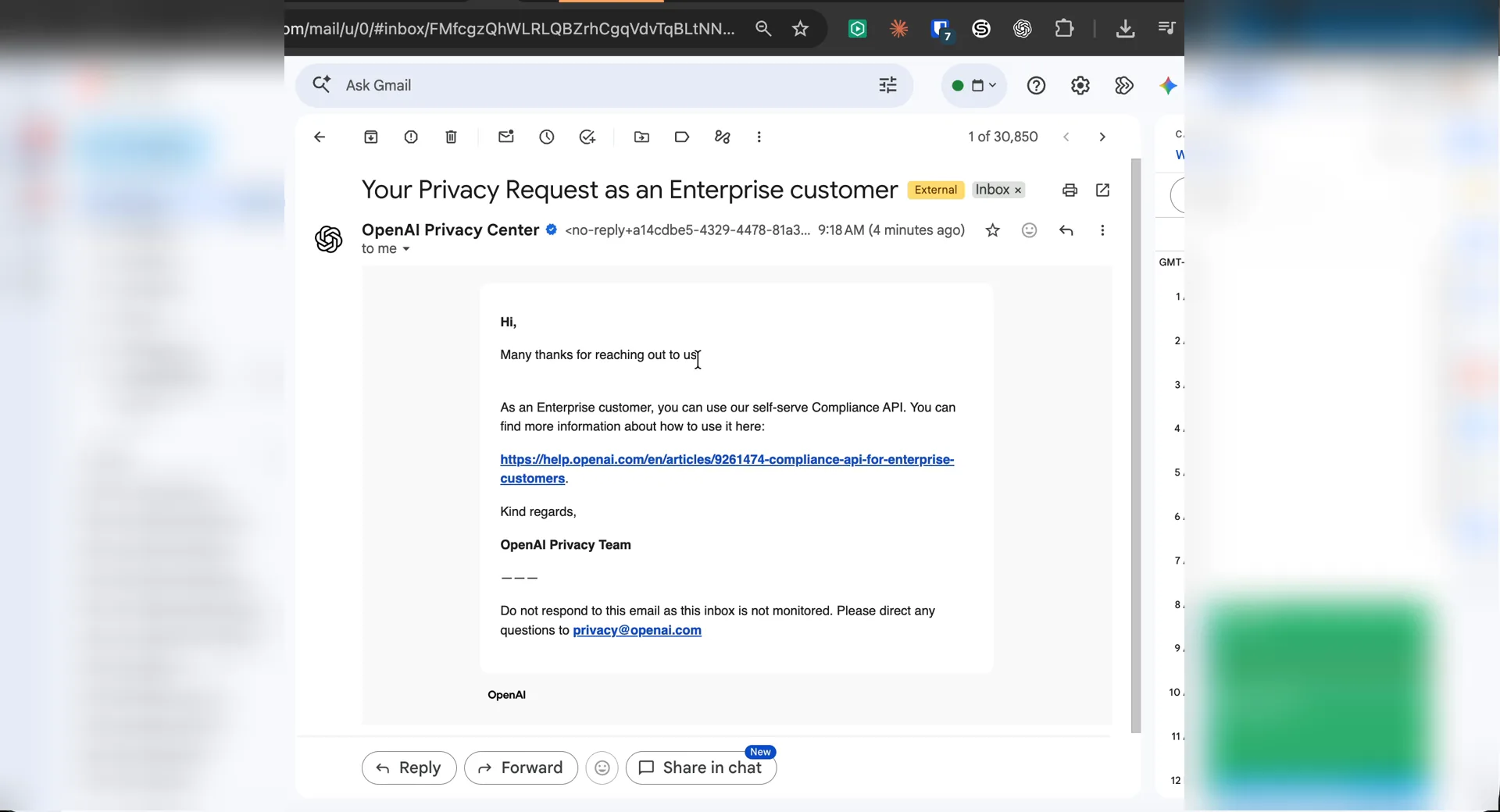
Within a minute of submitting, two emails arrived. The first said the request had been received and OpenAI was working on it. The second was titled “Your Privacy Request as an Enterprise customer” and pointed to a self-serve compliance API for enterprise customers.
Then the portal changed its mind. Active requests went from one to zero, and a notice said the data request had been canceled: “Rest easy. Your data is safe. We will no longer process your request.”
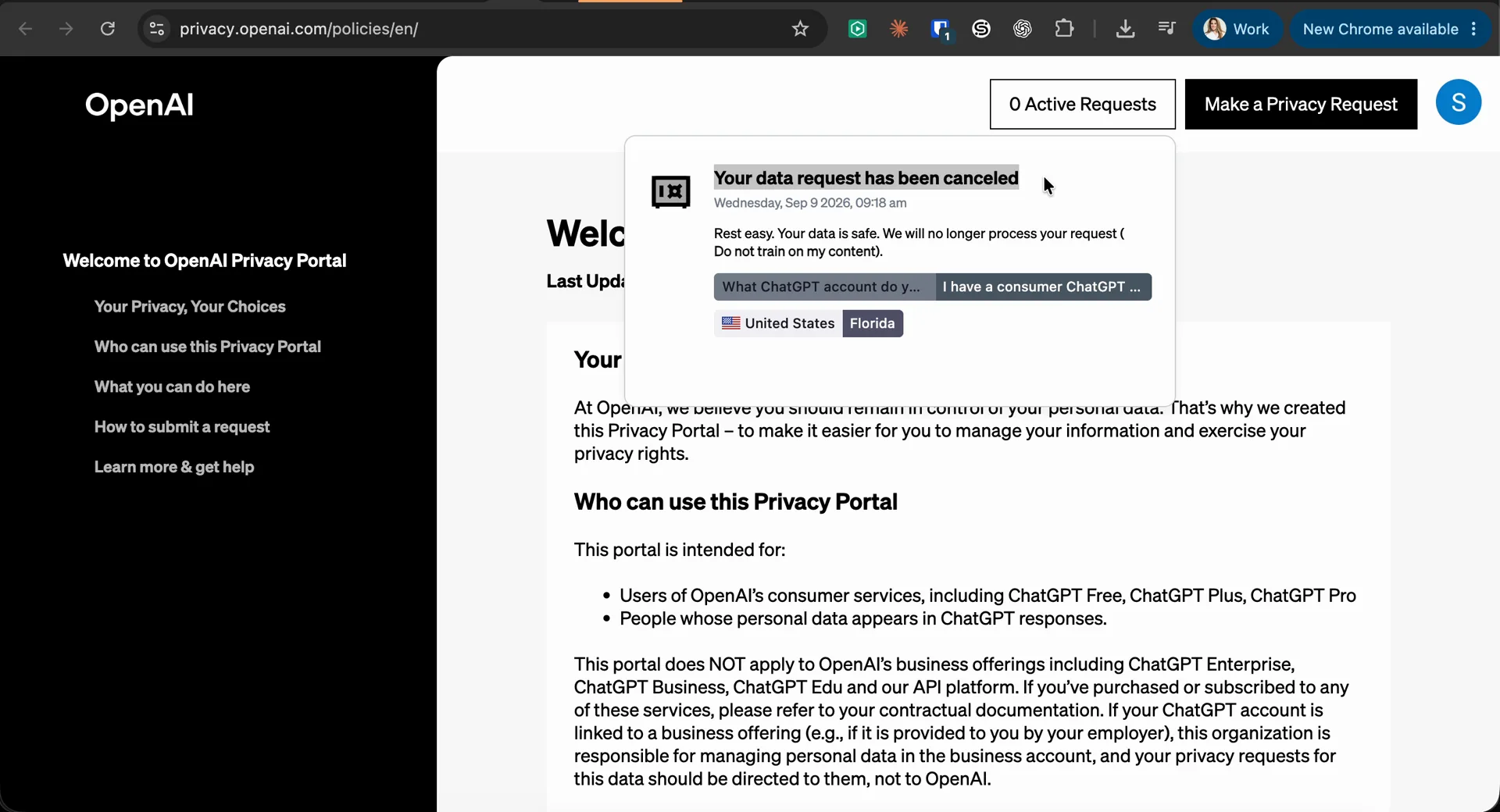
We do not know why. The request may have been routed to the enterprise path by the workspace attached to the account. The fix we are trying is to file it again and make sure the request is verified as a consumer ChatGPT account, which the portal asks about on the way in. This post will be updated when the second attempt is processed either way.
If yours is canceled too, that is normal for this week, and it is not a sign you did something wrong. File it again, keep the confirmation emails, and note the date. A canceled request is still a dated record that you asked.
Here’s how to check it took:
Paste this into ChatGPT inside the account you just changed. It will not change any settings; it tells you what the account is and where the switches are, so you can confirm them yourself.
Which plan and workspace am I signed into right now? Under this plan, are my conversations, uploaded files, or Codex sessions used to train or improve your models by default, and where exactly is the setting that turns that off? Cite the official OpenAI documentation page for each answer.
Then open Settings, then Data Controls, and look at the toggle with your own eyes. The model can describe its own terms wrong.
What these two steps do not do
- They do not reach back. The request form says it applies moving forward. Delete old conversations separately if you want them gone.
- They do not make local work local. When the ChatGPT desktop app or Codex works on files on your computer, OpenAI’s own documentation says excerpts, prompts, screenshots, and tool results may still be sent to OpenAI to complete the task. Training is one question. Transmission is another.
- They do not cover connected apps. A Gmail or Drive connector follows the source system’s rules. Check each one.
- They do not replace a business plan. If the work is the business, meaning methods, pricing, client data, and unreleased offers, put it on a workspace where no-training is the default and someone can see the settings.
Questions business owners are asking
Does turning off “Improve the model for everyone” cover Codex too?
OpenAI’s Data Controls FAQ says the setting applies to your whole account, on every device, so it is not a per-app switch you have to repeat in the desktop app. What the public documentation does not spell out is Codex by name. Treat it this way: turn the toggle off, file the portal request as well, and if you run confidential work through Codex on a personal plan, ask OpenAI in writing whether your Codex sessions fall under the setting. If the answer matters to your business, move that work to a Business workspace, where training is off by default.
I have ChatGPT Business, Enterprise, or Edu. Do I need to do this?
No. OpenAI says it does not train on workspace data from those plans by default, and the Privacy Portal itself says it is not for business offerings. Your workspace administrator owns those settings. The steps above are for personal Free, Plus, and Pro accounts, which is what most owners and their teams are actually signed into, even when the company pays for the subscription.
If I turn training off, does OpenAI delete what it already has?
No. The toggle stops future conversations from being used to improve the model. The portal request form says the request “applies moving forward and does not apply to data that was previously disassociated from your account.” If you want your history gone, deleting conversations is a separate action, and OpenAI’s own documentation says deleting a conversation does not immediately purge every related artifact. Think of the two steps as closing the tap, not draining the tank.
Does a “keep this confidential” instruction inside a chat do anything?
It changes how the model answers you in that conversation. It does not change OpenAI’s terms or your account settings. Only the account setting, the portal request, or a business plan changes what happens to your data after the chat ends.
Is temporary chat enough?
Temporary Chats are not used for training and are deleted after 30 days, but they also do not save to history or create memories, so you lose the thread. They are a good habit for one-off sensitive questions, and a poor substitute for fixing the account setting once.
Sources
- OpenAI Help Center: Data Controls FAQ. Checked September 9, 2026.
- OpenAI Help Center: How your data is used to improve model performance. Checked September 9, 2026.
- OpenAI Privacy Portal. Portal text last updated April 28, 2026; checked September 9, 2026.
- ChatGPT Work cloud security and local security documentation.
- The OpenAI Navier-Stokes drama, explained, Growth Academy Global.
The screenshots above were taken on September 9, 2026 from a personal ChatGPT Pro account. Unrelated inbox contents have been blurred.
The toggle is the polite request. The portal is the paper trail.