Here's a really fast way to check your usage, your weekly usage inside of the Claude Code desktop app. You're going to start a new chat, you're going to click slash, no spaces in between, you're going to type usage, and then you're going to click enter.
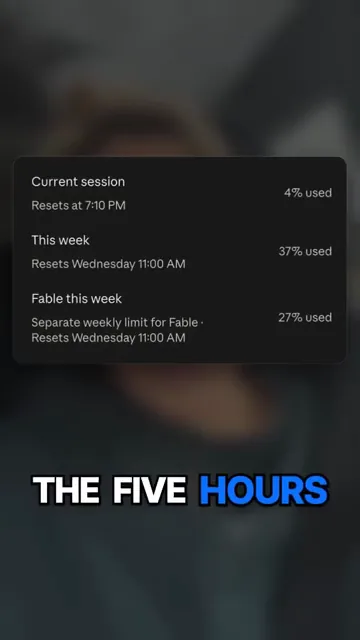
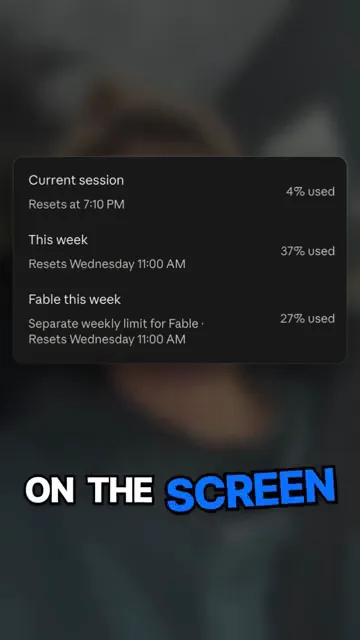
Your usage that you have left for the five hours, for the week, and specifically for Fable will come up on the screen.
I showed the same screens in my longer walkthrough on using Codex and Claude Code without burning your usage. And just so you know, I have a Max 20X subscription too, and I am very surprised that I have not reached my usage limit with Opus 5.5 for the last week or two. It's actually been pretty incredible that I haven't.
1. Go to a new chat, click slash with no spaces, and type usage
To check your usage inside of the Claude Code desktop app, all you will have to do is go to a new chat. You may see some chat suggestions show up over here. You just have to X out of them, and then once you do, you'll see this.
- Go to a new chat in the Claude Code desktop app.
- X out of any chat suggestions that show up.
- Click slash, no spaces in between, and type usage.
- Click enter.
Another way that you can see your usage inside of the ChatGPT desktop app is you could click slash and then status. I have 70% left there and it resets in two days.

2. You could also see the models that you use, and what they burned in seven days
As you can see in that walkthrough, just in seven days I've had 550 sessions, 26,000 messages and 6.2 billion tokens. That's wild. But I've been really cooking with Opus 5.5.
Tokens are the small pieces of text a model reads and writes, and they are the unit your plan meters you on. You could also see the models that you use. And just so you know, I have a Max 20X subscription too, and I am very surprised that I have not reached my usage limit with Opus 5.5 for the last week or two. It's actually been pretty incredible that I haven't.
3. Read the current session, this week, and Fable, because Fable is monitored on a different basis
When you do the slash usage inside of Claude Code, you'll see that here's the current session, here's this week, and then here's Fable, because Fable is monitored on a different basis. My Fable resets Wednesday at 11:00 AM. Currently, today is Thursday, and I've already used 32% of this current session. I've used 23% of the week, so there's still six days left, and I've used 20% of Fable.
However, you do have to use your resets. As you can see, they expire. So before you just say, "Hey, I don't have usage," and you click add more to buy, you want to make sure that you don't have resets. Also, if you're going to do automatic reload, be very careful, because it could just charge your credit card or whatever you have on here.
You could also toggle this, and it will allow Codex to use the reset. So if I hit a usage limit, it will automatically roll and use one of these resets.
Here's how to check your usage this week:
- Go to a new chat in the Claude Code desktop app and X out of any chat suggestions that show up.
- Click slash, no spaces in between, type usage, and click enter.
- Write down the current session, this week, and Fable, plus the day and time your Fable resets.
- Before you click add more to buy, make sure that you don't have resets sitting there unused, because they expire.
- Toggle the setting that lets your agent use a reset when you hit a usage limit, and leave automatic reload off until you have decided you want the charge.
Before you just say, "Hey, I don't have usage," and you click add more to buy, you want to make sure that you don't have resets.
Questions business owners are asking
How do I check my Claude Code usage limit?
Go to a new chat in the Claude Code desktop app, click slash with no spaces in between, type usage, and click enter. What is left for the current session, for the week, and specifically for Fable comes up on the screen. In her longer walkthrough Shanee had used 32% of the current session, 23% of the week with six days left, and 20% of Fable. You do not have to open settings or a billing page to see any of it.
What does the Claude Code usage screen actually show?
It shows three readings: the current session, this week, and Fable, because Fable is monitored on a different basis and has its own reset. Shanee's Fable resets Wednesday at 11:00 AM, so she treats it as a separate clock rather than part of the weekly number. The new chat screen also carries recent activity before you run anything, including sessions, messages, tokens and the models you have been using. In seven days hers showed 550 sessions, 26,000 messages and 6.2 billion tokens.
Do I need to open settings to see my Claude Code usage?
No. The route Shanee shows is the Claude Code desktop app, and the command is typed straight into a new chat. You click slash with no spaces, type usage, and press enter, and the reading appears in the chat. The ChatGPT desktop app uses the same style of command, except there the word is status, which showed her 70% left resetting in two days.
Should I buy more Claude Code usage when I hit a limit?
Check your resets first. In the longer walkthrough Shanee pulls up the resets screen and points out that they expire, so before you say you don't have usage and click add more to buy, make sure you don't have resets already sitting there. She also toggles the setting that lets the agent use a reset automatically when she hits a usage limit, so the work keeps rolling. She warns against automatic reload, because it could just charge the credit card you have on file.
Key moments in the video
- 0:00 The fast way to check your weekly usage
- 0:06 Start a new chat
- 0:10 Type slash usage with no spaces
- 0:14 What is left for the five hours and the week
- 0:17 Fable usage on screen
Sources
Official / Primary Sources
- How to check your usage in Claude Code (Shanee Moret). The Short itself: the slash usage command path in the Claude Code desktop app, published 2026-10-02.
- 20 Ways to Use Codex and Claude Code Without Burning Your Usage (Part 1). Shanee's own screen recording of the usage panel, her seven-day numbers, the Fable reset day, the resets screen and toggle, and the ChatGPT slash status check.
- How to check your usage in Claude Code. Shanee Moret on YouTube, published October 2, 2026; the article above is drawn from this video.