I'm Shanee Moret, founder of GrowthAcademy.Global. I have been teaching business owners to use AI since January 2023, and when I help a business connect agents to its email and apps, the first thing I check is two-factor. I see a lot of people starting to play with agents who don't even have their two-factor turned on. And on top of that, their two-factor is usually a second email.
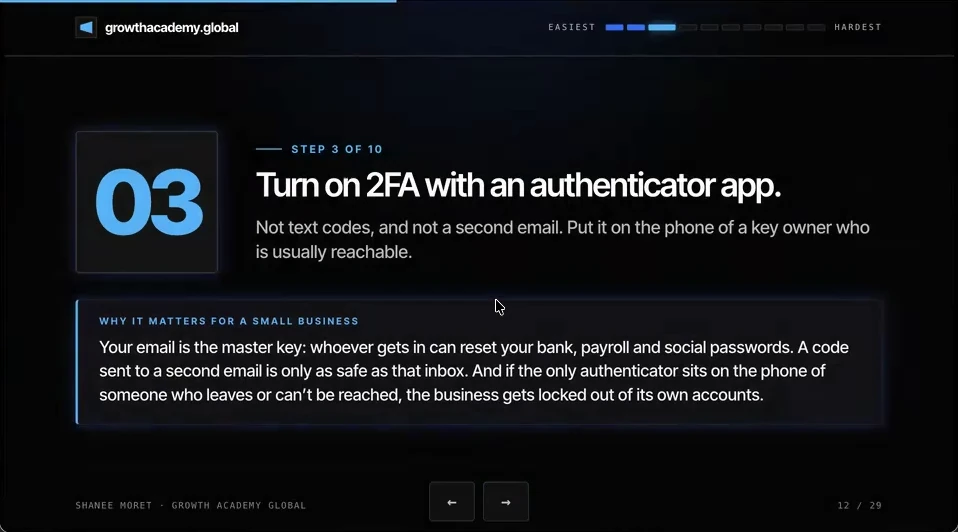
Your email is the master key: whoever gets in can reset your bank, payroll and social passwords. A code sent to a second email is only as safe as that inbox. Ideally, what you want is for the two-factor to be an authenticator app.
1. Why an authenticator app beats a text or a second email
A text-message code can be stolen by someone who talks your phone carrier into moving your number. A code sent to a backup email is only as safe as that backup inbox. An authenticator app generates the code on a physical phone, and it changes every thirty seconds or so.
The U.S. Cybersecurity and Infrastructure Security Agency ranks the options from strongest to weakest: security keys and passkeys first, authenticator apps next, and text or voice codes last. Its 2024 mobile guidance says not to use SMS as a second factor at all. For most small businesses, the authenticator app is the practical step up you can do this afternoon, and passkeys are the step after that where your apps offer them.
2. Put it on the phone of someone who is reachable
If you're going to do this for organization-wide accounts within your business, you want to make sure that the person who holds the keys to the authenticator app is also available when you need the code, because it will roll. Every thirty seconds there will be a new code.
If that person is traveling a lot, or is busy, or is unavailable a lot of the time, then whenever you do need access, if they are the only one holding the keys, you're going to have to wait. You're not going to be able to get in. Key owner is the keyword here.
I watched this happen on a client call: the verification code for the website domain went to a coworker's cell phone, so someone had to call him in the middle of the meeting and have him read the code out loud. Codes belong with the person who manages the account, in an app, and should never be read over the phone.
3. Set up two-factor this week
How to turn on authenticator two-factor for a Google account
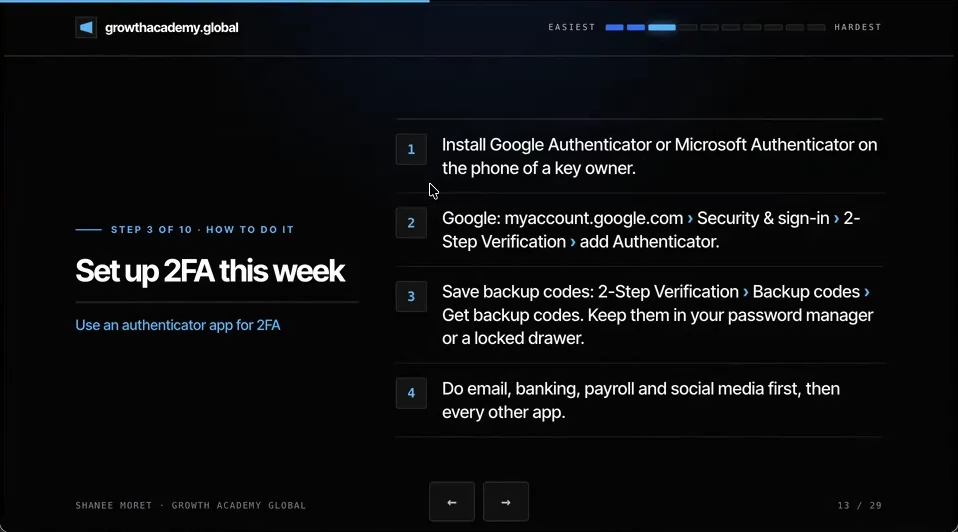
Step 1. Install Google Authenticator or Microsoft Authenticator on the phone of a key owner. Get it from your phone's app store, or from Microsoft's official Authenticator page. Pick one app for the whole team and write down which accounts live in it. I have seen a team member stuck on login codes because she had both apps installed and the account was tied to the one she wasn't opening.
Step 2. Turn on 2-Step Verification and add the authenticator. In Google, go to myaccount.google.com, then Security & sign-in, then 2-Step Verification, and turn it on. On the same page, choose Authenticator and scan the code with the app.
Step 3. Save your backup codes. In 2-Step Verification, open Backup codes and choose Get backup codes. Keep them in your password manager or a locked drawer, away from your laptop. They are how you get in if the phone is lost.
Step 4. Do email, banking, payroll and social media first, then every other app.
How to find every account that needs it
Audit all the tools you have, then go through them one by one. Check whether two-factor is turned on, whether it runs through the authenticator app or a phone, and if it's a phone, which phone. It may be a previous phone of yours, or somebody else's phone. That is how you find, and reset, the mess.
You can ask ChatGPT Work (Codex) or Claude to make the list for you from your password manager export or your credit card statement, and to walk you to the two-factor settings page in each app.
Here's how to do this for yourself:
- Choose one authenticator app for the whole team and install it on the key owner's phone.
- Turn on authenticator two-factor for your business email first.
- Save the backup codes in your password manager or a locked drawer.
- Do banking, payroll and social media next, then list every other app and work down it.
- For any shared account, name the key owner and a backup person who can be reached.
Two-factor that only one unreachable person can pass is a lock with the key on vacation.
Questions business owners are asking
Is an authenticator app safer than text message codes?
Yes. A text code depends on your phone number, and a scammer can sometimes talk a carrier into moving your number to their phone. An authenticator app creates the code on the phone itself and changes it every thirty seconds or so, so there is nothing to intercept on the way. CISA ranks app codes above text codes, and security keys or passkeys above both.
Why not use a second email as the two-factor method?
Because the code is only as safe as that second inbox. If the backup email has a weak or reused password, getting into it gets the attacker into your main email too, and your main email can reset almost everything else, including bank and payroll logins.
Who should hold the authenticator for shared business accounts?
A key owner who is usually reachable, plus a named backup. If the only authenticator sits on the phone of someone who travels constantly, is in meetings all day, or leaves the company, the business gets locked out of its own accounts. Write down which person holds which account's codes.
What happens if I lose the phone with my authenticator app?
You sign in with one of your backup codes and then set up the authenticator again on the new phone. That is why the backup codes have to live somewhere other than the phone, such as your password manager or a locked drawer. Without them, you are stuck going through each company's account recovery, which can take days.
Which accounts should get two-factor first?
Email first, because it can reset the rest. Then banking, payroll and social media, then your domain registrar and every AI account, then every other app on your list.
Key moments in the video
- 3:27 Turn on two-factor authentication
- 3:41 Owners playing with agents with no 2FA
- 3:51 Use an authenticator app, not a second email
- 3:55 The key owner has to be reachable
- 4:26 Install Google or Microsoft Authenticator
- 4:41 Audit every tool one by one
- 5:02 Email, banking, payroll and social first
Sources
Official / Primary Sources
- CISA: Implementing Phishing-Resistant MFA. Fact sheet ranking MFA from strongest (security keys and passkeys) through authenticator apps to SMS and voice codes (weakest).
- CISA: Mobile Communications Best Practice Guidance. December 2024. Advises against SMS as a second factor and recommends authenticator codes where phishing-resistant options are not available.
- Microsoft Authenticator. Microsoft's official authenticator app page.
- Google Account Help: Turn on 2-Step Verification. Path: myaccount.google.com, Security & sign-in, How you sign in to Google, Turn on 2-Step Verification.
- Google Account Help: Get verification codes with Google Authenticator. How to add Google Authenticator as a second step from the 2-Step Verification page.
- Google Account Help: Sign in with backup codes. Path: Security & sign-in, 2-Step Verification, Backup codes, Get backup codes.
- 10 Ways to Protect Your Small Business Now That AI Can Call You. Shanee Moret on YouTube, published October 13, 2026; the article above is drawn from this video.